Sanction Screening
Sanction screenings can be performed with 365 business Sanction Screen in Microsoft Dynamics 365 Business Central for various entities. The results of the screenings are displayed in the respective card view and can be further processed.
Types of Sanction Screenings
365 business Sanction Screen provides two types of sanction screenings:
- Manual sanction screening
- Automated sanction screening
InfoTo ensure optimal sanction list screening, we recommend configuring the screening intervals of individual entities (e.g., customer) in the Sanction Screen Setup and using the automated screening.
Supported Entities
The following Microsoft Dynamics 365 Business Central entities are supported by 365 business Sanction Screen:
- Customer
- Bank Account
- Ship-to Address
- Vendor
- Bank Account
- Remit Address
- Order Address
- Contact
- Bank Account
- Employee
InfoSanction screening with 365 business Sanction Screen is open for custom entities.
For more information, see here.
For more information, see here.
Additionally, the following documents are supported:
- Sales Documents
- Sales Quote
- Sales Order
- Sales Invoice
- Sales Credit Memo
- Purchase Documents
- Purchase Quote
- Purchase Order
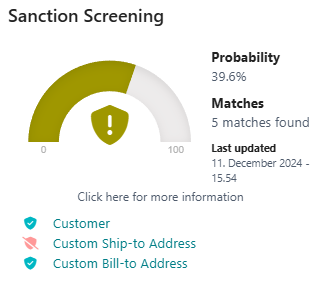
Good to knowWhen screening documents, the different addresses (e.g. ship-to address) are checked individually if they differ. Additionally, it is checked whether the address has already been checked (e.g. customer address), and the corresponding source is displayed:
Performing a Sanction Screening
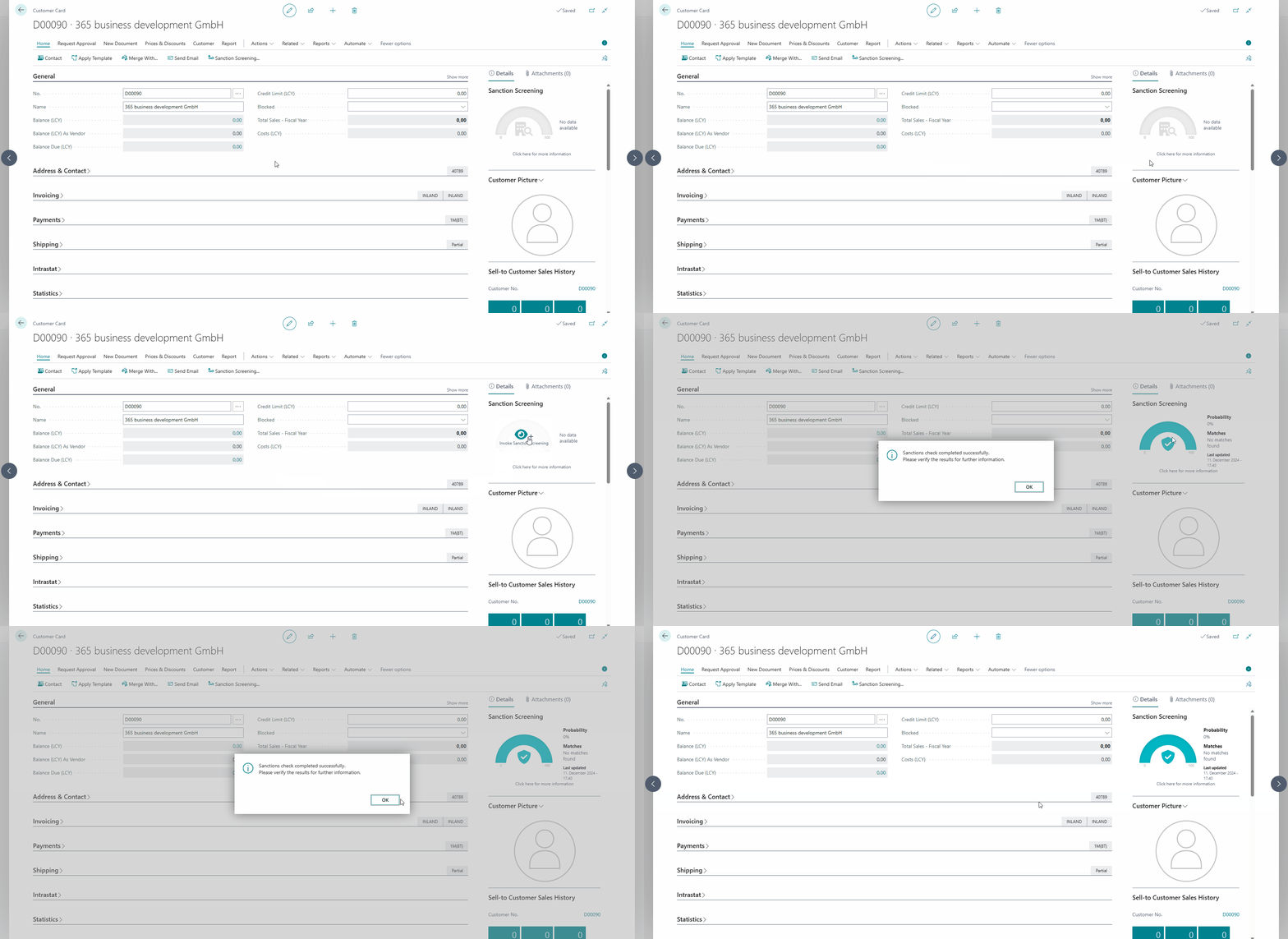
Follow these steps to perform a sanction screening:
- Open the page (e.g., customers) in Microsoft Dynamics 365 Business Central.
- Select the desired record.
- Hover over the sanction screening indicator and select the action Invoke Sanction Screening.
InfoIf the sanction list screening was successful and no potential matches were found, the following message appears:
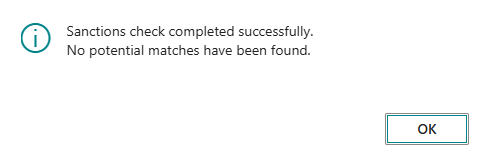
In this case, no further action is necessary.
In this case, no further action is necessary.
Reviewing Sanction List Matches
If potential matches were found, the following message appears:

To review the potential matches, follow these steps:
- In the Sanction Match Entries page, the potential matches are displayed.
- Select the Sanction Match to get more information.
Good to knowIn the detail view of the sanction match entry, you can retrieve additional information, such as the reason for the sanction, the sanctioning authority, and more, by selecting the action Retrieve Additional Information....
Processing Sanction List Matches
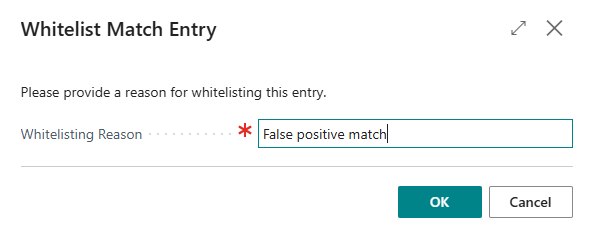
If the sanction match is a false positive, follow these steps:
- Select the action Add Match to Whitelist....
- In the Add Match to Whitelist page, you can add the sanction match entry to the whitelist to avoid future matches. You must provide a reason and confirm the action with OK.
Good to knowThe permission set Sanction Screening - Whitelist is required to add a sanction match entry to the whitelist.