


SEPA Credit Transfer
In this section, you will learn how to perform SEPA credit transfers in Microsoft Dynamics 365 Business Central. SEPA (Single Euro Payments Area) enables businesses to make payments in euros within the SEPA area efficiently and cost-effectively.
Types of SEPA Credit Transfers
In Microsoft Dynamics 365 Business Central, you can perform various types of SEPA credit transfers:
- SEPA Credit Transfer: Standard transfer for payments in euros within the SEPA area.
- SEPA Instant Credit Transfer: Fast transfer processed in real-time, if supported by the bank.
- SEPA Scheduled Credit Transfer: Transfer executed at a later date based on the specified execution date.
- SEPA Bulk Credit Transfer: Transfer where multiple payments are combined into a single transaction.
Step-by-Step Guide
To initiate payments, use the Payment Journals in Microsoft Dynamics 365 Business Central. Assign a Bank Account and a Payment Method to the journal (see Payment Journals). The payment method determines whether it is a SEPA credit transfer, SEPA instant credit transfer, or SEPA bulk credit transfer.
Follow these steps to initiate payments in 365 business Banking:
- Select Payment Journals in the search bar of Microsoft Dynamics 365 Business Central.
- Select an existing journal for your bank account and payment method or create a new journal.
- Select the action Edit Journal to edit the journal.
- Enter the journal lines for your payments, or use the action Suggest Payments to automatically generate payment suggestions.
- Review the journal lines and ensure all information is correct. Pay special attention to amounts, purposes, and the recipient's bank account.
- Select the action Process Payments and Post to process the payments and complete the posting.
- Confirm the execution of the payments and the posting of the journal.
Depending on the bank and the payment method, it may be necessary to use a TAN or another authentication method to confirm the payment. In this case, a dialog will appear to confirm the payment.
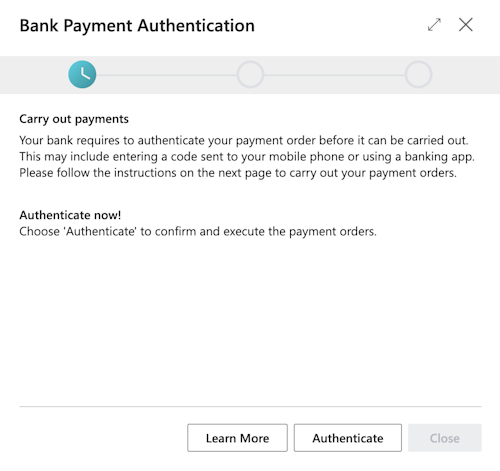
- Select Authorize to confirm the payment process.
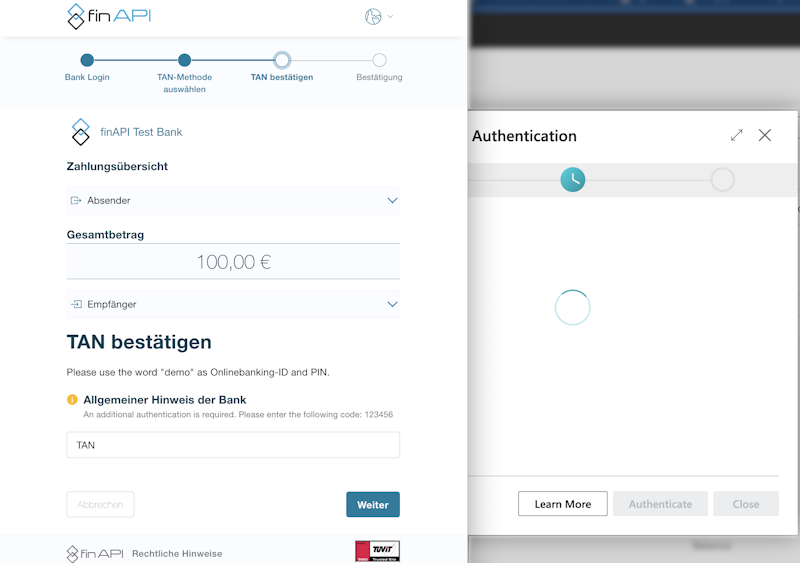
- Follow the on-screen instructions to authorize the payment. This may include entering a TAN or confirming via a banking app.
- After successful authorization, the payment is processed and completed.
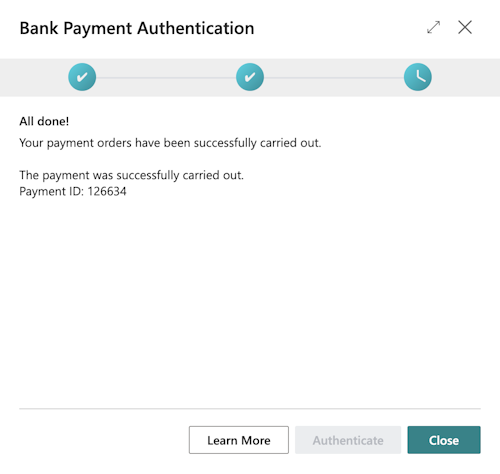
- Select Close to close the dialog and return to payment processing.
After confirming and executing the payment, it is posted in the Payment Journal. If the action Process Payments and Post was used, the posting is done automatically. Otherwise, you must manually post the payment using the action Post in the Payment Journal.