
License Management
Spending Limits
Some apps or features include a certain number of uses (e.g., number of barcodes per billing period) and may incur additional costs if exceeded. To avoid unexpected costs, you can set a spending limit. The spending limit defines the maximum number of uses that can be performed within a billing period. Once the spending limit is reached, the use of the app or feature is blocked until the billing period ends or the spending limit is increased.
Overview
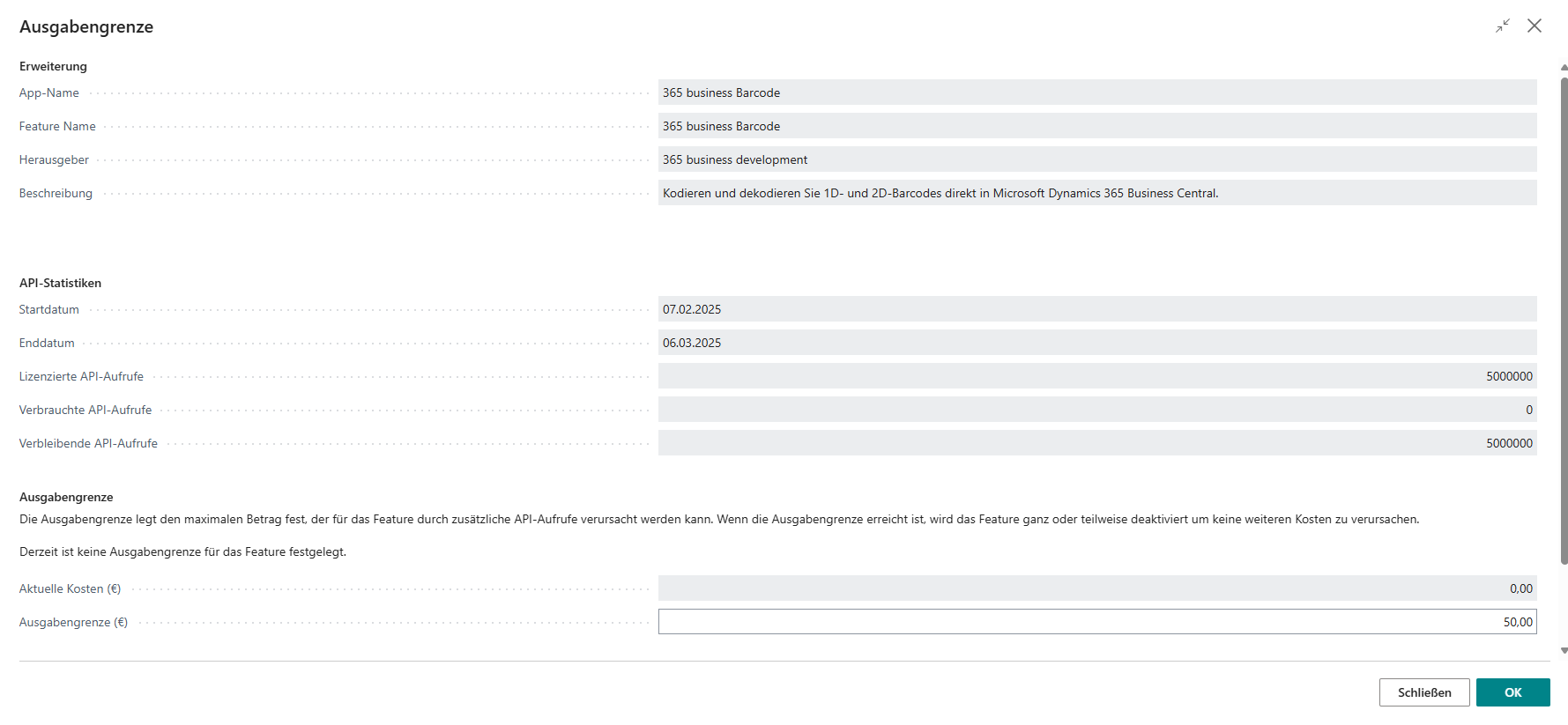
Step 1: View Spending Limit
- Open the Extension License Management (365 business development) via the search function in Microsoft Dynamics 365 Business Central.
- Select the action group Self Service.
- Select the action Spending Limit.
Step 2: Set Spending Limit
- Check the current spending limit and the metrics Licensed API Calls and Consumed API Calls.
- Enter the Spending Limit (€).
- Select OK to update the spending limit.
Good to know
To remove the spending limit, enter the value 0.00.
Last modified on