import { Callout } from "zudoku/ui/Callout";
# Find & Replace
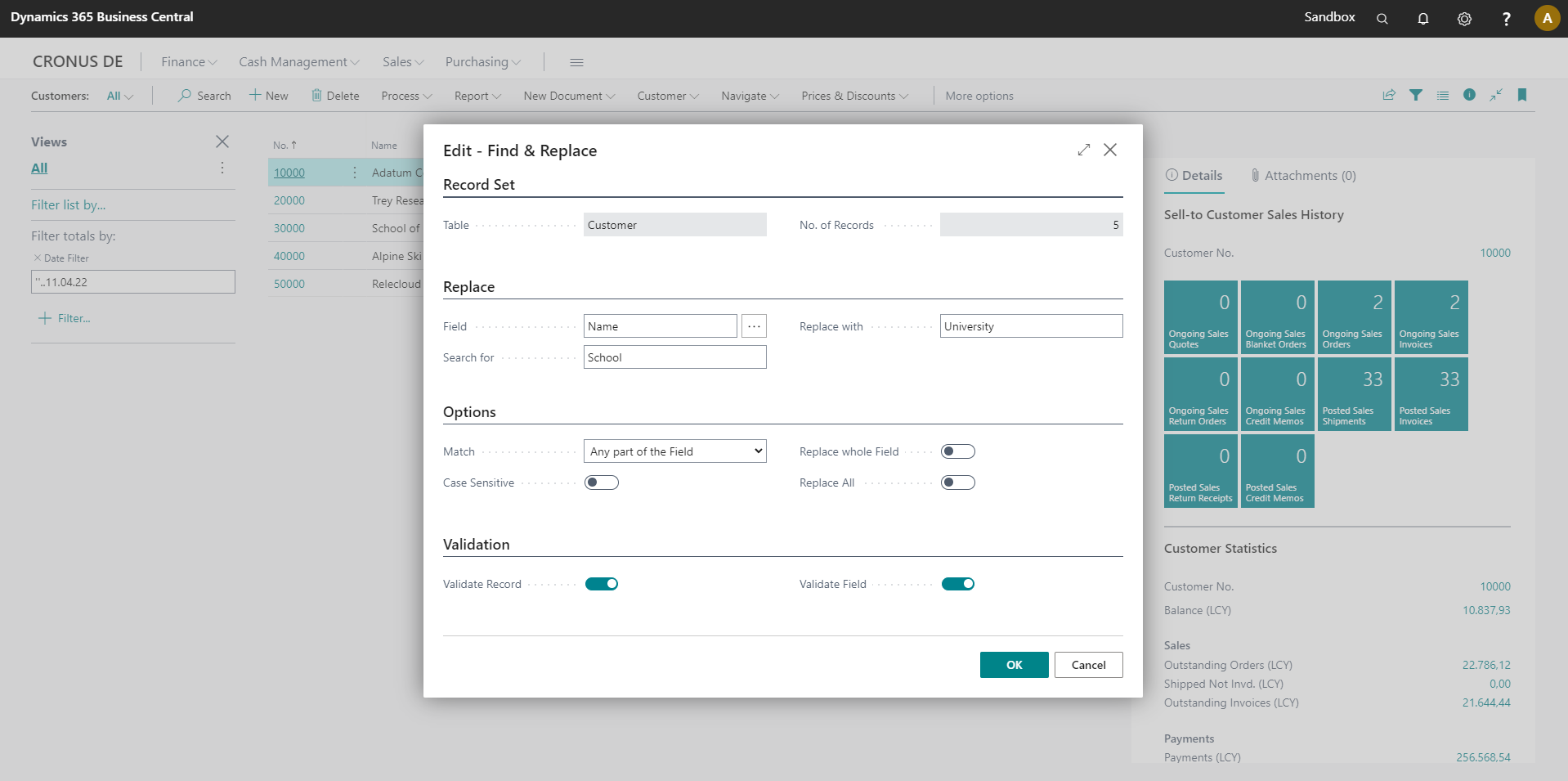
In the dialog window `Find & Replace` you can specify the parameters for the execution of the Find & Replace function. The dialog is called up via the function of the same name, e.g. in the **Customers** page.
## Record Information
In the **Record Set** area, the table (e.g. Customer) and the pre-filtered number of records are displayed.
Currently set filters in the calling view (e.g. customer overview) are taken into account when calling Search & Replace. Thus you can already make a preselection for the data records to be processed.
## Replace
In the **Replace** area, select the `Field` in which the search term (`Search for`) should be replaced (`Replace with`).
## Options
In the **Options** section you have the possibility to specify additional settings for the search or the replacement:
| Option | Description | Default value |
| --- | --- | --- |
| Match | Specifies whether the search term is the whole field (option **Whole field**) or whether any part of the field must contain the search term (option **Any part of field**). | Whole Field |
| Case sensitive | Specifies whether the search term should be case sensitive. | No |
| Replace whole Field | Specifies whether the complete field content or only the part of the field that corresponds to the search term should be replaced when replacing. | No |
| Replace All | Specifies that the field value should be replaced in all records regardless of the search term. | No |
## Validation
We recommend not changing the settings in the Validation section, as this may cause inconsistencies.
Please consult your Microsoft Dynamics partner before making any data changes without verification/validation.
In the **Validation** area, the validation of record or field changes can be disabled.