import { Callout } from "zudoku/ui/Callout";
# Proxy Application Client Installation
Learn how to install and configure the **365 business Proxy Application Client**.
---
## Requirements
- **Operating System**
- Windows 10 or later (64-bit)
- Windows Server 2016 or later (64-bit)
- **Software**
- .NET 8.0 Runtime
- [Download Proxy Application Client Installer](https://365businessapi.com/api/SoftwareDownload?AppId=da472ae3-fa8a-406f-bbea-c2aafd5f77d5)
If you want to update your Proxy Application Client, simply download the latest version.
Your existing configuration will be retained.
---
## Preparation
Before you begin, please read the article [What is 365 business Proxy Application?](proxy-application-whatis.md) to determine the best system for installation.
You will need the **Tenant-ID** of your Business Central environment for installation.
You can find it on the **Proxy Application Setup** page in Microsoft Dynamics 365 Business Central.
For more details, refer to the [Getting Started guide](get-started.md).
---
## Installing the Proxy Application Client
1. Download the latest version of the client ZIP file:
[Download now](https://365businessapi.com/api/SoftwareDownload?AppId=da472ae3-fa8a-406f-bbea-c2aafd5f77d5)
2. Save the file to your desired system.
3. Extract the ZIP archive (e.g., to `C:\install`).
4. Launch the setup file and follow the installation wizard.
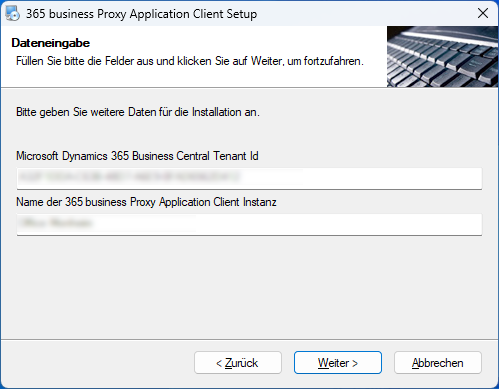
5. Enter your **Tenant-ID** and a unique **Name** for the client.
6. *(Optional)* Provide domain username and password under which the service should run.
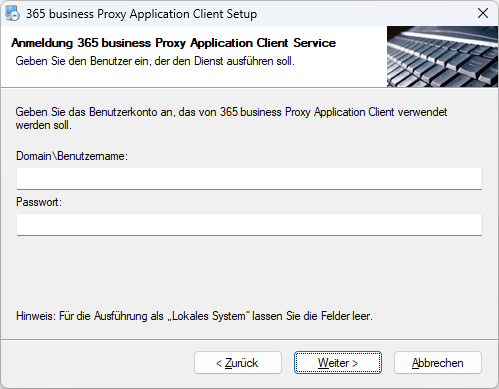
If no user is specified, the 365 business Proxy Application Client runs in the context of Local System.
7. After successful installation, the service will start automatically and be available in Business Central under **Proxy Application Clients**.
### See also
- [Plugin Installation](plugins/install.md)