Issue with Multiple Printer Extensions
Cause
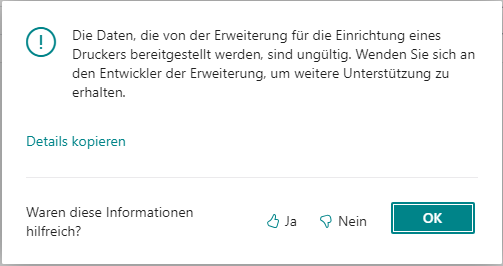
If you receive a message indicating that multiple printer extensions are installed in your system, please note that this can lead to issues with printing functionality in Microsoft Dynamics 365 Business Central.
In particular, this may result in duplicate printer names, which are not supported in Business Central and can cause runtime errors when printing reports and documents, such as:
Solution
Uninstall all printer extensions in your Business Central environment – except for the 365 business Print Agent.
Please make sure to remove any unwanted printers from the Business Central server as well.
Step 1: Open Extension Management
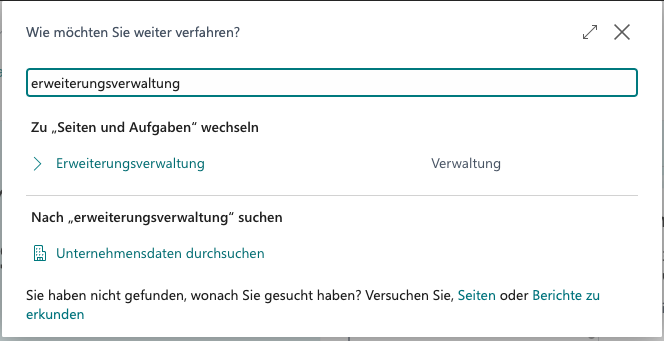
Open the Extension Management in Microsoft Dynamics 365 Business Central using the Tell me window (Alt + Q).
Step 2: Identify Printer Extensions
Locate any printer extensions that are not the 365 business Print Agent.
Only the 365 business Print Agent should remain installed in your environment.
Examples of other printer extensions:
- Universal Print Integration
- PrintNode Integration
Step 3: Uninstall Printer Extension(s)
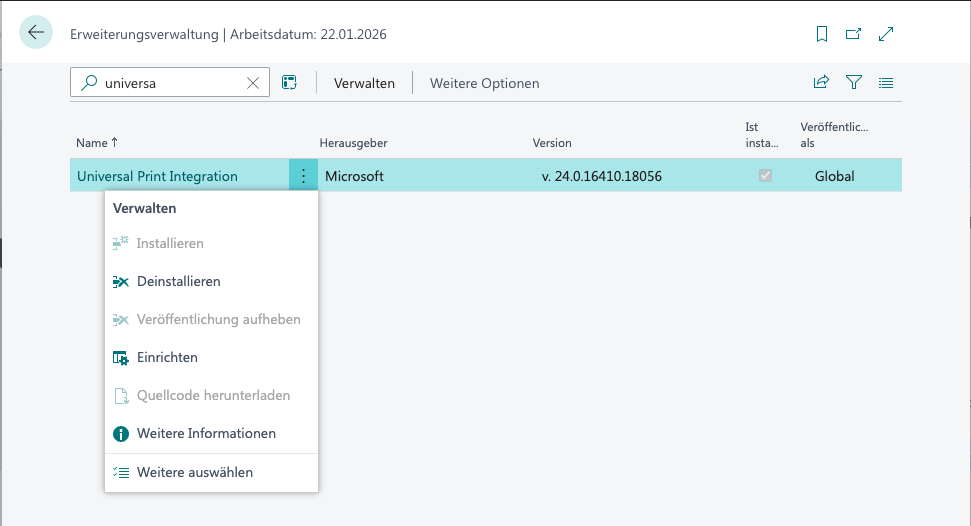
- Select the extension you want to remove.
- Click the three-dot menu.
- Choose Uninstall.
Step 4: Confirm Uninstallation
Confirm the removal by clicking Uninstall.