import { Callout } from "zudoku/ui/Callout";
# Setup
Receiving an electronic invoice is currently already possible via email inboxes. Alternatively, invoices can also be provided via an electronic interface or offered for download.
We recommend integrating one or more Microsoft 365 mailboxes into Microsoft Dynamics 365 Business Central to efficiently automate the processing of e-invoices and start with low entry barriers.
## Before you start
Please note that the creation and processing of e-invoices may require the setup and completion of some master data in Microsoft Dynamics 365 Business Central. These include, among others:
- Company Information (e.g., Name, Address, Registration No., VAT Registration No.)
- Payment Methods (ZUGFeRD Payment Method)
- Unit of Measure (International Standard Code)
We support you in reviewing your setup in Microsoft Dynamics 365 Business Central.
Feel free to contact us.
## E-Invoice Service
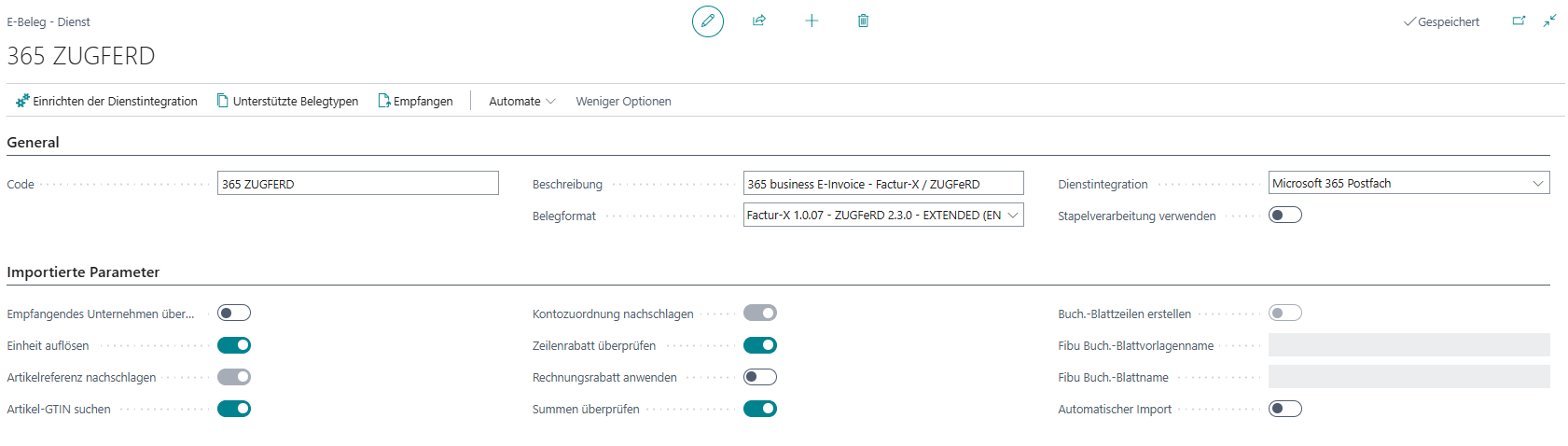
The **E-Invoice Services** page allows the definition of supported **document formats** and **service integrations**, as well as the setup of parameters for import logic and validation. The following extensions are made by 365 business E-Invoice:
- **Document format:** Factur-X 1.0.07 - ZUGFeRD 2.3.0 - EXTENDED (EN 16931)
- **Service integration:** Microsoft 365 Mailbox
### What is the E-Invoice Service document format?
The document format defines the structure and content of electronic documents. 365 business E-Invoice supports the import and export of electronic documents in the Factur-X 1.0.07 - ZUGFeRD 2.3.0 - EXTENDED (EN 16931) format.
### What is the E-Invoice Service service integration?
The service integration defines the interface through which electronic documents are received and sent. 365 business E-Invoice supports the service integration "Microsoft 365 Mailbox".
#### Are different service integrations supported?
Yes, other service integrations are also supported for processing with the Factur-X 1.0.07 - ZUGFeRD 2.3.0 - EXTENDED (EN 16931) document format.
However, please check in advance in which data format or document format the data is provided via the service integration.
## E-Invoice Setup
In the 365 business E-Invoice setup, additional parameters can be specified to optimize the processing of e-invoices. These include, among others, the configuration of the email inboxes to be monitored, attaching the Factur-X - ZUGFeRD XML metadata file (XML) and the PDF document.
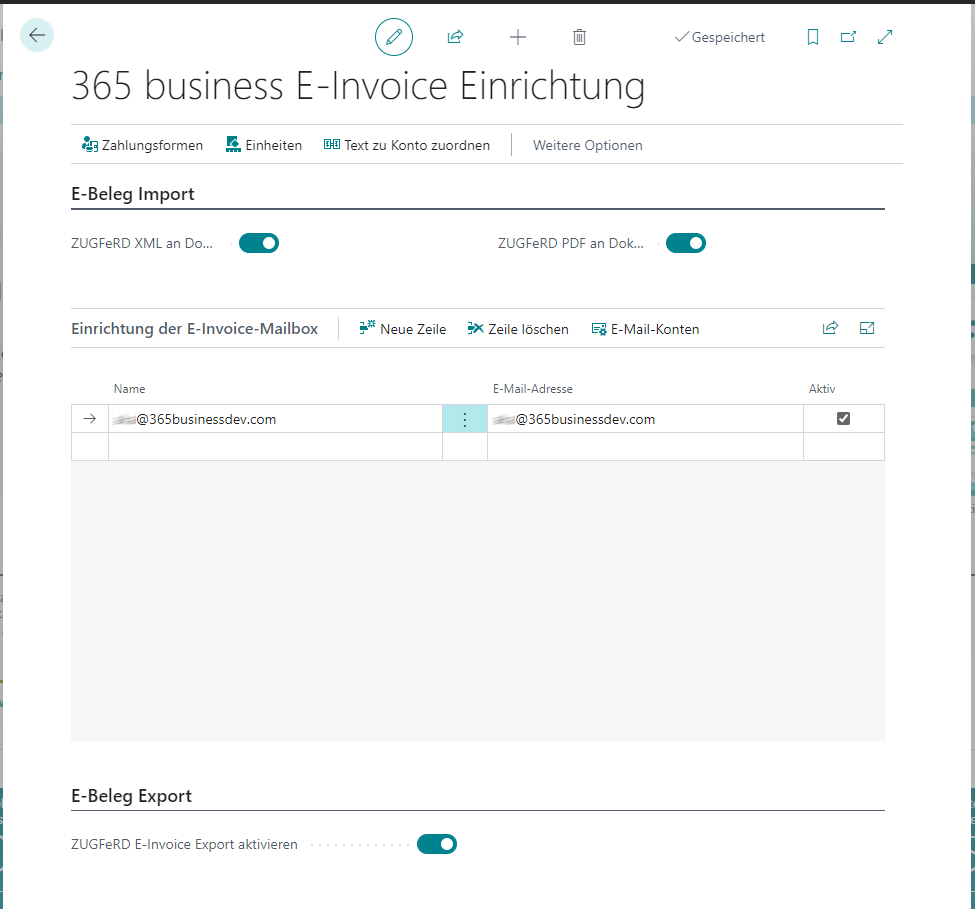
| Field | Description |
| --- | --- |
| Attach ZUGFeRD XML to document | Specifies whether the ZUGFeRD XML metadata file is attached to the created document. |
| Attach ZUGFeRD PDF to document | Specifies whether the ZUGFeRD PDF is attached to the created document. |
| Enable ZUGFeRD E-Invoice export | Specifies whether sales invoices and credit memos are created in the Factur-X - ZUGFeRD format when the user calls the print action. |
## E-Document Import
The receipt of electronic documents (import) is supported by 365 business E-Invoice in the Factur-X / ZUGFeRD format. This enables companies to directly process incoming e-invoices in Microsoft Dynamics 365 Business Central. Immediately after the installation of 365 business E-Invoice, the app is basically ready to process e-invoices (e.g., PDF invoices with embedded Factur-X / ZUGFeRD data).
During the installation of 365 business E-Invoice, an e-invoice service with the code 365 ZUGFERD is created and fully configured.

1. Open **E-Invoice Services** via the Microsoft Dynamics 365 Business Central search.
2. Select the e-invoice service (e.g., **365 ZUGFERD**).
3. Select **Factur-X 1.0.07 - ZUGFeRD 2.3.0 - EXTENDED (EN 16931)** in the **Document Format** field.
4. If desired, select **Microsoft 365 Mailbox** in the **Service Integration** field.
5. Check the parameters in the **Imported Parameters** section according to your company's requirements.
### Service Integration: Set up Microsoft 365 Mailbox
To retrieve and process incoming e-invoices from Microsoft 365 mailboxes, it is necessary to configure these mailboxes accordingly. This uses the Email Accounts functionality of Microsoft Dynamics 365 Business Central.
365 business E-Invoice currently only supports email inboxes of the account type "Microsoft 365".

1. Open **365 business E-Invoice Setup** via the Microsoft Dynamics 365 Business Central search.
2. Click on **New Line** and then on the Assist Edit (...) in the **Name** field to open the email account selection.
3. Select the email account or click on More Actions (...) and then select **New** and **Add Email Account**.
1. In the **Set up Email** window, please follow the instructions of the dialog for the **Microsoft 365** account type to set up the email inbox.
4. Click **OK** to close the email account selection.
For sending e-invoices, the configured email accounts according to the email scenarios are used, regardless of the setup in the e-invoice setup.
### Optional: Enable automatic import
By enabling automatic import, purchase invoices and credit memos in the Factur-X / ZUGFeRD format from incoming emails are automatically processed.
The user who enables automatic import must have access to this mailbox, otherwise the emails cannot be retrieved due to missing permissions.
1. Open **E-Invoice Services** via the Business Central search.
2. Select the e-invoice service (e.g., **365 ZUGFERD**).
3. Select **Microsoft 365 Mailbox** in the **Service Integration** field.
4. Enable the **Automatic Import** option.
5. Set the **Batch Start Time** field, if desired, to the time when the import should occur.
6. Set the interval at which the emails should be retrieved in the **Minutes between executions** field (e.g., 1440min = 24h), if desired.
Since the processing of emails is very resource-intensive, it is recommended to perform the processing at night. It is also recommended that the time between executions is not too short.
## E-Document Export
The sending of electronic documents (export) is supported by 365 business E-Invoice in the Factur-X / ZUGFeRD format. This enables companies to send outgoing e-invoices directly from Microsoft Dynamics 365 Business Central. Immediately after the installation of 365 business E-Invoice, the app is basically ready to send e-invoices (e.g., PDF invoices with embedded Factur-X / ZUGFeRD data).
There are two types of e-invoice export:
- **Extended E-Invoice Service Flow:** The extended e-invoice service flow allows e-invoices to be sent automatically upon posting, directly from Microsoft Dynamics 365 Business Central. The e-invoice is generated when the sales document (e.g., sales invoice) is posted and sent via the integrated Microsoft Dynamics 365 Business Central workflow according to the configured e-invoice service.
- **Post and send:** The e-invoice can also be generated and sent manually via the *Post and send* action. If the option is enabled, the electronic invoice or credit memo is sent directly from the sales document (e.g., sales invoice).
### Extended E-Invoice Service Flow
The extended e-invoice service flow is configured via the **Document Sending Profiles** in Microsoft Dynamics 365 Business Central. The document sending profiles can then be assigned to customers or sales documents. For the use of e-invoice services, such as 365 business E-Invoice, it is necessary that the document sending profiles are configured accordingly.
| Sending Option | Description | Value |
| --- | --- | --- |
| Electronic Document | Specifies whether the document is sent as an electronic document that the customer can import into their system when you choose the "Post and send" button. To use this option, you must also fill in the "Electronic Format" field. Alternatively, the file can be saved on the hard drive. | Extended E-Invoice Service Flow |
| Electronic Document Service Flow Code | Specifies the electronic service flow used to send documents. | *MS-EDOCTOS-01* |
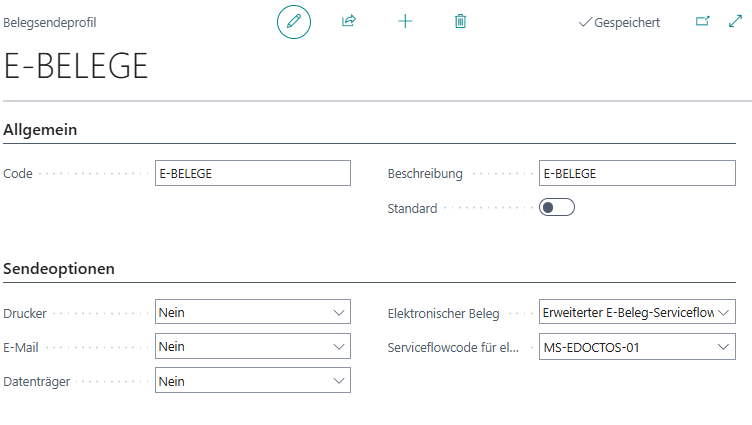
The **Electronic Document Service Flow Code** field refers to the workflow used to send the electronic document. The *MS-EDOCTOS-01* workflow is provided by Microsoft, but other workflows with different conditions can also be created.
Learn more about Workflows in Microsoft Dynamics 365 Business Central.
#### Set up E-Invoice Service in E-Invoice Service Flow
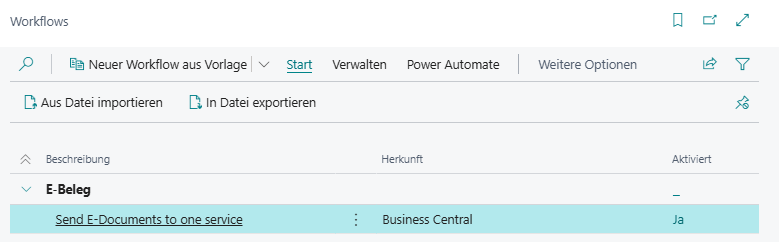
By default, the extended e-invoice service flow uses the e-invoice service **E-INVOICES**, which is automatically provided by Microsoft. To configure the e-invoice service, proceed as follows:
1. Open **Workflows** via the Business Central search.
2. Select the workflow **Send to a Service** (Code *MS-EDOCTOS-01*).
3. In the **Workflow Steps** section, in the **Then Response** column, select the row **Send E-Document using setup: ...**.
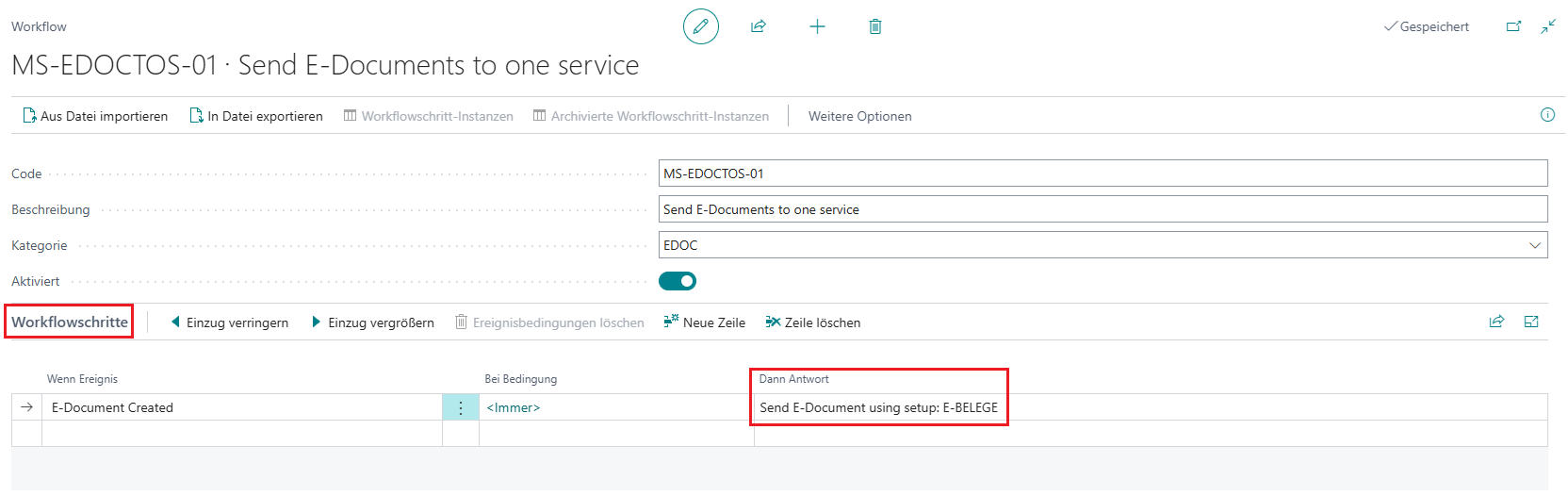
4. In the **Workflow Response**, select the **E-Invoice Service** (e.g., **365 ZUGFERD**).
5. Click **OK** to confirm the selection.
### Post and send
The e-invoice can also be generated and sent manually via the *Post and send* action, or from the posted document via *Send by Email*. In this case, no outgoing e-invoices are generated, but the electronic invoice or credit memo is sent directly from the document via the Microsoft Dynamics 365 Business Central standard.
The option Enable ZUGFeRD E-Invoice Export in the E-Invoice Setup must be enabled so that sales invoices and credit memos are automatically converted into electronic Factur-X - ZUGFeRD files.
## Siehe auch
- Set up email
- Workflows in Microsoft Dynamics 365 Business Central