import { Callout } from "zudoku/ui/Callout";
# Barcode Settings
Barcode settings are used to create reusable templates that can be used in the implementation in your business processes. Instead of making all settings in AL Code, they can be made in an intuitive and user-friendly interface and referenced in AL Code for the corresponding barcode setting only via the **code**.
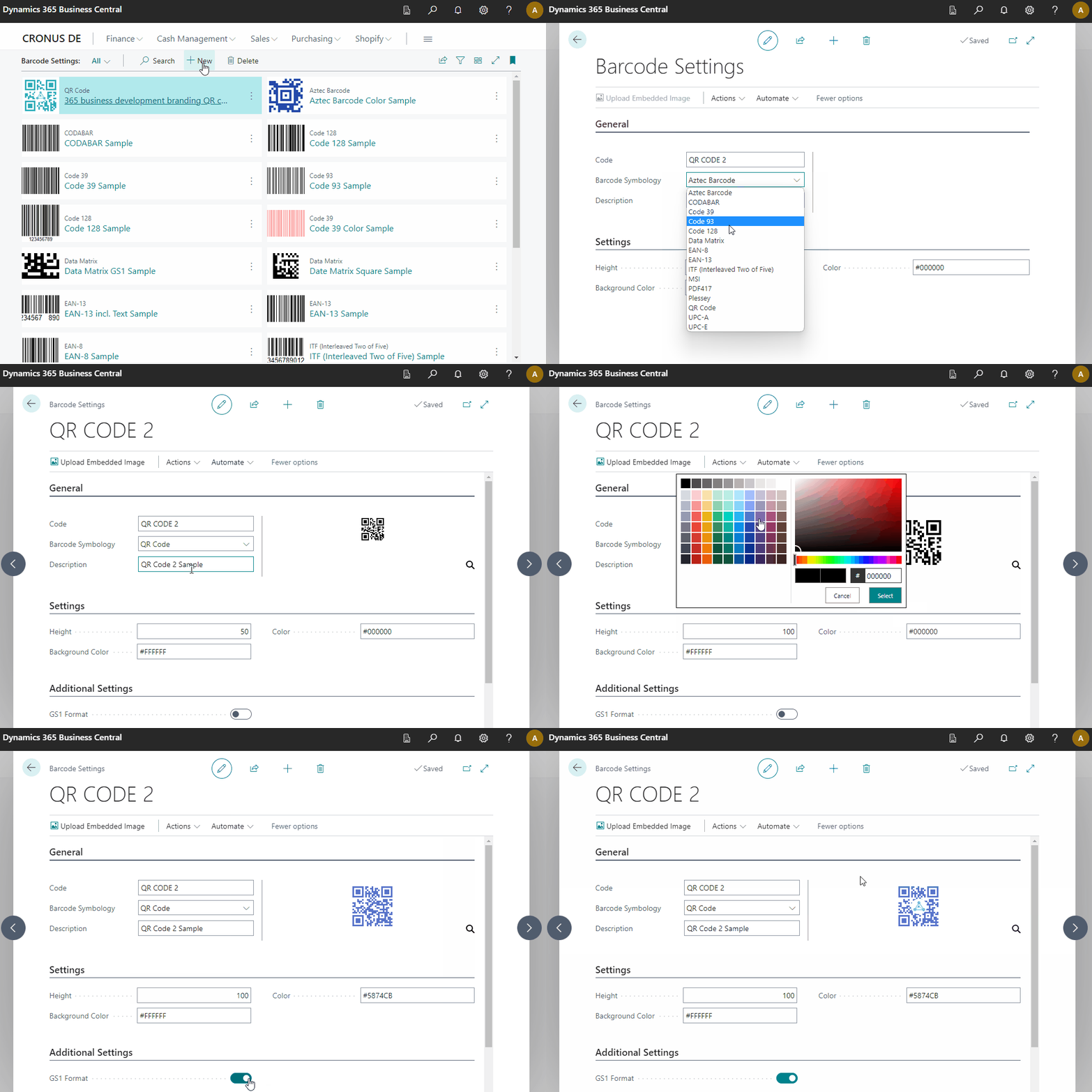
## How do I create a new Barcode Setting?
1. Open the **Barcode Settings** page in Microsoft Dynamics 365 Business Central.
2. Click **New** to create a new barcode setting.
3. Select a **Code**.
4. Select the type of barcode you want to use (for example, `QR Code`) in **Barcode symbology** field.
While setting up the barcode settings, the preview of the barcode with a sample value is continuously displayed.
5. Select a **description** for the barcode setting.
6. Specify the desired height (px).
7. Click in the **Color** and/or **Background color** field to define colors different from the default. _(optional)_
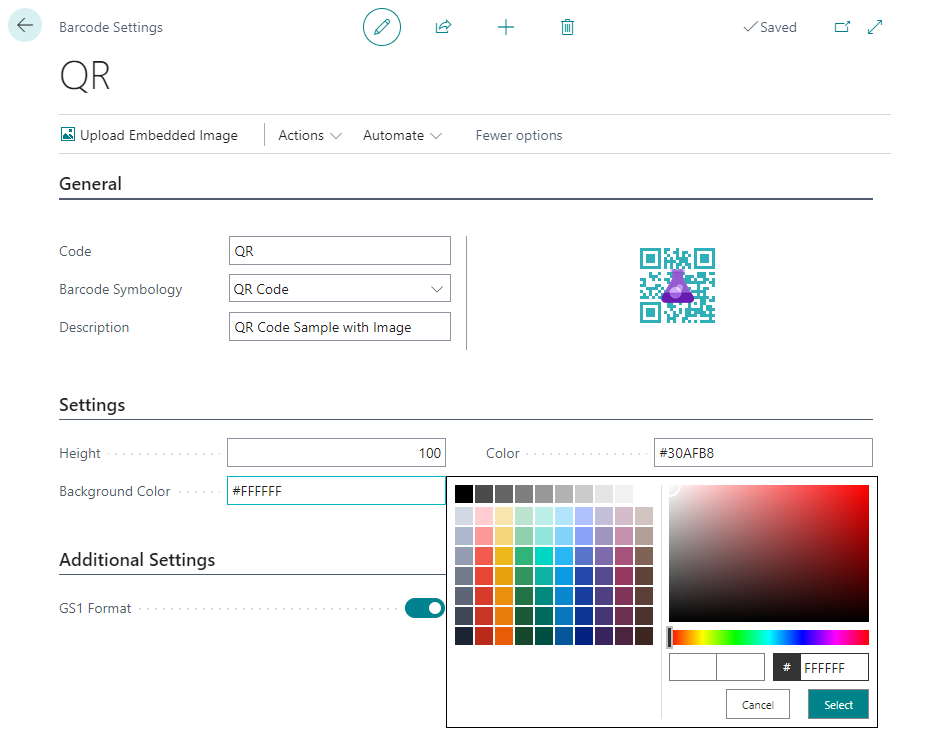
Depending on the selected barcode symbology further options are available.