import { Callout } from "zudoku/ui/Callout";
# Banking setup and company bank access
This page describes the basic setup of 365 business Banking: the **Banking Setup** page with all settings for payments, direct debits, bank account reconciliation and number series, the company bank access and verification of payee.
You perform these steps once per company. After that, you can connect further bank accounts in a few steps. The settings apply to the whole company and are prefilled at installation, see [What the installation sets up](installation-defaults.mdx).
This also applies if you do not connect any account via finAPI. **Verification of payee** runs exclusively via finAPI and signs in with the company bank access. Without this access, no verification takes place. You only need an **EBICS participant** if you keep an account via EBICS.
## Open Banking Setup
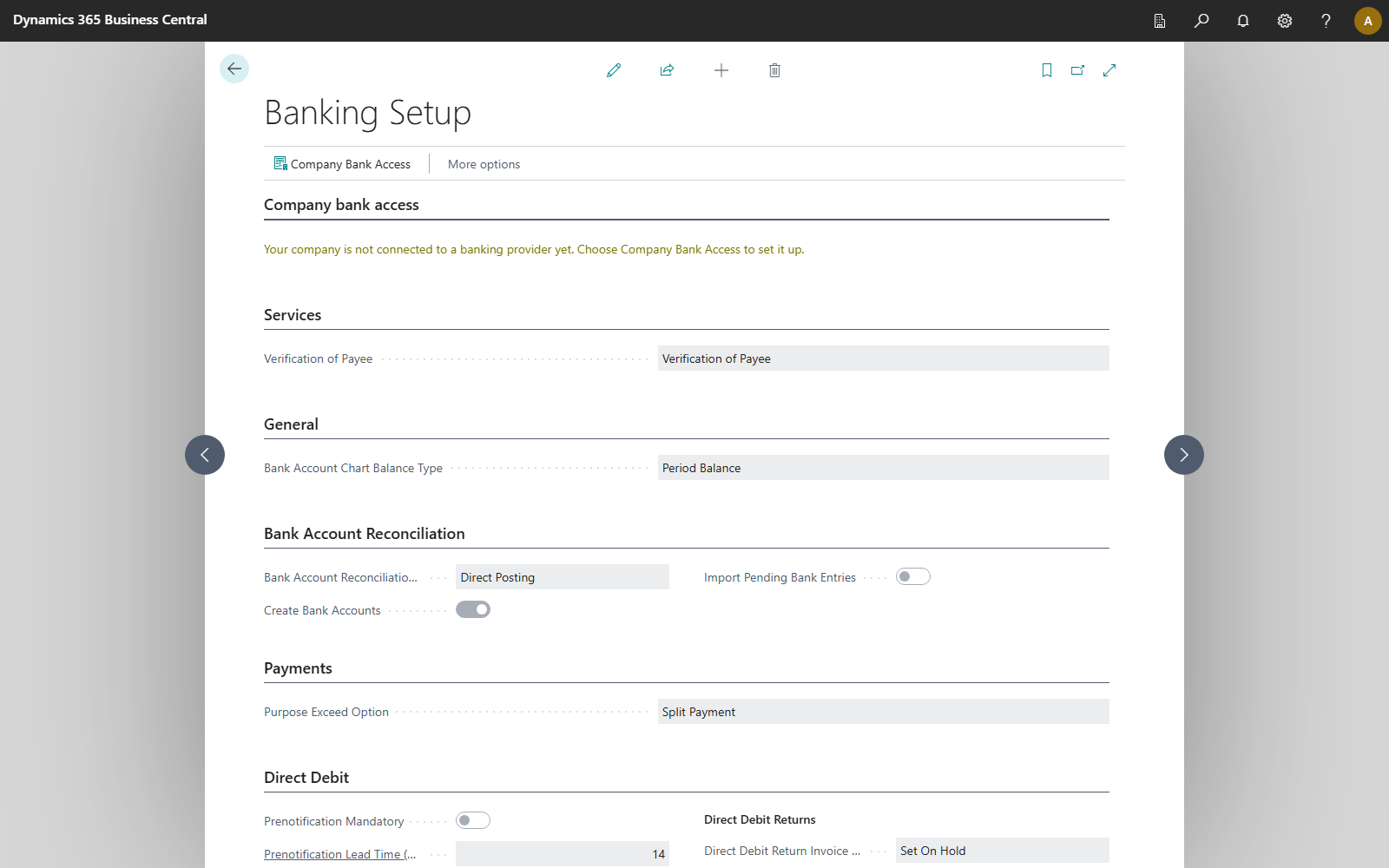
1. Choose the **Search** icon, enter **Banking Setup** and open the page. In the role center, you also find the page under **Banking** > **Setup**. On the **General Ledger Setup** page, the **Banking Setup** action opens this page.
2. The **Company bank access** FastTab at the top of the page shows whether your company is already connected. Choose the text to open the setup.
3. On the **Services** FastTab, the **Verification of Payee** field specifies which service checks whether a payee's name matches their bank account. Verification of payee applies to the whole company, not per bank account.
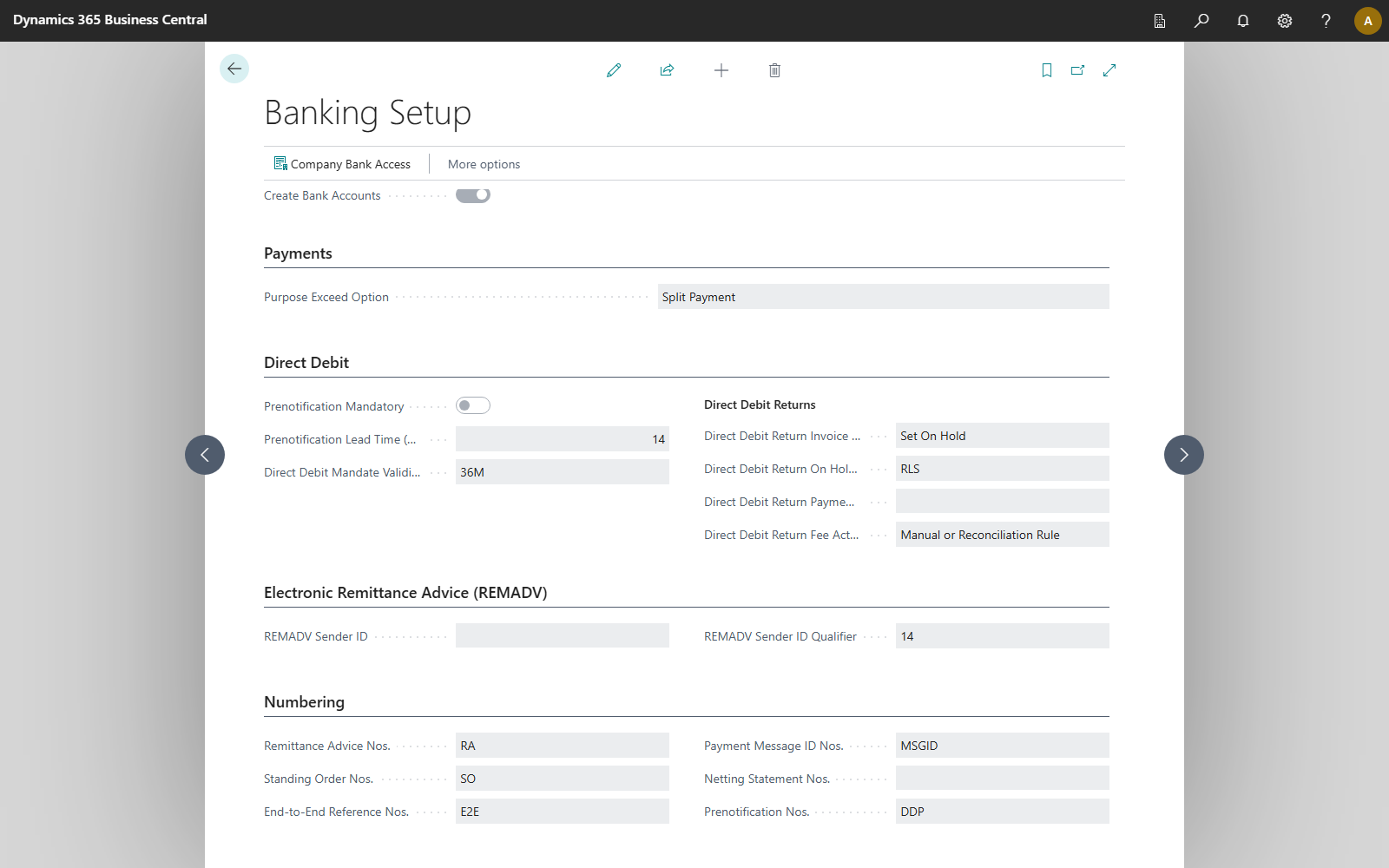
4. The settings follow below, grouped by topic: **General**, **Bank Account Reconciliation**, **Payments**, **Direct Debit** with **Direct Debit Returns**, **Electronic Remittance Advice (REMADV)** and **Numbering** with all number series. The fields are described further down this page.
5. The actions open the further setups: **Company Bank Access**, **Personal Bank Accesses**, **Accesses from Other Companies** (only if such accesses exist) and **Metrics**.
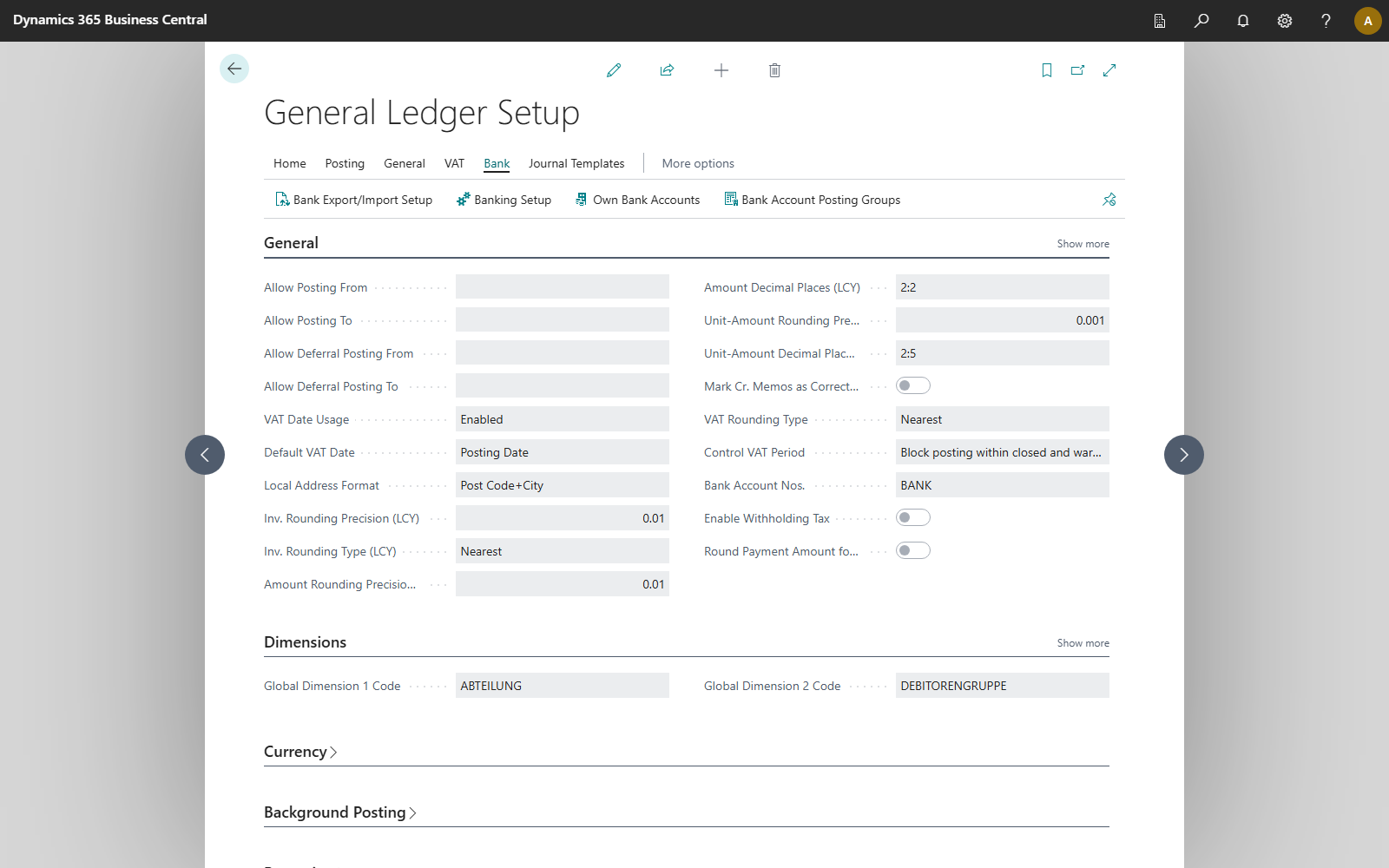
Only users with SUPER or the **365 Banking - Setup** permission set can edit the page. For all other users, it is read-only. Assign the set to the people who set up payments and reconciliation, see [Permissions and licenses](permissions-and-licenses.mdx).
## Set up the company bank access
The **company bank access** is the identity that Business Central uses to sign in to finAPI. There is one per company, and it applies to every bank account.
1. On **Banking Setup**, choose the **Company Bank Access** action. The **Connect Bank Account** wizard opens this page automatically if the access is still missing.
2. The current status is shown at the top of the page: *"Not connected yet. Check the two fields below and choose Connect."* If one of the two details is missing, the status line reads *"Not connected yet. Fill in the email address and the phone number, then choose Connect."*, and **Connect** is only available once both fields are filled in.
3. On the **Contact details** FastTab, check **Email Address** and **Phone Number**. Business Central prefills the **Email Address** from your user, your user setup, the salesperson/purchaser assigned there or the company information, and the **Phone Number** from the assigned salesperson/purchaser and only as a fallback from the company information. Fields are only prefilled if you are allowed to set up banking (**365 Banking - Setup** or SUPER). Otherwise, empty fields stay empty. finAPI uses this information to contact you when a bank requires renewed consent.
4. Choose **Connect**. A message confirms: "Your company is connected. The next step is to connect your bank accounts." The **Connect Bank Accounts** action is located directly next to **Connect**.
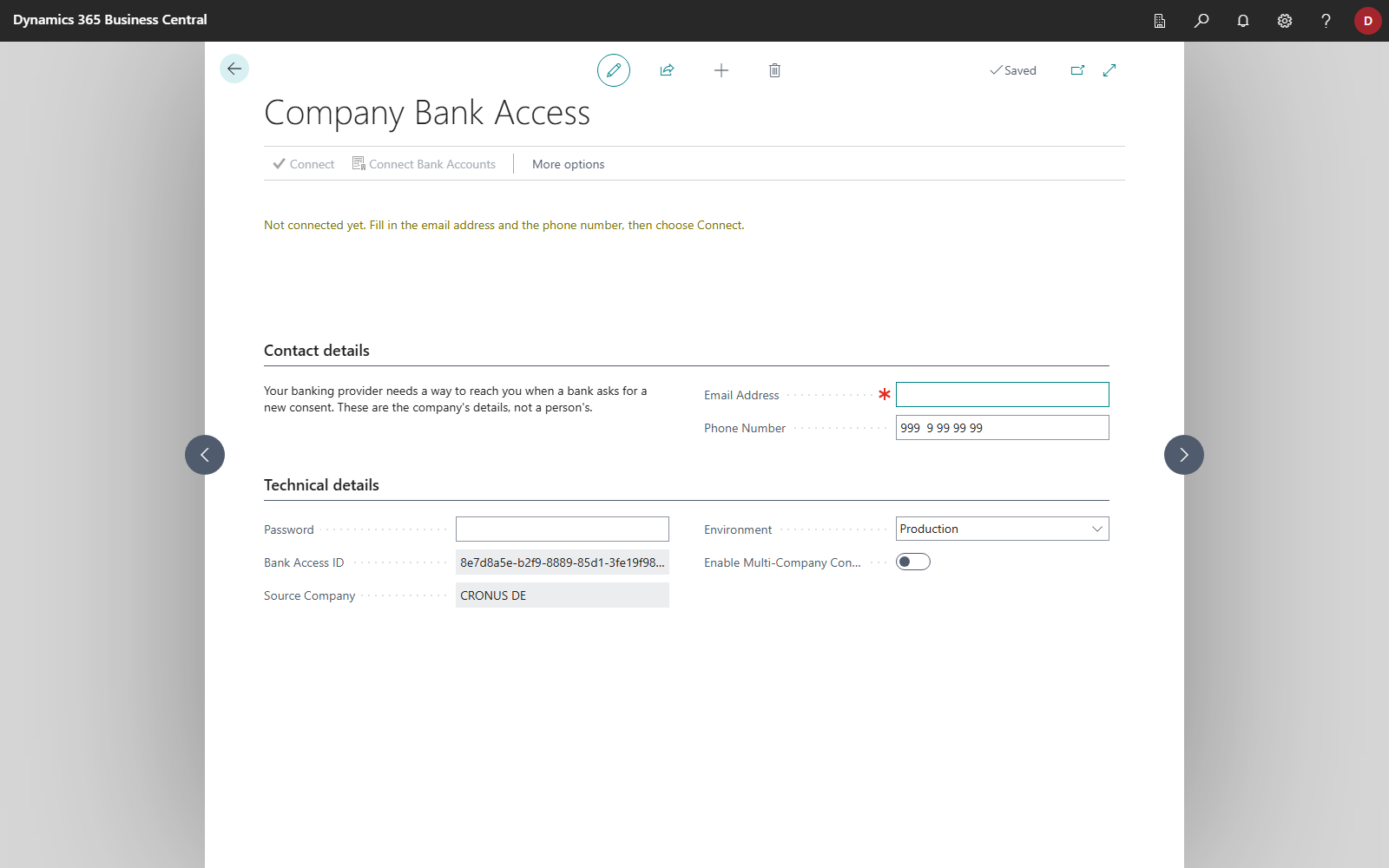
Business Central generates a random password from a cryptographically secure source and stores it securely. The password does not need to be entered. To view or replace it, use the **Technical details** FastTab. This FastTab is only visible to users with the SUPER permission set or **365 Banking - Setup**.
## Technical details
The **Technical details** FastTab (visible only with SUPER or **365 Banking - Setup**) contains:
| Field | Meaning |
|---|---|
| **Password** | the generated password of the bank access, masked |
| **Bank Access ID** | the identifier at finAPI. It is generated and cannot be changed. |
| **Source Company** | the company in which the access was set up |
| **Environment** | the finAPI environment the access runs against |
| **Enable Multi-Company Connection** | distribute this access's accounts to several companies, see [One bank access for several companies](../connections/multi-company.mdx) |
This FastTab is only visible to setup users. If the person who sets up Banking does not hold SUPER, assign them the **365 Banking - Setup** permission set, see [Permissions and licenses](permissions-and-licenses.mdx).
## Personal bank accesses
If your bank issues personal logins, each person creates their own bank access. You open the **Personal Bank Accesses** list through the action of the same name on **Banking Setup**. The procedure is described in [Use with my own bank login](../connections/psd2/personal-bank-access.mdx).
## Banking Metrics
**Metrics** opens the **Banking Metrics** page. It shows per day and bank account the number of bank transactions retrieved, payment instructions carried out and name checks (verification of payee) performed. The page provides an overview of usage and cannot be edited.
## General
| Field | Meaning | Default |
|---|---|---|
| **Bank Account Chart Balance Type** | Specifies which balance line the bank accounts' balance chart shows: *Period Balance*, *Balance to Date* or *Both*. | *Period Balance* |
- **Period Balance** shows the change within the displayed period (for example, a month). This view is suitable for following the development over time.
- **Balance to Date** shows the running balance at the end of each period. This view is suitable for comparison with the bank balance.
- **Both** shows both lines.
For more information, see [Bank balance and balance chart](../bank-accounts/balance.mdx).
## Bank account reconciliation
| Field | Meaning | Default |
|---|---|---|
| **Bank Account Reconciliation Line Posting** | Specifies how lines of account type *G/L Account* with posting setup are posted: *Use Clearing Account* or *Direct Posting*. | *Direct Posting* (set by installation once per company) |
| **Create Bank Accounts** | When posting, a customer or vendor bank account is created for every unknown IBAN. | Yes (set by installation once per company) |
| **Import Pending Bank Entries** | Also imports transactions that your bank reports as pending. | off |
### Bank account reconciliation line posting
The setting applies when a line of account type *G/L Account* has [posting setup](../bank-reconciliation-posting-setup.mdx) (posting type, posting groups, VAT setup).
- **Use Clearing Account**: The payment is first posted against a clearing account. Business Central then posts an additional entry (technically an "invoice") that books the expense or income correctly through the posting setup and clears it against the clearing account. The clearing accounts are defined in the general posting setup, see [Clearing accounts in the general posting setup](general-posting-setup.mdx).
- **Direct Posting**: The payment is posted directly to the G/L account. The posting setup applies to the payment itself. G/L and VAT entries arise in one posting.
| Option | Advantages | Disadvantages | Typical use |
|---|---|---|---|
| **Use Clearing Account** | Highest transparency; payment and expense/income clearly separated; unambiguous VAT treatment; easier later corrections and reconciliation | More posting lines; somewhat more complex | Recommended for most companies; VAT-liable transactions, bank fees, deferrals |
| **Direct Posting** | Fewer posting lines; simpler process | Less traceable; payment and expense in one entry | Simple G/L postings without deferrals or complex VAT logic |
If a line has a **Deferral Code**, Business Central posts via the clearing account even with *Direct Posting*. This is required to create the deferral postings period by period, see [Deferrals](../bank-reconciliation/deferrals.mdx).
365 business Banking sets **Bank Account Reconciliation Line Posting** to *Direct Posting* and **Create Bank Accounts** to *Yes* when the app is installed in a company for the first time. A reinstallation or an update does not overwrite your settings after that.
### Create bank accounts
With **Create Bank Accounts** switched on, 365 business Banking creates a new customer or vendor bank account with the IBAN from the bank transaction when a line applied to a customer or vendor is posted, if no bank account with this IBAN exists yet. Application then recognizes the business partner of the next transaction from this IBAN by this bank account, see [Related party matching](../bank-reconciliation/related-party-matching.mdx). Newly created bank accounts have the status *New* and must be released before a payment, see [Recipient bank accounts](../bank-payment/recipient-bank-accounts.mdx).
For your own and intercompany IBANs, you prevent the creation with [Own Bank Accounts](../bank-accounts/associated-bank-accounts.mdx).
### Import pending bank entries
A pending entry is an announcement by your bank of a future transaction. The amount can still change, and the entry can be cancelled entirely. Pending lines are therefore for information only. They cannot be applied or posted and are replaced as soon as your bank reports the booked entry, see [Pending bank entries](../bank-reconciliation/pending-entries.mdx).
## Payments
| Field | Meaning | Default |
|---|---|---|
| **Purpose Exceed Option** | Specifies what happens when a payment settles several invoices and the payment reference would exceed 140 characters: blank, *Create Remittance Advice*, *Split Payment* or *Always Create Remittance Advice*. | *Split Payment* |
The payment reference of a SEPA payment is limited to 140 characters. For collective payments, this length is often not sufficient to list every document number.
- **Create Remittance Advice**: If the reference does not fit, a line referring to a remittance advice is created, and the entries are listed on the [remittance advice](../bank-payment/remittance-advice.mdx).
- **Split Payment** (recommended): If the reference does not fit, the payment is split into several lines with partial amounts. If the account has credit memos, a remittance advice is created instead.
- **Always Create Remittance Advice**: A remittance advice is always created, even when the reference fits.
- blank: The reference is truncated.
If a vendor card has its own **Purpose Exceed Option**, it applies to that vendor. The setting here applies to vendors without their own setting. For more information, see [Summarising and payment reference](../bank-payment/payment-suggestion/purpose.mdx).
Remittance advices make matching harder for the recipient. The remittance advice number is unknown in their system, and their automatic application finds no invoice number in the payment reference. With **Split Payment**, each partial payment contains its own document numbers.
## Direct debit
| Field | Meaning | Default |
|---|---|---|
| **Prenotification Mandatory** | A direct debit can only be carried out once the prenotification with amount and collection date has been sent to the payer. | off |
| **Prenotification Lead Time (Days)** | Number of calendar days before collection that the payer must be informed of the amount and the collection date. Unless a shorter period is agreed with the payer, this is 14 days. The direct debit suggestion does not propose a collection date earlier than today plus this number of days, moved to the next bank working day. The value is a default only. A collection date that you enter manually is not checked against it, not even when carrying out. A value of 0 turns the default off. | 14 |
| **Direct Debit Mandate Validity** | After each collection, the validity of a recurring mandate is extended by this period, because a mandate lapses when it is not used for 36 months. If the field is blank, the validity is not extended. | `36M` |
### Direct debit returns
| Field | Meaning | Default |
|---|---|---|
| **Direct Debit Return Invoice Action** | Specifies what happens to the invoices that are open again after a returned direct debit: *Set On Hold* excludes them from the next collection run, *Change Payment Method* switches them to a payment method without direct debit, *Do Nothing* leaves them unchanged. In this case, the next direct debit suggestion collects them again. | *Set On Hold* |
| **Direct Debit Return On Hold Code** | The on-hold code for the reopened invoices. Only editable with *Set On Hold*, and then mandatory. | *RLS* |
| **Direct Debit Return Payment Method Code** | The payment method for the reopened invoices. Only editable with *Change Payment Method*. A direct debit payment method is rejected. | blank |
| **Direct Debit Return Fee Action** | *Charge Customer* posts the bank's return fee onto the payer as an open amount. With *Manual or Reconciliation Rule*, the fee line is assigned through reconciliation rules or manually. | *Manual or Reconciliation Rule* |
Messages in this group:
| Message | Cause and remedy |
|---|---|
| "An On Hold code is required as long as … is set to Set On Hold." | Enter a **Direct Debit Return On Hold Code** or choose another invoice action. |
| "Payment method … collects by direct debit. Choose a payment method that does not, otherwise the reopened invoice is collected again." | Choose a payment method without direct debit, such as credit transfer. |
For more information, see [Prenotification](../direct-debit/prenotification.mdx), [SEPA direct debit mandates](../payment-types/direct-debit.mdx), [Returned direct debit](../bank-reconciliation/returned-direct-debit.mdx).
## Electronic remittance advice (REMADV)
| Field | Meaning | Default |
|---|---|---|
| **REMADV Sender ID** | The identification under which your company sends REMADV files. Blank: the GLN from the company information. | blank |
| **REMADV Sender ID Qualifier** | The qualifier of the sender identification (EDIFACT code list 3055), for example *14* for a GS1 GLN. | *14* |
For more information, see [Electronic remittance advice (REMADV)](../remittance-advice/setup.mdx).
## Numbering
| Field | Purpose | Created by installation |
|---|---|---|
| **Remittance Advice Nos.** | numbers of remittance advices, marked as mandatory | *RA*, from `RA00001` |
| **Standing Order Nos.** | numbers of standing orders | *SO*, from `SO00001` |
| **End-to-End Reference Nos.** | Reference per payment by which a transaction on the statement is recognized. Blank: technically generated. | *E2E*, from `E2E-00000001` |
| **Payment Message ID Nos.** | Identification of every payment and collection file. The bank files the submission under it, rejects a second file with the same identification and quotes it in the status report. Blank: technically generated. | *MSGID*, from `MSG-00000001` |
| **Netting Statement Nos.** | numbers of the netting statements of the extended payment suggestion. Blank: `NET-`, followed by the date and a counter, for example `NET-20260927-1`, see [Netting](../bank-payment/payment-suggestion/netting.mdx). | none |
| **Prenotification Nos.** | numbers of prenotifications | *DDP*, from `DDP00001` |
The number series for bank accounts is a standard field of the **General Ledger Setup** (FastTab **General**, field **Bank Account Nos.**). It also applies to the bank accounts the wizard creates.
Only replace these two series if necessary, and make sure that the numbers remain unique, also across companies that use the same bank account. A bank rejects a file with a message ID it already knows.
## See also
- [Bank access](../concepts/bank-access.mdx)
- [Connect a bank account](../connections/connect-bank-account.mdx)
- [Verification of payee (VoP)](../bank-payment-vop.mdx)
- [Permissions and licenses](permissions-and-licenses.mdx)
- [What the installation sets up](installation-defaults.mdx)
- [Clearing accounts in the general posting setup](general-posting-setup.mdx)
- [Create number series](https://learn.microsoft.com/en-us/dynamics365/business-central/ui-create-number-series) (Microsoft Learn)