import { Callout } from "zudoku/ui/Callout";
# Approve SEPA payment imports and verify recipients
How to set up approval for SEPA payment imports in 365 business Banking and check names against IBANs with verification of payee (VoP).
Both are optional and independent of each other. **Approval** ensures that a second person agrees to a file before it is paid. **Verification of payee** asks the recipients' banks whether name and IBAN belong together. This is particularly useful for an imported file, because its recipients have no master record in Business Central.
## Standard functionality in Business Central
Approval is an ordinary Business Central approval workflow: template, event conditions, approvers, approval requests and entries work as for any other document. See [Use approval workflows](https://learn.microsoft.com/en-us/dynamics365/business-central/across-how-use-approval-workflows) on Microsoft Learn.
## What 365 business Banking adds
- a separate workflow category **SEPA Payment Import** with the template **SEPA Payment Import Approval Workflow**,
- the **Approval Status** field and the **Approvals** action group on the **SEPA Payment Import** card,
- the rule that an import that is not released is not carried out,
- the lock that keeps an import *Pending Approval* or *Released* from being changed, and the **Reopen** action,
- the **Required Approvers** field on the workflow for the four-eyes principle (see [Approval](../approval.mdx)),
- the **Verification of Payee (VoP)** action with the result on every line.
## Turn on approval
If no workflow is enabled, the card does not request approval, and **Carry Out Payment** does not wait for an approval. **Send Approval Request** is only available and the **Approval Status** field is only shown once an approval workflow for SEPA payment imports is enabled.
1. Choose the **Search** icon, enter **Workflows** and choose **New Workflow from Template**.
2. In the **SEPA Payment Import** category, choose the **SEPA Payment Import Approval Workflow** template.
3. Set amount limits if needed (see below) and check the approvers and **Required Approvers**.
4. Turn on **Enabled**.
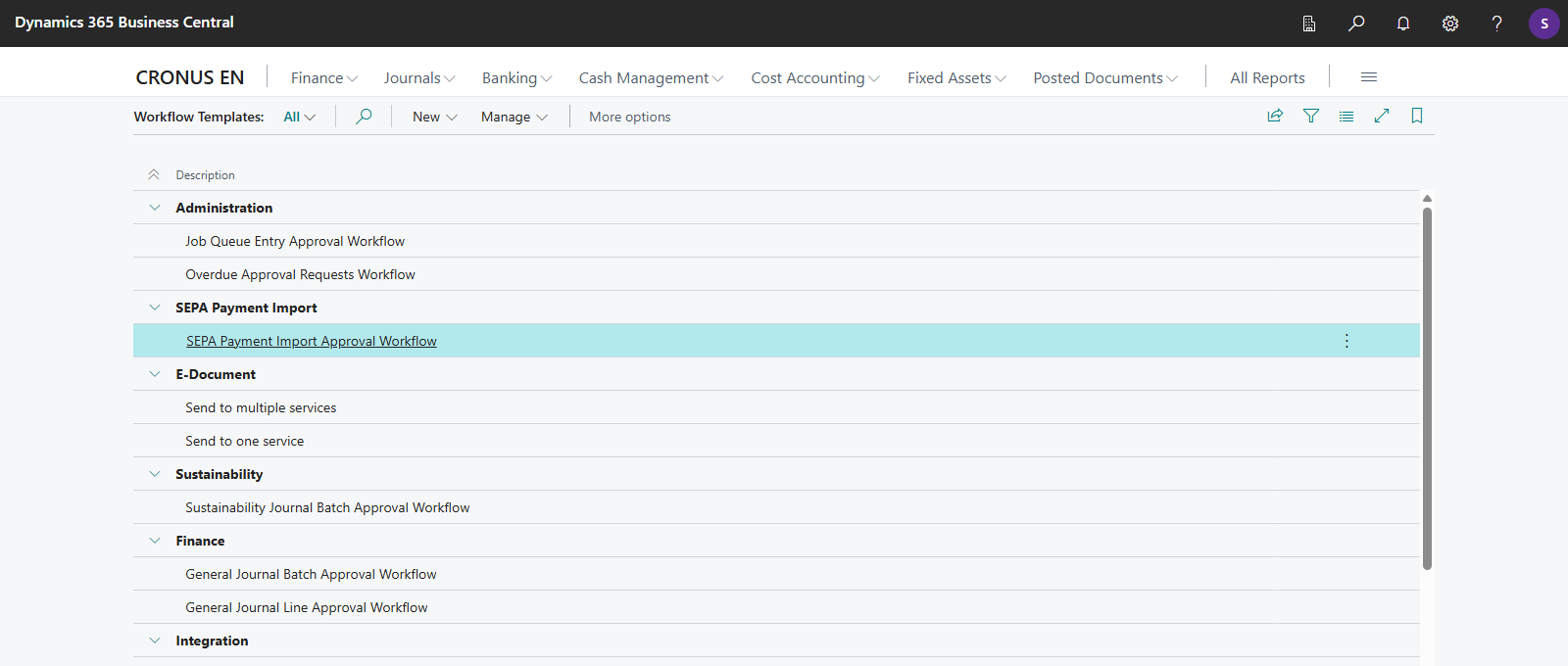
The template sends the request to the direct approver from **Approval User Setup**. You change that in the response step, as with any other workflow.
### Amount limits
You set amount limits as a condition on the event **Approval of a SEPA payment import is requested.**, as for a general journal:
- **Total amount of the file:** a condition on **Total Amount** of the payment import.
- **Single amount per recipient:** a condition on **Amount** of the payment import line.
The approval entry contains the amount of the file, so approvers see the amount they decide on without having to open the lines. If the file pays in one currency, it shows its total in that currency and, next to it, the **Amount (LCY)** converted at the exchange rate of the work date. If it pays in several currencies, its amount cannot be added up. In this case, the amount in local currency is also shown as the amount. The approvers' amount limits apply in local currency.
The **Required Approvers** field on the workflow works for this workflow as for all others. The import is released only after the specified number of approvers have agreed.
## Request approval
1. Open the import on the **SEPA Payment Import** card.
2. Choose **Approvals** > **Send Approval Request**. The **Approval Status** changes to *Pending Approval*.
3. Once the approvers have agreed, it changes to *Released* and **Carry Out Payment** becomes possible.
With **Cancel Approval Request** you withdraw an open request. With **Approvals** you view the import's approval entries. If the request is cancelled or rejected, the status is *Open* again.
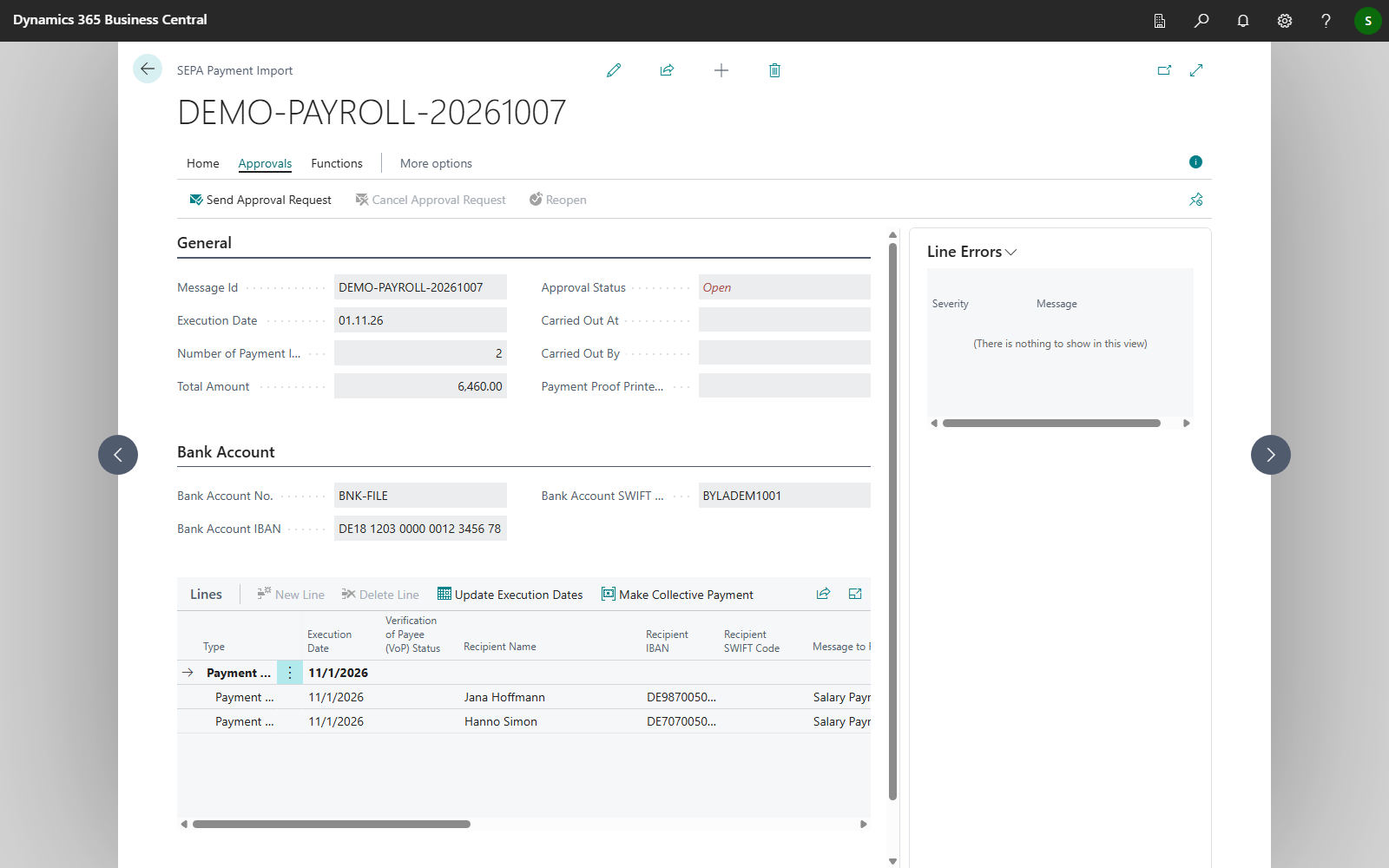
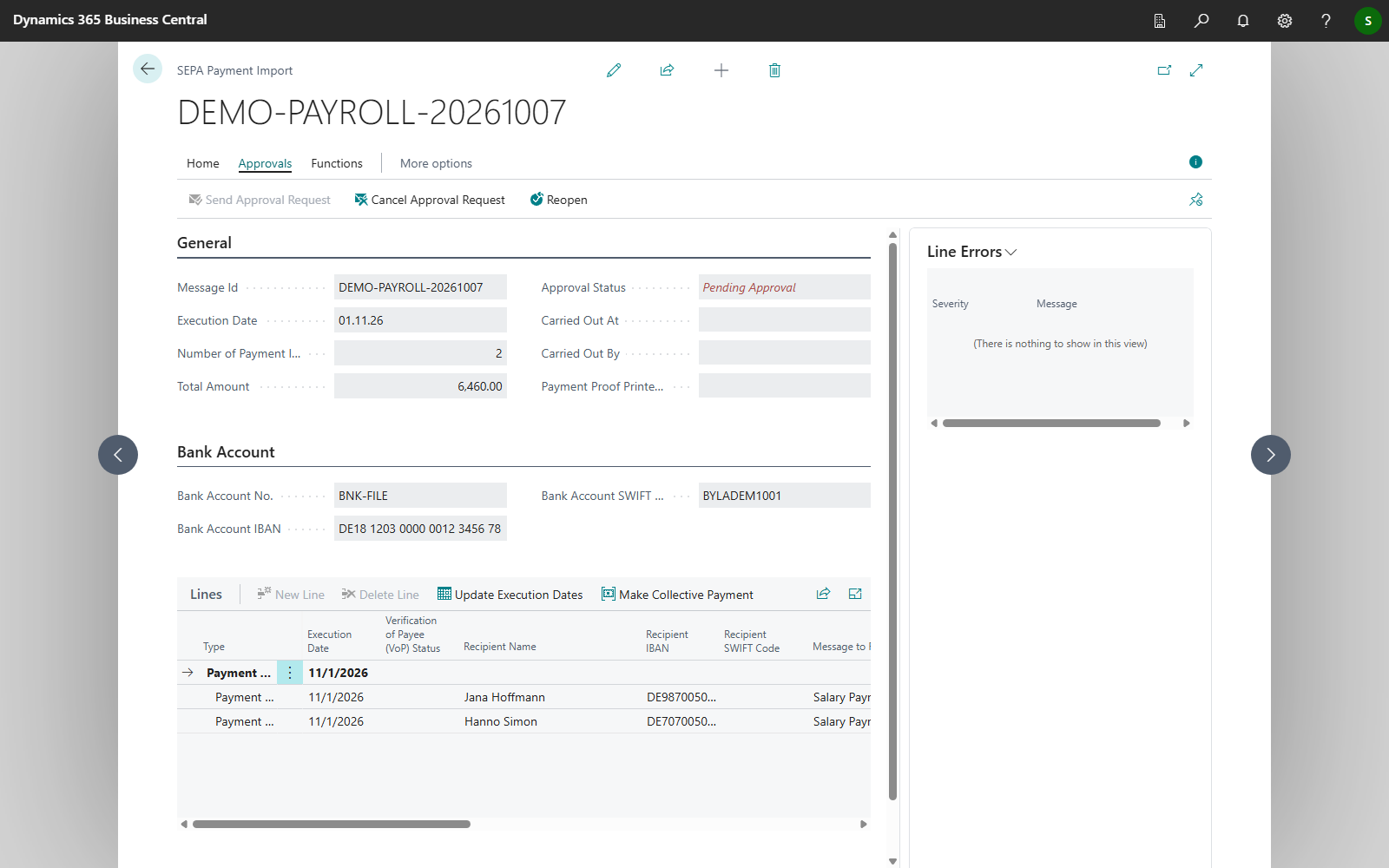
| **Approval Status** | Meaning |
|---|---|
| *Open* | No approval requested, cancelled or rejected. Without an enabled workflow this is the normal state |
| *Pending Approval* | The request is with the approvers. The import can neither be carried out nor changed |
| *Released* | Approved; **Carry Out Payment** is possible. The import can only be changed after **Reopen** |
**Send Approval Request** is only available when an approval workflow for SEPA payment imports is enabled and applies to this import. An import below the amount limit of your workflow is carried out without approval. **Cancel Approval Request** and **Reopen**, on the other hand, follow the **Approval Status** of the import. If you disable a workflow while imports are *Pending Approval* or *Released*, you can still cancel or reopen those imports, and the approval status stays visible.
As long as an import is *Pending Approval*, it cannot be carried out, regardless of the conditions of your workflow. If a workflow is enabled and the import is still *Open*, **Carry Out Payment** reports "The payment import has to be approved before it can be carried out." After it has been carried out, approval can no longer be requested.
## Change after release: Reopen
An approval covers the file as the approvers saw it. For this reason, Business Central locks an import as soon as it is *Pending Approval* or *Released*: **Bank Account No.**, execution date, collective payments and the lines can no longer be changed, and the import cannot be deleted. The lock also applies if the workflow has been disabled in the meantime. The **Approval Status** is what counts. Only the steps that pay the file remain possible: **Verification of Payee (VoP)**, validation and **Carry Out Payment**.
If you need to change the import, for example because the execution date is now in the past, proceed as follows:
1. If the import is *Pending Approval*, choose **Approvals** > **Cancel Approval Request**. If it is *Released*, choose **Approvals** > **Reopen**. The **Approval Status** is then *Open*.
2. Change the import. If it is *Parsed* afterwards, choose **Validate** again.
3. Send it for approval again with **Send Approval Request**.
**Reopen** is available for an import that is *Pending Approval* or *Released*, as long as it has not been carried out yet. If you choose the action while the import is *Pending Approval*, Business Central does not reopen it and shows the message "The payment import is pending approval. Cancel the approval request to reopen it." This ensures that the approvers are informed of the withdrawal. A carried-out import stays as it was paid.
## Verify recipients
The recipients of an imported file consist of a name and an IBAN that were entered outside Business Central. [Verification of payee (VoP)](../bank-payment-vop.mdx) is intended for this case.
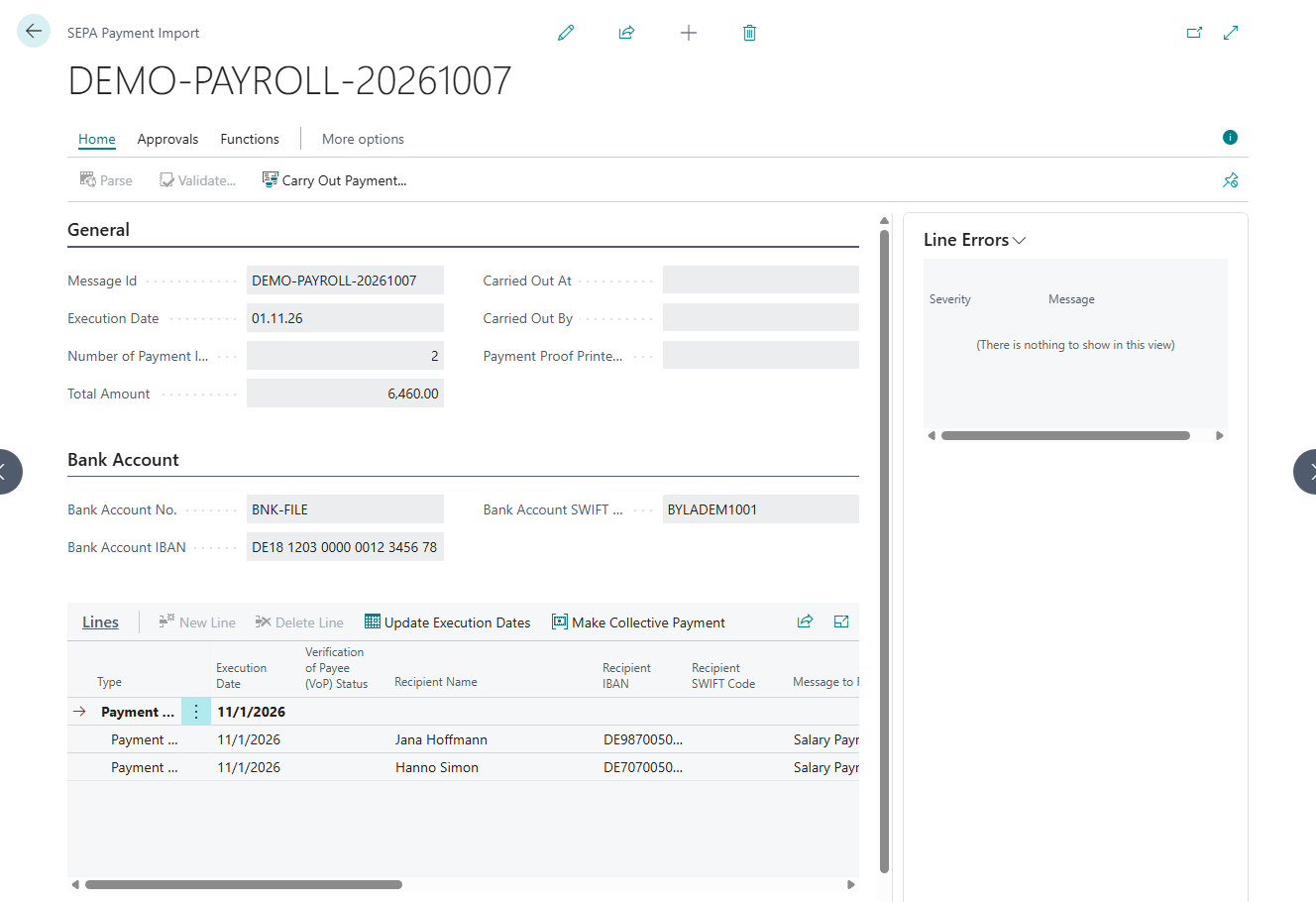
1. On the card, choose **Functions** > **Verification of Payee (VoP)**. The action is available as soon as the import is *Parsed* and until it has been carried out.
2. Confirm the question whether to perform the verification of payee check for the recipients of this payment import.
3. Business Central asks the recipients' banks and enters the answer in the **Verification of Payee (VoP) Status** column of every line: green for a match, yellow for a similar name, red for no match. The symbols are explained in [Verification of payee (VoP)](../bank-payment-vop.mdx).
4. When asked whether to review the results now, **Yes** opens the verification of payee log entries with the name the bank knows.
Lines that already have a match, and lines without name or IBAN, are not checked again. As a result, the costs of the check are not incurred twice for a file with several hundred payroll recipients. The check runs through the service selected in the **Verification of Payee** field of [Banking Setup](../setup/banking-setup.mdx) and through the company bank access, whichever bank connection later pays the file.
## What a deviation means
A deviation does not stop the payment. On the next **Validate** (at the latest on **Carry Out Payment**, which validates the file once more), it becomes a *Warning* on the line, not a block:
- red: "The recipient bank says this name does not hold this account."
- yellow: "The recipient bank says this name is close to, but not the same as, the name on this account."
Names can differ for legitimate reasons, for example with short forms, double names or account holders who are not the person receiving the payment. The creator of the file knows the payees. The decision on the payment therefore stays with you. For a red line, however, check with the party that supplied the file before you pay.
You can choose **Verification of Payee (VoP)** before or after **Validate**. If the import is already *Validated*, the result only becomes a warning on **Carry Out Payment**, which is the same step that pays. Therefore, check the **Verification of Payee (VoP) Status** column before you choose **Carry Out Payment**. If you want to see the warnings in the **Validation** column beforehand, go in the order **Parse** → **Verification of Payee (VoP)** → **Validate**.
The **Verification of Payee (VoP)** action requires the **Banking SEPA Import (with recipient details)** permission set. See [Who may see the recipients](permissions.mdx).
## Troubleshooting
| Message | Cause and remedy |
|---|---|
| "The payment import is pending approval and cannot be carried out yet." | The approvers have not decided yet. **Approvals** shows the status |
| "The payment import has to be approved before it can be carried out." | A workflow is enabled but the import is *Open*. Choose **Send Approval Request** |
| "You cannot change payment import … while its approval status is …. …" | The import is *Pending Approval* or *Released*. See [Change after release: Reopen](#change-after-release-reopen) |
| "There are no recipients to check in this payment import." | All lines already have a match or no name or IBAN |
| "No recipient was checked, because no Verification of Payee (VoP) service is selected in the Banking Setup. …" | The **Verification of Payee** field in the [Banking Setup](../setup/banking-setup.mdx) is empty. Select a service there and check again. The lines remain unchanged |
| "The Verification of Payee (VoP) check did not return any results for this payment import." | The service did not answer for any recipient in this run, for example because Verification of Payee is not licensed. Older results are not taken over. Try again later. In [Banking Setup](../setup/banking-setup.mdx), check the **Verification of Payee** field and the **Company bank access** |
## See also
- [SEPA payment import](../sepa-payment-import.mdx)
- [Approval](../approval.mdx)
- [Verification of payee (VoP)](../bank-payment-vop.mdx)
- [Who may see the recipients](permissions.mdx)
- [Approval workflow and VoP in SEPA payment import (new feature)](../features/details/sepa-import-approval-vop.mdx)