import { Callout } from "zudoku/ui/Callout";
# Shopify
The integration with Shopify is currently in beta phase. Some features may not yet be fully available or stable. We recommend evaluating this integration in a test environment first before deploying it in a production environment.
Shopify is an e-commerce platform that enables businesses to create and manage online stores. With **365 business Banking**, you can connect your Shopify account directly to **Microsoft Dynamics 365 Business Central** to automatically retrieve transactions and include them in payment reconciliation.
## Prerequisites
- An active Shopify account.
## Step-by-Step Guide
1. Select **Bank Accounts** in the search of Microsoft Dynamics 365 Business Central.
2. Create a new bank account or select an existing one.
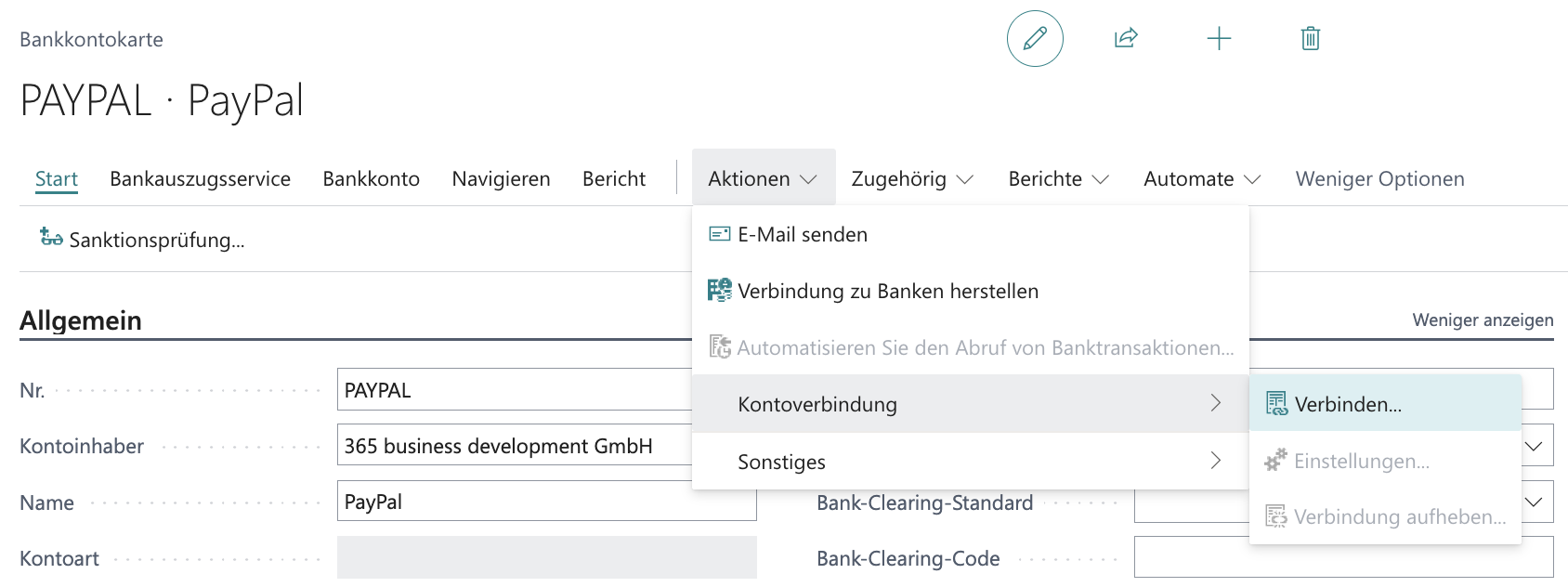
3. In the **Bank Account Card**, under **Actions**, select the **Account Connection** action group and **Connect...**.
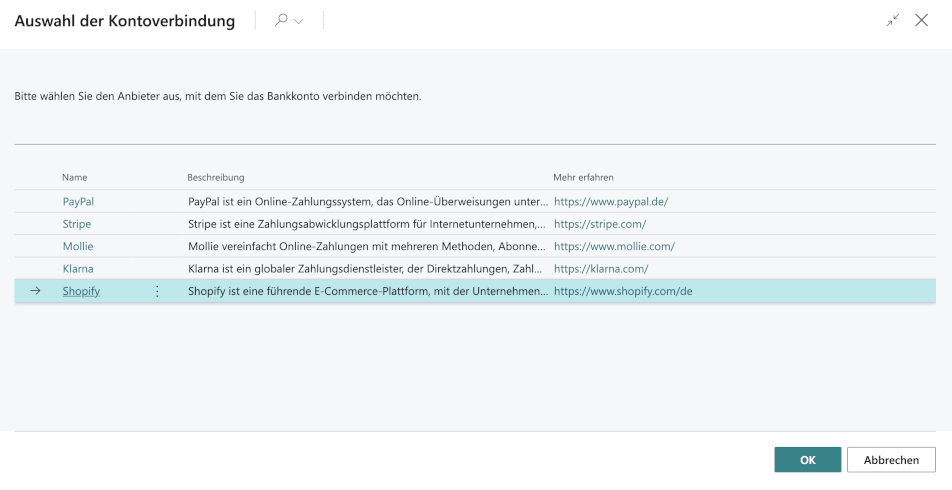
4. Select **Shopify** from the list.
5. Confirm the confirmation prompt with **Yes**.
6. Enter the **Shop Name** of your Shopify shop (e.g., `myshop` for `myshop.myshopify.com`).
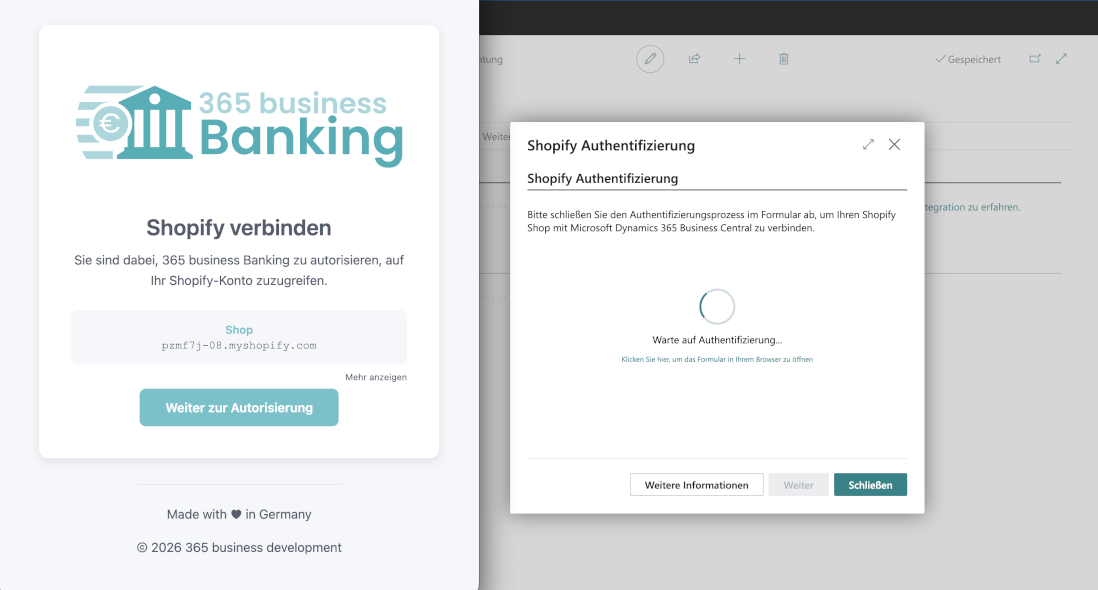
7. Click **Authenticate** to establish the connection between Shopify and 365 business Banking.
8. In the opening browser window, select the **Continue to Authorization** action.
9. Sign in with your Shopify credentials.
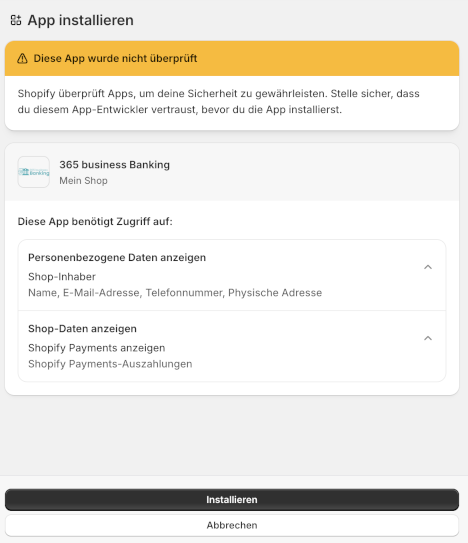
10. Confirm the installation of the **365 business Banking** app in your Shopify shop.
11. After successful installation, a confirmation of successful authorization appears.
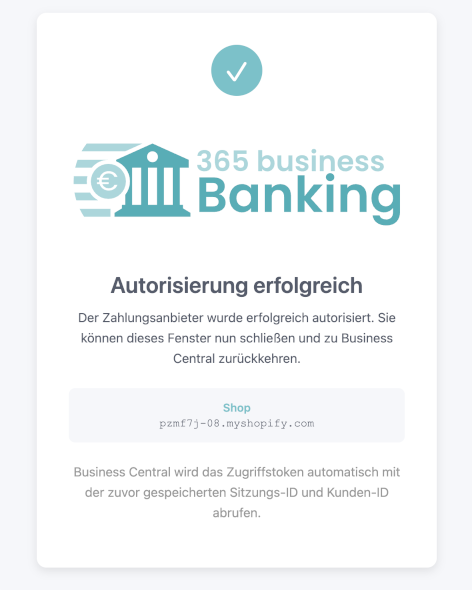
12. Return to Microsoft Dynamics 365 Business Central. The connection is now established.
## Private App Integration
In addition to the **365 business Banking** app for Shopify, which simplifies the connection process, it is also possible to establish a connection via a _private_ app. This method requires more manual effort but provides an alternative integration option for businesses with specific requirements or restrictions.
### Create a Private Shopify App
1. Navigate to **https://dev.shopify.com/** and sign in with your Shopify credentials.
2. Select **Apps** from the left menu.
3. Select **Create app**.
4. In the **Start from Dev Dashboard** section, enter an app name (e.g., `365 business Banking (Private)`).
5. Select **Create** to create the app.
6. Create a new version with the following settings:
- **App URL**: `https://banking.365businessapi.com/api/v1.0/shopify/connect`
- **Redirect URL**: `https://banking.365businessapi.com/api/v1.0/shopify/callback`
- **Scopes**: `read_shopify_payments_accounts,read_shopify_payments_payouts`
- **Optional Scopes**: `read_orders`
- **API Version**: `2026-01`
7. Select **Release** and confirm the publication of the app.
### Shopify Connection Setup
1. Select **Bank Accounts** in the search of Microsoft Dynamics 365 Business Central.
2. Create a new bank account or select an existing one.
3. In the **Bank Account Card**, under **Actions**, select the **Account Connection** action group and **Connect...**.

4. Select **Shopify** from the list.

5. Confirm the confirmation prompt with **Yes**.
6. Enter the **Shop Name** of your Shopify shop (e.g., `myshop` for `myshop.myshopify.com`).
7. Select the **Private App** option in the **Mode** field.
8. Enter the **Client ID** and **Client Secret** of the previously created private app.

9. Click **Authenticate** to establish the connection between Shopify and 365 business Banking. (Analogous to steps 8-12 of the previous guide.)
### Updating the Account Connection
It may be necessary to update the account connection, for example, if **365 business Banking** has installed additional features in your Shopify shop or if you want to adjust the permissions of the existing connection.
To update the account connection, proceed as follows:
1. Select **Bank Accounts** in the search of Microsoft Dynamics 365 Business Central.
2. Select the bank account whose connection you want to update.
3. In the **Bank Account Card**, under **Actions**, select the **Account Connection** action group and **Settings**.
4. Click **Authenticate** to update the connection between Shopify and 365 business Banking.
5. Follow the instructions in the browser to update the connection. (Analogous to steps 8-11 of the previous guide.)
## Disconnect Account Connection
1. Select **Bank Accounts** in the search of Microsoft Dynamics 365 Business Central.
2. Select the bank account whose connection you want to disconnect.
3. In the **Bank Account Card**, under **Actions**, select the **Account Connection** action group and **Disconnect...**.
4. Confirm the confirmation prompt with **Yes**.
## Retrieve Transactions
After establishing the connection between Shopify and Microsoft Dynamics 365 Business Central via the Shopify integration in 365 business Banking, you can retrieve transactions from Shopify just like from a regular bank account and include them in payment reconciliation.
Transactions may contain fees or other deductions. These fees and deductions are recorded by 365 business Banking as separate transactions so that they can be posted separately from the original payments and the reconciliation is correctly represented.
For more information, see [Bank Account Reconciliation](../bank-reconciliation.mdx).
## See also
- [Shopify Setup](shopify/setup.mdx)
- [Retrieve Shopify Transactions](shopify/retrieve-transactions.mdx)