import { Callout } from "zudoku/ui/Callout";
# PayPal
PayPal is a globally leading online payment service that enables businesses and individuals to send and receive payments securely and easily. With **365 business Banking**, you can connect your PayPal account directly to **Microsoft Dynamics 365 Business Central** to automatically retrieve transactions and include them in payment reconciliation.
## Prerequisites
- An active PayPal account.
- API credentials (Client ID and Client Secret) for the PayPal REST API.
You can create these in your PayPal developer account (see [PayPal Developer Account](https://developer.paypal.com/dashboard/applications/live)).
### App Permissions
To establish the connection between PayPal and Microsoft Dynamics 365 Business Central, you must create an app in your PayPal developer account and grant the appropriate permissions. The required permissions include:
| Permission | Description |
| --- | --- |
| `Transaction Search` | Enables access to transaction data to retrieve transactions and match them with bank reconciliations in Microsoft Dynamics 365 Business Central. |
## Setup
To establish the connection between PayPal and Microsoft Dynamics 365 Business Central, proceed as follows:
### Step-by-Step Guide
1. Select **Bank Accounts** in the search of Microsoft Dynamics 365 Business Central.
2. Create a new bank account or select an existing one.
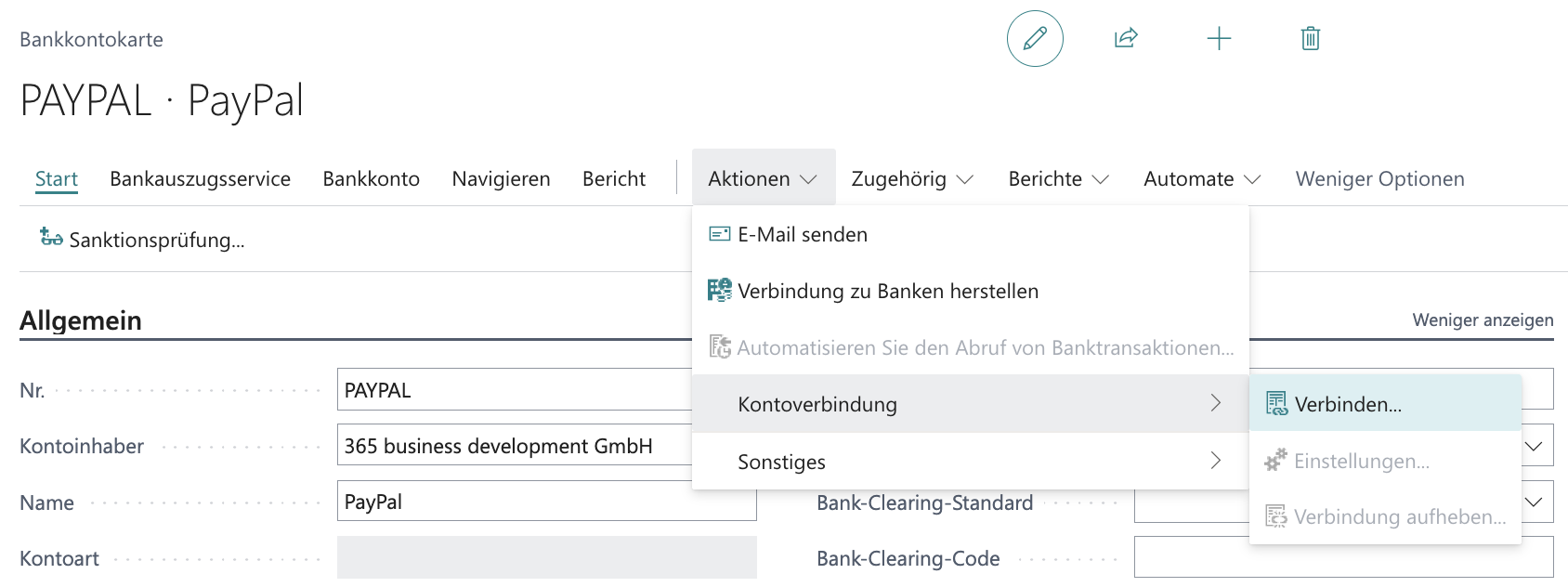
3. In the **Bank Account Card**, under **Actions**, choose the action group **Account Connection** and select **Connect…**.
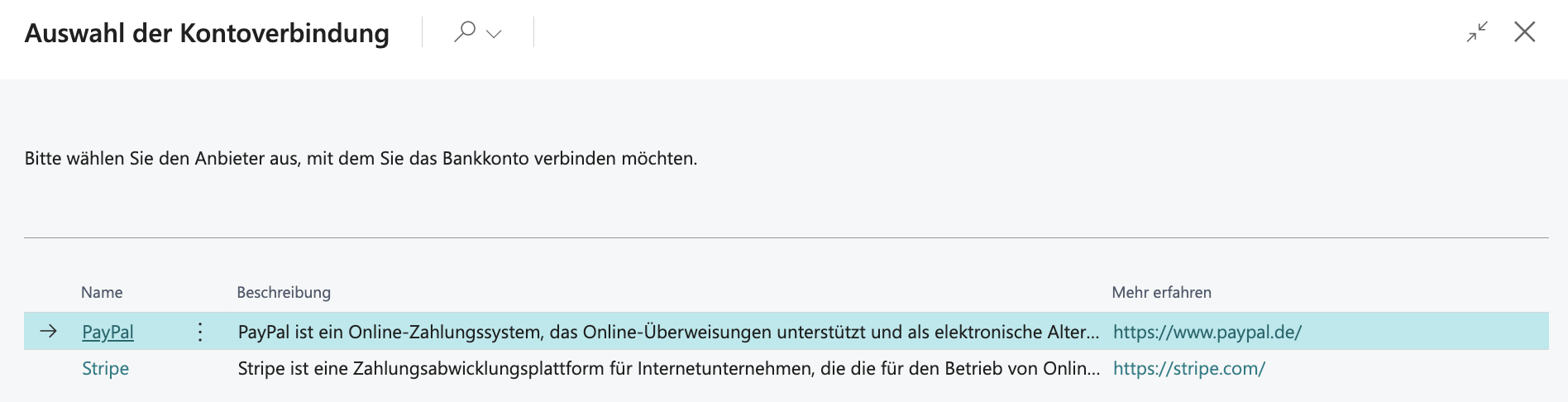
4. Select **PayPal** from the list.
5. Confirm the confirmation prompt with **Yes**.
6. Enter the Client ID and Client Secret from the **API Credentials** page under **REST API apps**.
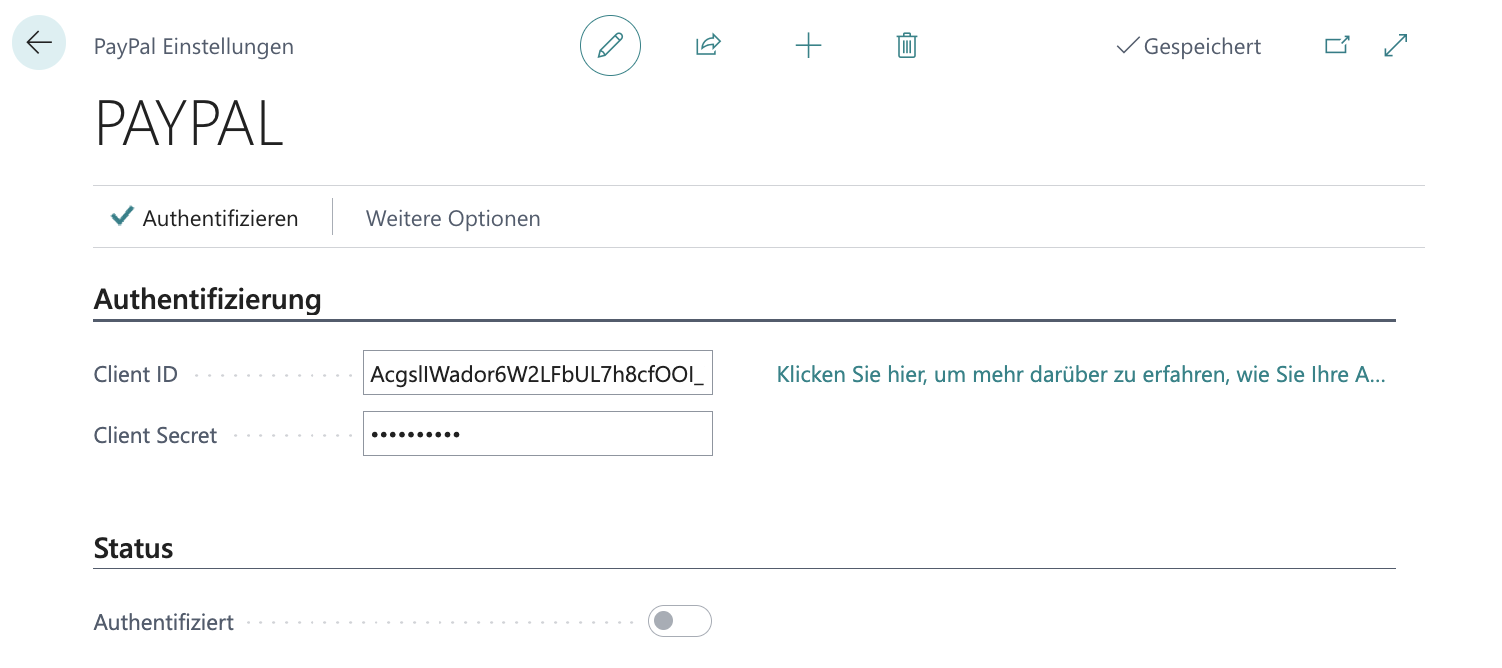
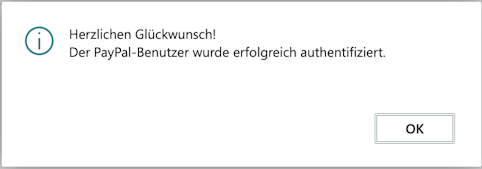
7. Select the **Authenticate** action to check and activate access.
### Disconnect Account
To disconnect your PayPal account, follow these steps:
1. Select **Bank Accounts** in the search of Microsoft Dynamics 365 Business Central.
2. Select the bank account that is connected to PayPal.
3. In the **Bank Account Card**, under **Actions**, choose the action group **Account Connection** and select **Disconnect...**.
4. Confirm the confirmation prompt with **Yes**.
## Retrieve Transactions
After establishing the connection between PayPal and Microsoft Dynamics 365 Business Central via the PayPal integration in 365 business Banking, you can retrieve transactions from PayPal just like from a regular bank account and include them in payment reconciliation.
Transactions may contain fees or other deductions. These fees and deductions are recorded by 365 business Banking as separate transactions so that they can be posted separately from the original payments and the reconciliation is correctly represented.
For more information, see [Bank Account Reconciliation](../bank-reconciliation.mdx).
## Collect Payments
The PayPal integration supports customer payment collection. Setup and operational steps are documented in [Collect PayPal Payments](paypal/collect-payment.mdx).
### Prerequisites
In addition to the common prerequisites:
- The customer bank account payment service is `PayPal`.
- The customer has granted payment authorization successfully.
### App permissions for payment collection
| Permission | Description |
| --- | --- |
| `Save payment methods` | Enables storing payment methods so customers can grant payment authorizations. |
### Payment authorization and redirect URLs
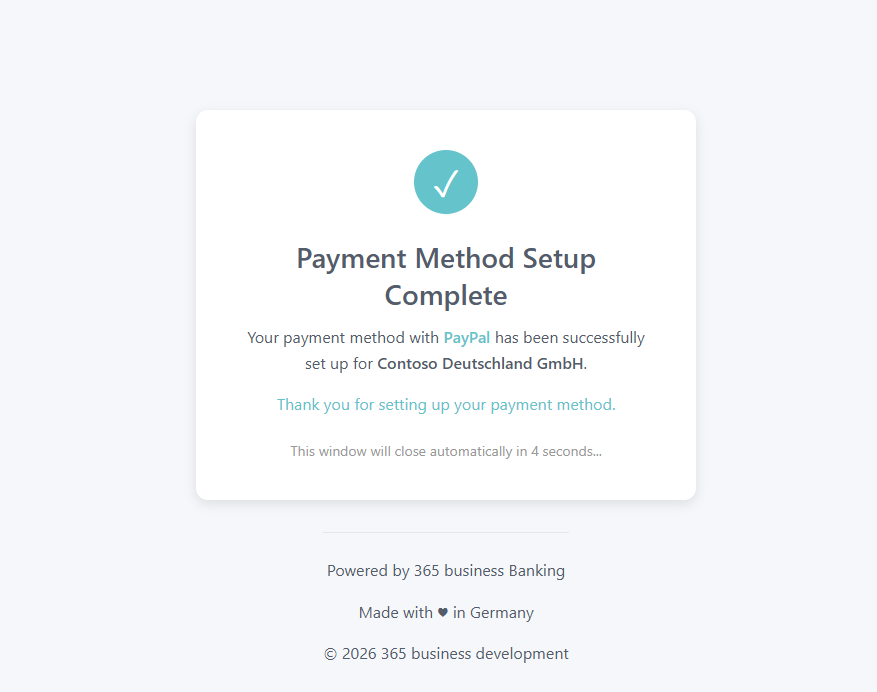
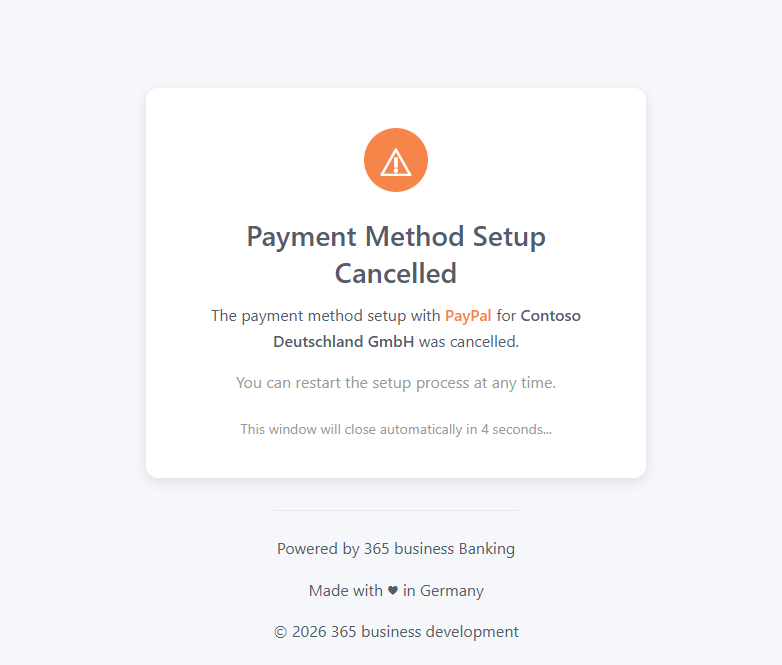
Payment authorization is triggered via **Request Payment Authorization...** on the customer bank account. PayPal can use optional custom redirect URLs for success and error. If no custom URLs are defined, the default 365 business Banking pages are used.
Redirect pages are static pages. The company name is passed as a query parameter so customers can see which company they authorized.
**Default page for successful authorization:**
**Default page for cancelled authorization:**
## See also
- [Collect PayPal Payments](paypal/collect-payment.mdx)
- [PayPal Setup](paypal/setup.mdx)
- [Retrieve PayPal Transactions](paypal/retrieve-transactions.mdx)
- [Bank Account Reconciliation](../bank-reconciliation.mdx)