import { Callout } from "zudoku/ui/Callout";
import { IconCardsGrid, LinkGroupCardsGrid } from "../../../src/components/ColumnsCards";
# Payment Services
With **365 business Banking**, you can connect not only traditional bank accounts but also **payment services**, such as PayPal, Stripe, and mollie, directly to **Microsoft Dynamics 365 Business Central**.
This allows you to automatically retrieve transactions and include them in payment reconciliation.
## Supported Payment Services
We are continuously working to integrate additional payment services to provide you with an even broader selection.
Please check regularly for new versions of 365 business Banking to take advantage of new features.
## Step-by-Step Guide
1. Select **Bank Accounts** in the search of Microsoft Dynamics 365 Business Central.
2. Create a new bank account or select an existing one.
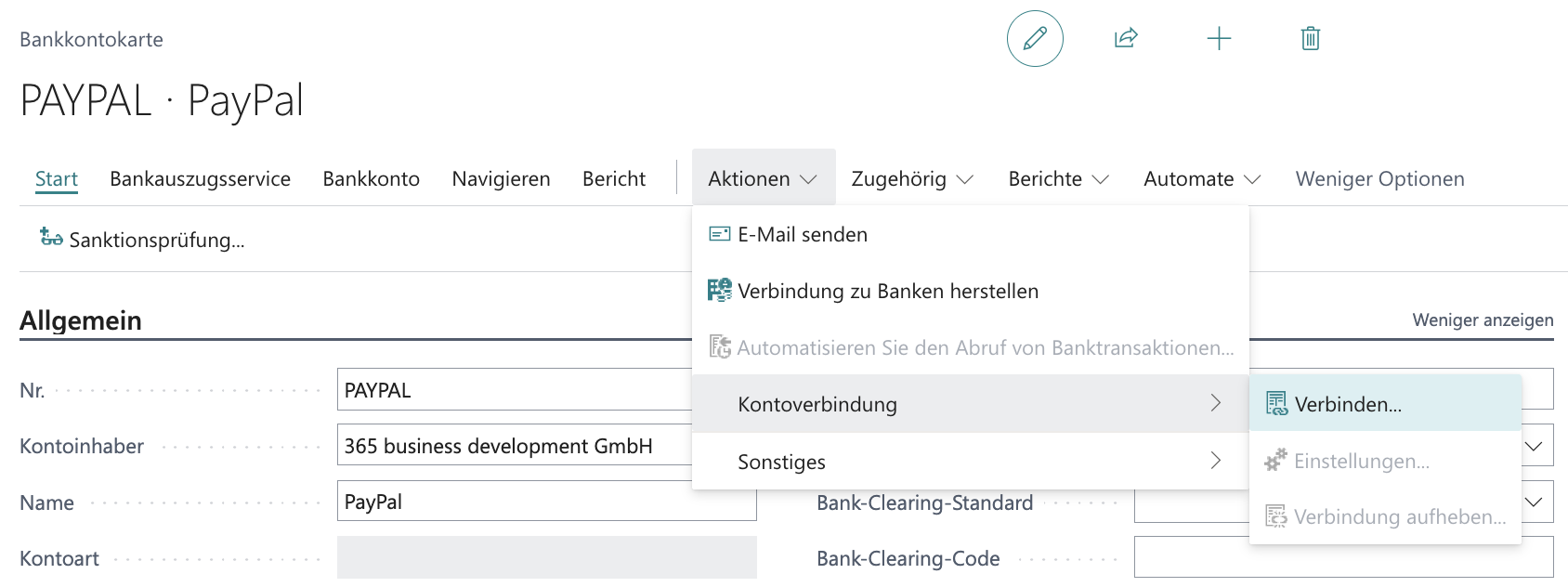
3. In the **Bank Account Card**, under **Actions**, choose the action group **Account Connection** and select **Connect…**.
4. From the list, select the desired provider, e.g., **PayPal**
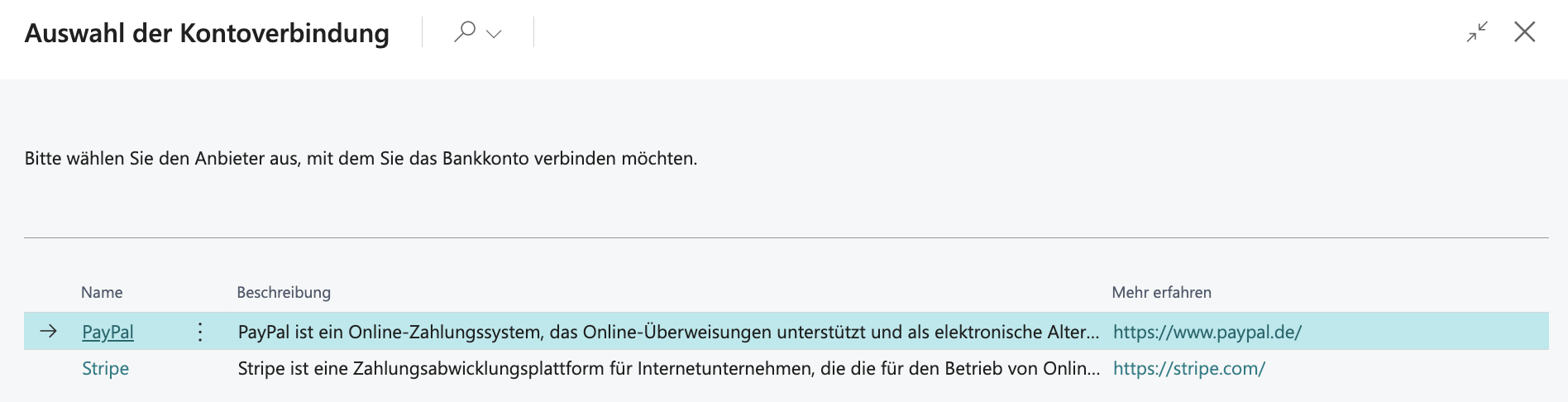
5. Confirm the confirmation prompt with **Yes**.
6. Depending on the provider, different authentication data may be required. Enter the necessary information.
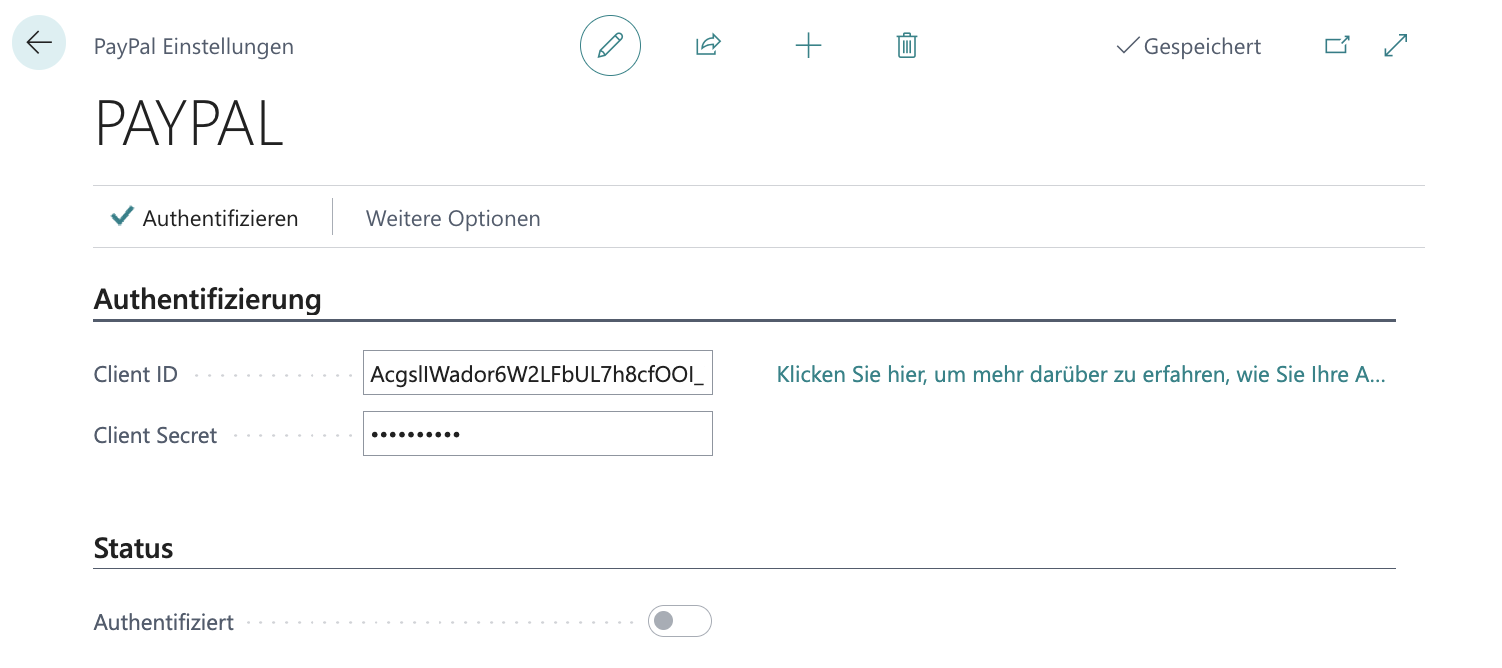
7. Select the **Authenticate** action to check and activate access.
Afterwards, you can retrieve and process the transactions from the payment service using the Payment Reconciliation Journal (see [Using the Payment Reconciliation Journal](bank-reconciliation.md)).
# See Also
- [Set up PayPal account](payment-services/paypal.mdx)
- [Set up Stripe account](payment-services/stripe.mdx)
- [Set up Mollie account](payment-services/mollie.mdx)
- [Set up Klarna account](payment-services/klarna.mdx)
- [Set up Shopify account](payment-services/shopify.md)
- [Set up Universal Banking Provider](payment-services/universal.md)