import { Callout } from "zudoku/ui/Callout";
# Connect a bank account via PSD2/XS2A
This page describes how to connect a bank account via PSD2/XS2A in 365 business Banking: sign-in on your bank's web form, account selection and first retrieval.
**Applies to:** PSD2/XS2A via finAPI (*SEPA Bank Account*)
## Prerequisites
- The **company bank access** is connected, see [Banking setup](../../setup/banking-setup.mdx). If it is missing, the wizard automatically takes you there.
- Your online banking credentials and your TAN device are at hand.
- Your bank can be reached via finAPI, see [Supported banks](../../supported-banks.mdx).
Signing in to your bank opens in a separate window. Allow pop-ups in your browser for your Business Central address (for example `https://businesscentral.dynamics.com`). If no window opens, use the link **Click here to open the webform in your browser**.
## Step by step
1. Choose the **Search** icon, enter **Bank Accounts** and choose the related link. In the list, choose the **Connect Bank Accounts** action. The **Connect Bank Account** wizard opens.
2. Choose **Next**.
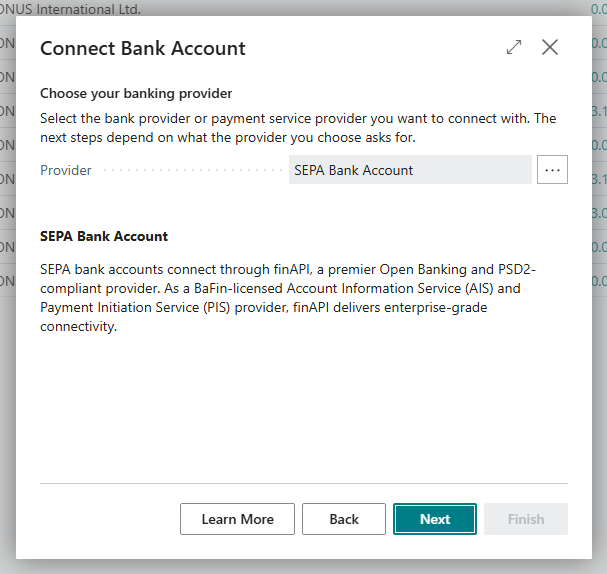
3. **Choose your banking provider**: set **Provider** to *SEPA Bank Account* and choose **Next**.
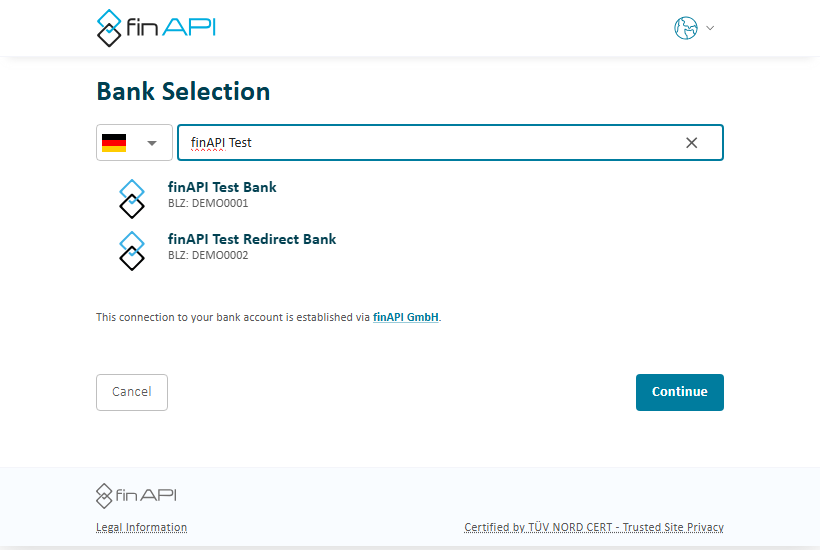
4. **Connect your bank accounts**: the web form opens.
- Choose your bank by bank name, BIC or IBAN.
- Sign in with your online banking credentials.
- Confirm access, usually with a TAN.
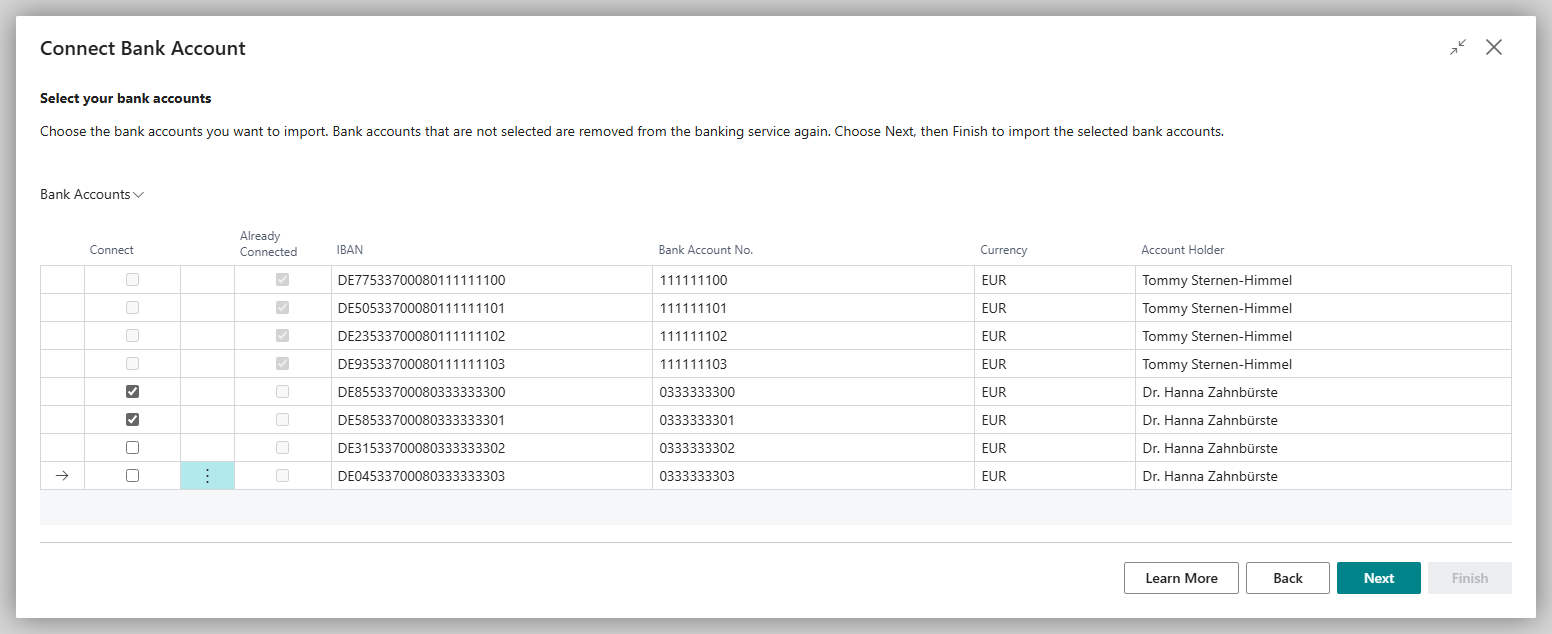
5. **Select your bank accounts**: Business Central lists all accounts that your bank has released, with **IBAN**, **Bank Account No.**, **Currency** and **Account Holder**. In the **Connect** column, select the accounts that you want to take over.
If there is no account that can be connected, the wizard shows **We're sorry!** with the reason instead of an empty list, for example "Your bank named no accounts for this connection, so there is nothing to connect here. …". In this case, ask your bank whether the access is released for the accounts you expect, and start the wizard again.
6. Choose **Next**. The **Congratulations!** page announces how many accounts are connected: "When you choose Finish, … bank accounts are connected."
7. Choose **Finish**. Business Central creates the bank accounts or connects existing ones.
Bank accounts that you **do not** select in step 5 are removed from finAPI again, and the release is revoked. If an account is to be kept in Business Central later after all, run the wizard again.
You enter them only in the web form; Business Central does not store them.
## What is taken over
When connecting, Business Central takes over the following details from your bank:
- the account's **Name**, **IBAN**, **SWIFT Code** (BIC), **Currency Code** and **Bank Account No.**,
- **Account Holder** and **Account Type** (for example current account, savings, credit card),
- the bank's logo as the picture of the bank account, if the bank account does not have a picture yet.
If a bank account with the same IBAN already exists in Business Central, it is connected and updated instead of creating a second one.
If you have kept a bank account in Business Central for some time, first complete the [bank account reconciliation](https://learn.microsoft.com/en-us/dynamics365/business-central/bank-how-reconcile-bank-accounts-separately), or enter the **Last Statement Date** on the bank account card. The first date entered determines from when transactions are retrieved. See [Bank account card](../../bank-accounts/bank-account-card.mdx).
## What you see afterwards
On the **Bank Account Card**:
- **Account Information Service** = *SEPA Bank Account*, **Payment Initiation Service** = *SEPA Bank Account*.
- FastTab **Banking Interfaces**: **Statements read over** and **Payments sent over** each show *XS2A*; depending on the bank, *FinTS* or other routes are added. finAPI decides which route it uses for a single request.
- FactBox **Capabilities**: the functions that your bank allows for this account, for example **SEPA Money Transfer**, **SEPA Collective Money Transfer**, **SEPA BASIC Direct Debit** or **SEPA Instant Money Transfer**. The payment methods that the account offers depend on this. See [Bank account capabilities](../../bank-accounts/capabilities.mdx).
Then retrieve the first transactions: **Retrieve Bank Transactions** in the list of payment reconciliation journals or in the payment reconciliation journal. See [Retrieve bank transactions](../../bank-reconciliation/retrieve-transactions.mdx).
## More accounts and updates
| Goal | Procedure |
|---|---|
| connect another account at the same or a different bank | run the wizard again; existing accounts are not created twice |
| update the details of connected accounts | choose **Get Bank Accounts** on an account of the bank connection, in the **Bank Accounts** list or on the bank account card |
| take over further accounts of the same bank connection, for example an account opened later | choose **Get Additional Bank Accounts** on an account of the bank connection, see [Get bank accounts and get additional bank accounts](../../bank-accounts/bank-account-card.mdx#get-bank-accounts-and-get-additional-bank-accounts) |
| pay from the same account with your own online banking login | [Use with my own bank login](personal-bank-access.mdx) |
## Troubleshooting
| Message or symptom | Cause and remedy |
|---|---|
| No web form opens | The browser blocks pop-ups. Allow pop-ups for Business Central. |
| *SEPA Bank Account* is not offered | The 365 business Banking license is missing. |
| Your bank cannot be found in the web form | The bank is not reachable via finAPI. Consider [EBICS](../ebics/index.mdx) or the [camt/pain file](../iso20022-file/index.mdx). |
| After some weeks, retrieval asks you to sign in again | The PSD2 consent has expired, see [Renew consent](renew-consent.mdx). |
## See also
- [Bank connection via PSD2/XS2A](index.mdx)
- [Connect a bank account](../connect-bank-account.mdx)
- [Disconnect](../../bank-accounts/disconnect.mdx)