import { Callout } from "zudoku/ui/Callout";
# Combine banking services: statements and payments via different routes
This page describes how to combine account information and payment initiation services in 365 business Banking, for example statements via finAPI and payments via EBICS or as files.
A bank account does not have to get both of its connections from the same service. **Account Information Service** and **Payment Initiation Service** can be combined freely as long as both follow the same scheme. See [Account information service and payment initiation service](../concepts/account-information-payment-initiation.mdx).
**Applies to:** PSD2/XS2A via finAPI, EBICS, camt/pain file
## Reasons for combining
### Statements via finAPI, payments via EBICS
**Account Information Service** = *SEPA Bank Account*, **Payment Initiation Service** = *SEPA Bank Account (EBICS)*.
- **Daily limit.** A payment via PSD2 technically runs through your online banking and is subject to its daily limit, at many banks 10,000 or 50,000 euros. A payment suggestion with a month's vendor invoices often exceeds this limit. The EBICS contract has its own limits for corporate payments.
- **No TAN per payment run.** Via EBICS, Business Central signs with the stored key. This also makes payment runs in the background possible.
- **Collective orders and direct debits.** EBICS is designed for collective credit transfers and direct debit collection; not every bank offers both via PSD2.
- **Second signature.** The bank's four-eyes principle runs via [VEU](ebics/distributed-signature.mdx); PSD2 has no equivalent.
The statements continue to be retrieved via finAPI, at no extra cost and without a limit.
### Statements automatically, payments only as files
**Account Information Service** = *SEPA Bank Account* or *SEPA Bank Account (EBICS)*, **Payment Initiation Service** = *Bank Account (pain File Export)*.
This combination is suitable for companies that **do not want a service provider between themselves and their bank when paying** but want to keep automatic statement retrieval:
- **Retrieving and paying are different risks.** A service that retrieves your statement cannot carry out payments. Many companies draw the line at this point.
- **Every payment is approved manually.** The file is created but is only carried out when someone uploads and approves it in online banking.
- **Approval takes place in the banking program.** Collective authorities, approval limits and your bank's four-eyes principle apply unchanged.
- **The decision can be changed.** You can switch the payment initiation service later.
With the file route, the payment status *Completed* only means that the file was written. **If the file is not uploaded, no payment has been made**, and Business Central cannot warn you. Decide who performs the upload, and post the lines only afterwards. See [Export payment file](iso20022-file/export-payment.mdx).
### Other combinations
| Account information service | Payment initiation service | Typical reason |
|---|---|---|
| *Bank Account (camt File Import)* | *SEPA Bank Account (EBICS)* | statements come from another system, payments via EBICS |
| *SEPA Bank Account (EBICS)* | *SEPA Bank Account* | retrieval via EBICS, standing orders via finAPI |
## Change banking services
**Prerequisites:**
- The bank account is already connected via one route ([Connect a bank account](connect-bank-account.mdx)). It does not matter which route you use first.
- The new service is set up: the [company bank access](../setup/banking-setup.mdx) for finAPI, an [EBICS participant](ebics/participant.mdx) with the status **Ready** for EBICS, or the message versions for the [file route](iso20022-file/setup.mdx).
- It is the same bank account: same IBAN, same bank, same currency.
**Step by step:**
1. Open the **Bank Account Card**.
2. Choose **Actions** > **Banking Provider** > **Change Banking Services**.
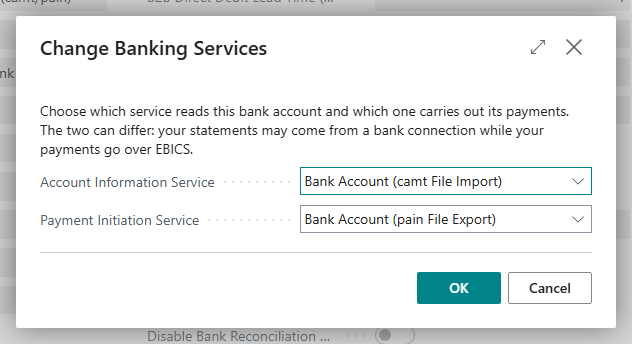
3. Set **Account Information Service** and **Payment Initiation Service** to the combination you want.
4. Confirm. Business Central checks whether the two services can be combined and whether the new service reaches this account (see the table below). Only then are the fields written. If the check fails, the bank account remains unchanged.
An account at a payment service provider is retrieved and paid by exactly one service. Therefore, **Change Banking Services** is not available for such accounts.
## What switching requires
| New service | Process |
|---|---|
| *SEPA Bank Account (EBICS)* | You choose the EBICS participant if the account does not have one yet. Business Central asks **your bank** which accounts this participant may use. If your account is not among them, the switch is rejected. |
| *SEPA Bank Account* (finAPI) | If the account can already be reached through an existing connection, no further steps are required. Otherwise, the web form opens directly at your account's bank (page **Connect Bank Account to the Bank Connection**). Exactly this account is taken over; all other accounts of the connection are released again. |
| *Bank Account (camt File Import)* / *(pain File Export)* | No further steps, because the file route does not communicate with any bank. If the message versions are missing, set them up in the [ISO 20022 File Setup](iso20022-file/setup.mdx). Business Central takes the [capabilities](../bank-accounts/capabilities.mdx) for the part processed as files from the file setup; the capabilities reported by the other service are retained. |
This check is required because the two fields are only settings. An account switched to a service without an existing connection would look correct on the card but would fail at the next retrieval or the next payment run.
## Duplicate prevention
When you switch the account information service, the new service does not know which transactions the previous service has already delivered. Whether Business Central recognizes these transactions depends on the new service.
Every transaction is recognized by the **transaction ID** that the delivering service assigns. Transactions whose transaction ID already exists for the bank account in a payment reconciliation journal or a posted reconciliation are skipped. A different service assigns a different transaction ID to the same transaction.
If the bank account reads through *Bank Account (camt File Import)* or *Universal*, Business Central also checks a **transaction fingerprint** built from your bank's data: bank account, booking date, amount and counterparty IBAN. These services do not deliver a permanently unique transaction ID. The fingerprint also recognizes transactions that were previously imported through finAPI or EBICS. Two genuine transactions with identical characteristics, for example two direct debits for the same amount from the same payer on the same day, are **counted** and not merged: if one of them already exists, the second is still imported.
For *SEPA Bank Account* (finAPI), *SEPA Bank Account (EBICS)* and the payment service providers, only the transaction ID counts. Business Central does not check a fingerprint there. See [Retrieve bank transactions](../bank-reconciliation/retrieve-transactions.mdx#duplicate-prevention).
After you switch the account information service, transactions that already arrived through the previous service can arrive again. This mainly applies to a switch to finAPI or EBICS. Check the first retrievals after the switch and delete lines with transactions that are already posted before you post the payment reconciliation journal.
## From when transactions are retrieved
**Last Statement Date** on the bank account card indicates up to which statement the account is reconciled. Posting a payment reconciliation journal advances the date. However, it does **not** determine how far back a retrieval goes.
This is the purpose of the **Retrieve Transactions From** field. It is set **once**, by the first **Last Statement Date** that you enter. After that, it is not changed. This way, transactions whose lines were deleted and never posted remain retrievable even after the last statement date has advanced. The field is hidden. If it has to be corrected, contact your partner.
The update to 18.4 sets **Retrieve Transactions From** to the oldest transaction that 365 business Banking imported for the account and adds the fingerprint to all transactions already imported.
## Verify the result
- **Account Information Service** and **Payment Initiation Service** show two different values, and the **Connection** field names both routes.
- On the **Banking Interfaces** FastTab, **Statements read over** and **Payments sent over** show two different routes.
- **Retrieve Bank Transactions** behaves according to the account information service: retrieval or file selection.
- **Carry Out Payment** behaves according to the payment initiation service: web form, EBICS submission or download.
Nothing changes for your users: payment suggestion, review, **Carry Out Payment**, retrieval and payment reconciliation remain in the same place.
## See also
- [Choose a bank connection](../concepts/choose-bank-connection.mdx)
- [One bank access for several companies](multi-company.mdx)
- [Bank account card](../bank-accounts/bank-account-card.mdx)