import { Callout } from "zudoku/ui/Callout";
# Set up an EBICS participant
This page describes how to set up an EBICS participant in 365 business Banking: details from the EBICS contract, key creation, initialization letter, bank keys.
An **EBICS participant** is your access to **one** bank: one bank, one customer ID, one user ID and a key pair that belongs exclusively to you. If you have EBICS contracts with several banks, create one participant per bank. Only once the participant has the status **Ready** can you connect bank accounts through it.
**Applies to:** EBICS
If you already use EBICS with another program, first read [Switch from another EBICS program](migration.mdx). Your existing keys cannot be taken over. That page describes what you should therefore clarify with your bank beforehand.
## Prerequisites
- **The *365 Banking - Setup* permission set** or SUPER. With **Banking (Base)** alone, the participant card can only be read.
- **The *EBICS Connection* license.** Without this license, the wizard does not offer EBICS. See [Permissions and licenses](../../setup/permissions-and-licenses.mdx).
- **Your bank's EBICS contract.** It contains bank URL, host ID, partner ID, user ID, the protocol version and the accepted signature version.
- **Your bank's letter with the hash values of the bank keys.** You enter them in step 1.
- **Sufficient time:** between sending your initialization letter and the bank's activation there are a few working days, depending on the bank.
## Step 1: Create the participant
1. Choose the **Search** icon, enter **EBICS Participants** and choose **New**.
2. FastTab **General**:
- **Code**: your identifier, for example `SPARKASSE`.
- **Description**: for example "Sparkasse Musterstadt, main account".
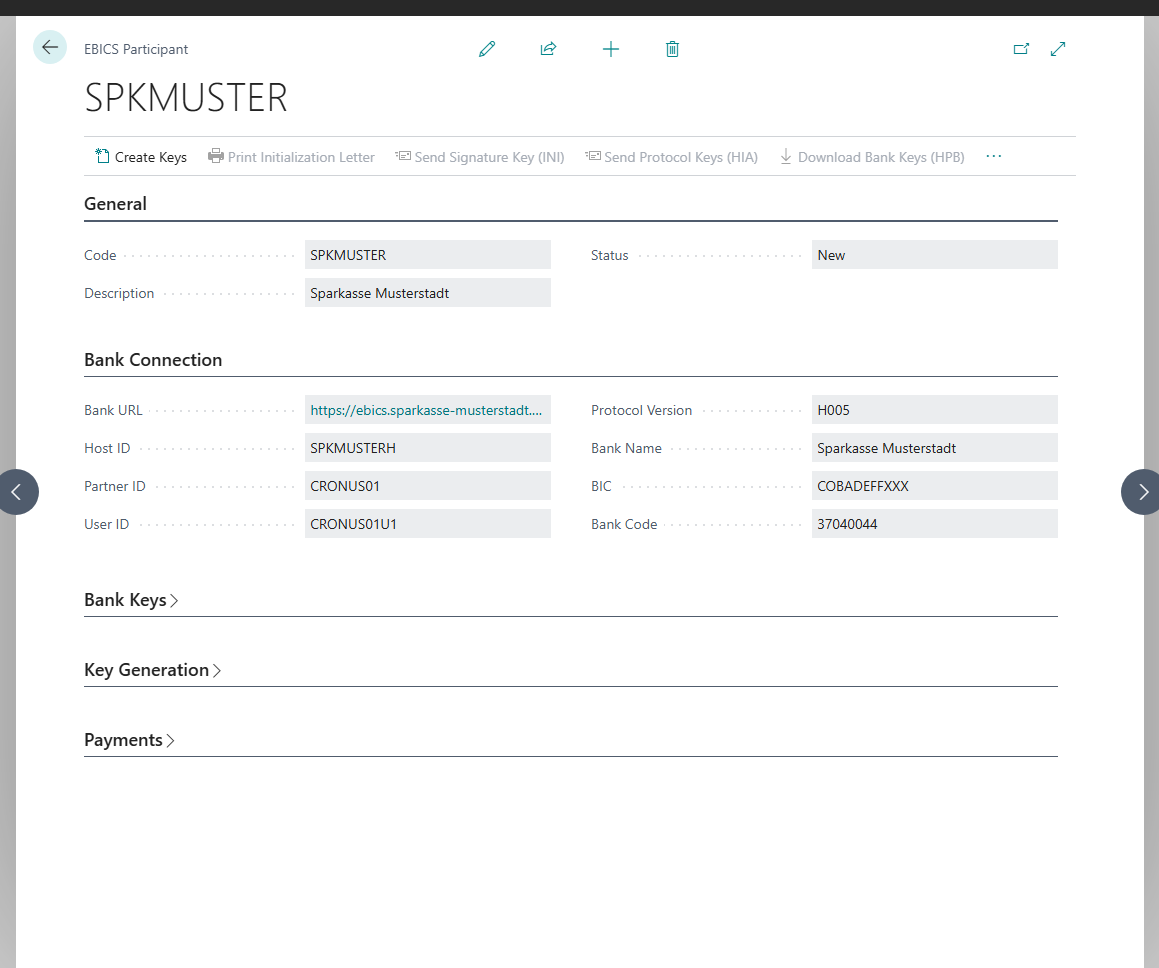
3. FastTab **Bank Connection**, all details from the EBICS contract:
- **Bank URL**: the address of the EBICS server, **not** the address of your bank's website.
- **Host ID**: the identifier of the EBICS server.
- **Partner ID**: the customer ID that the bank assigned to your company.
- **User ID**: the user ID that the bank assigned to this participant.
- **Protocol Version**: usually *H005* (EBICS 3.0). Your bank names the versions it supports.
- **Bank Name**, **BIC** and, if your contract names no BIC, **Bank Code**.
The **Banks** list comes from finAPI's catalog, which does not contain every institution. A bank that offers EBICS but not PSD2 is not listed there. With bank name and BIC, the participant registers its institution itself. The **Banks** list then shows in the **EBICS Participants** column which access you have at this institution.
4. FastTab **Key Generation**:
- **Signature Version**: usually *A006*.
- **Signature Key Length** and **Protocol Key Length**: usually 2048 bits.
- **Key Password**: set a password. Without a key password, **Create Keys** is not available.
- **Use Certificates**: mandatory with *H005*. The switch is set when you change to H005 and cannot be turned off. With *H004*, your bank decides; French banks usually require certificates, German banks usually do not.
- **Certificate Common Name**: required as soon as certificates are used. The name from the company information is suggested; at most 128 characters.
- **Certificate Validity (Years)**: between 0 and 20. With **0**, the service chooses the longest validity of the German profile, and Business Central cannot show the expiry date. For France, 5 years is common.
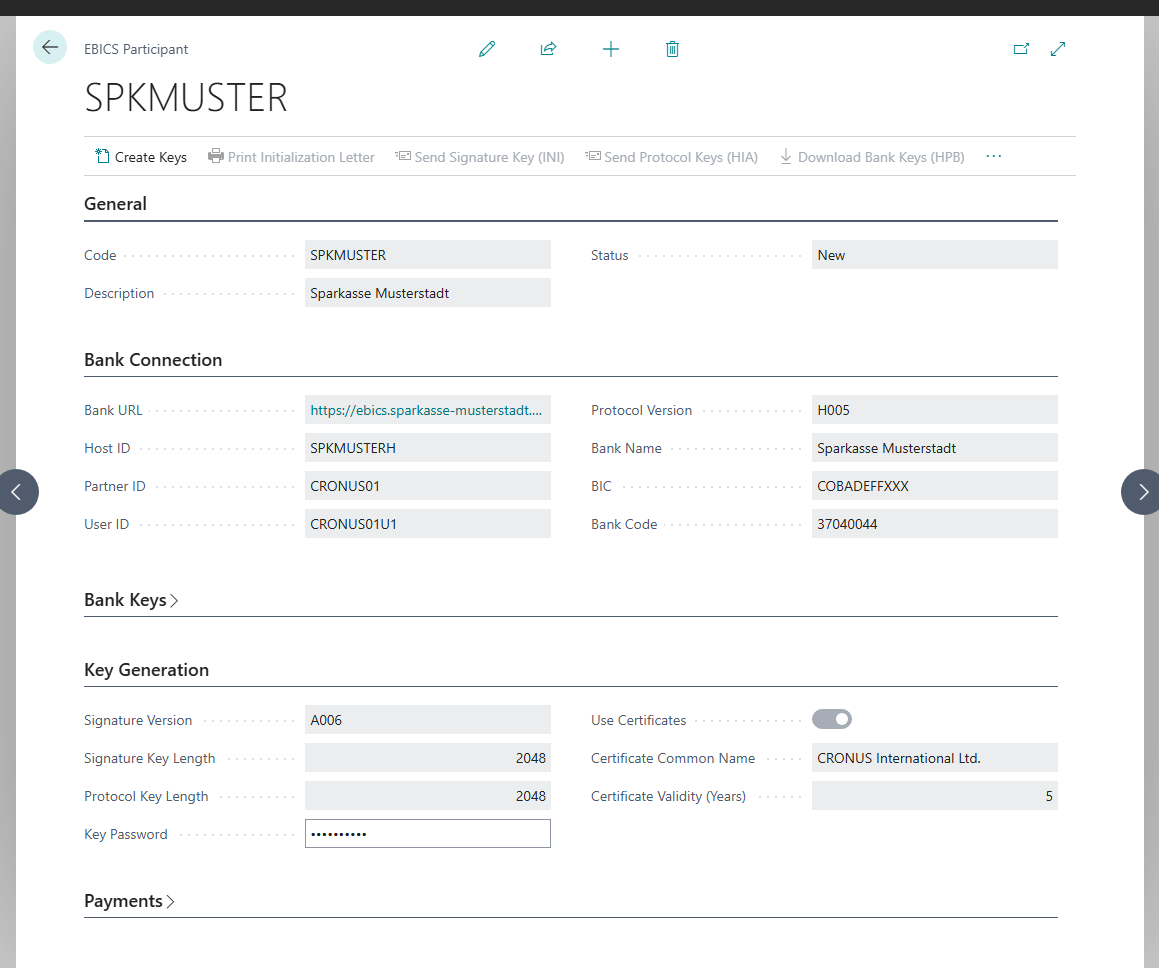
Your private key is encrypted with this password. Without it, the participant can no longer be used. In this case, a new participant with a new letter to the bank is required. Store the password where your company keeps passwords.
5. FastTab **Bank Keys**, the two values from **your bank's** letter:
- **Expected Encryption Key Hash (E002)**
- **Expected Authentication Key Hash (X002)**
These values are compared when the bank keys are downloaded. A mismatch aborts the initialization. This protects you from keys that do not come from your bank.
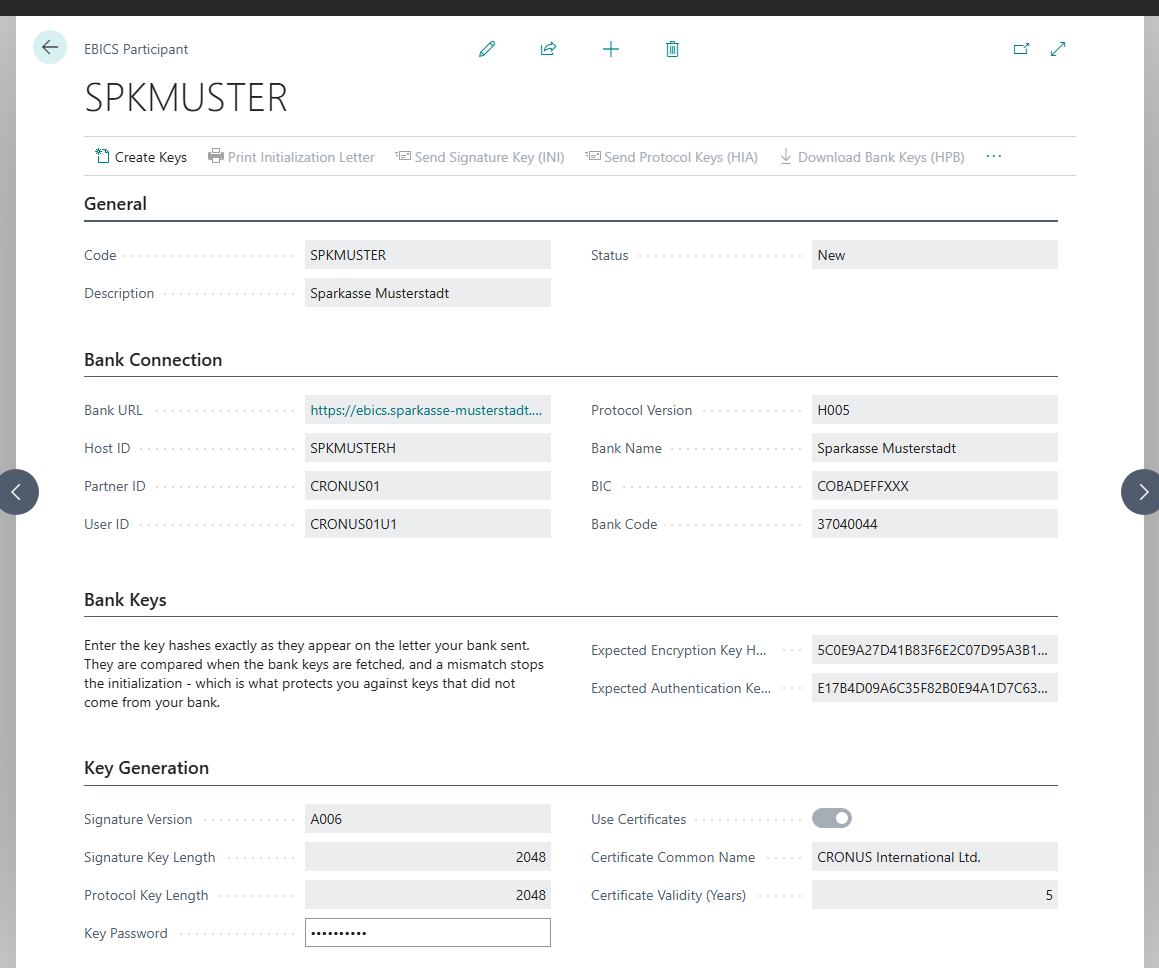
The **Status** is then **New**.
## Step 2: Create keys and send the letter
6. Choose **Create Keys**. The three hash values are shown on the **Your Keys** FastTab. Status: **Keys Created**. From now on, bank URL, host ID, partner ID, user ID, protocol version and the details on the **Key Generation** FastTab can no longer be changed.
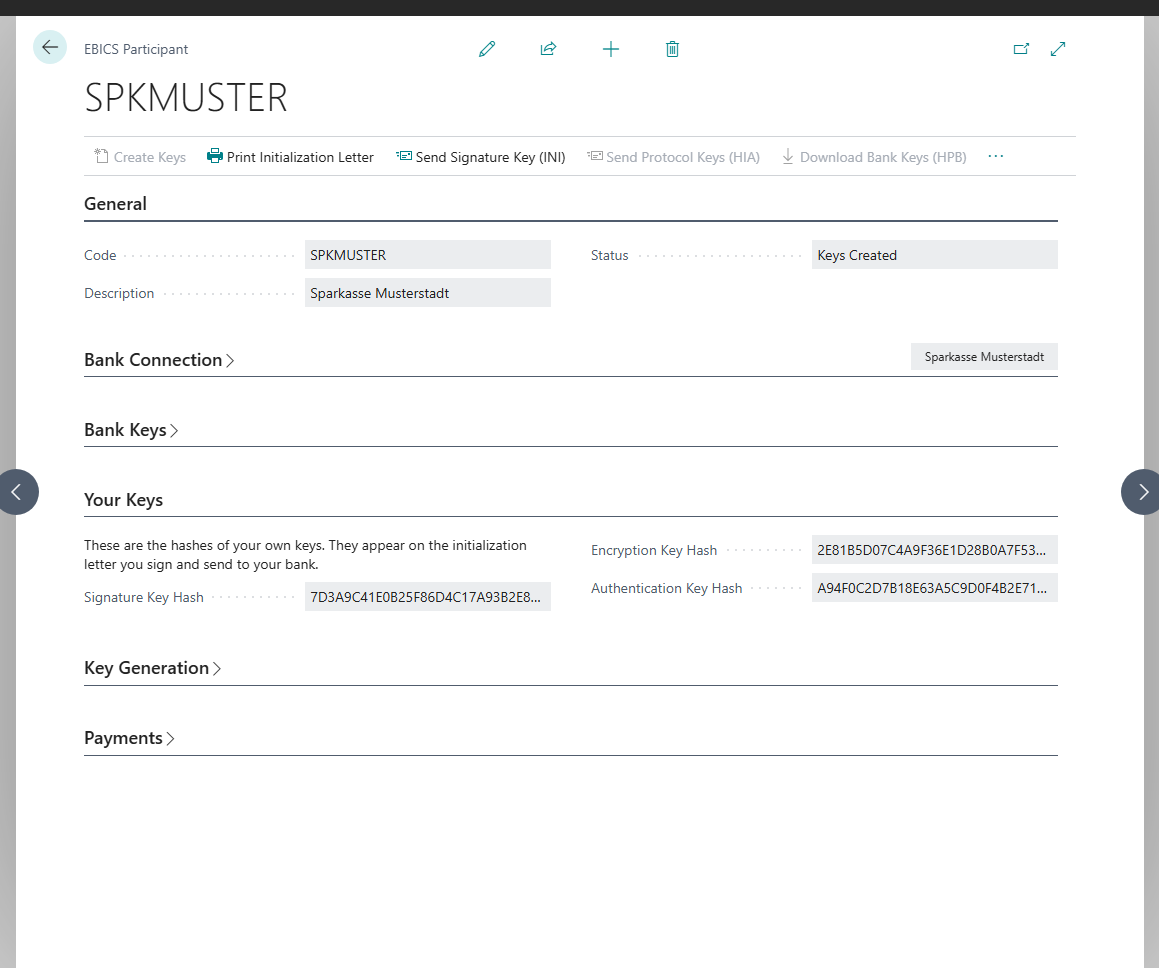
7. Choose **Send Signature Key (INI)**. Status: **INI Sent**.
8. Choose **Send Protocol Keys (HIA)**. Status: **HIA Sent**.
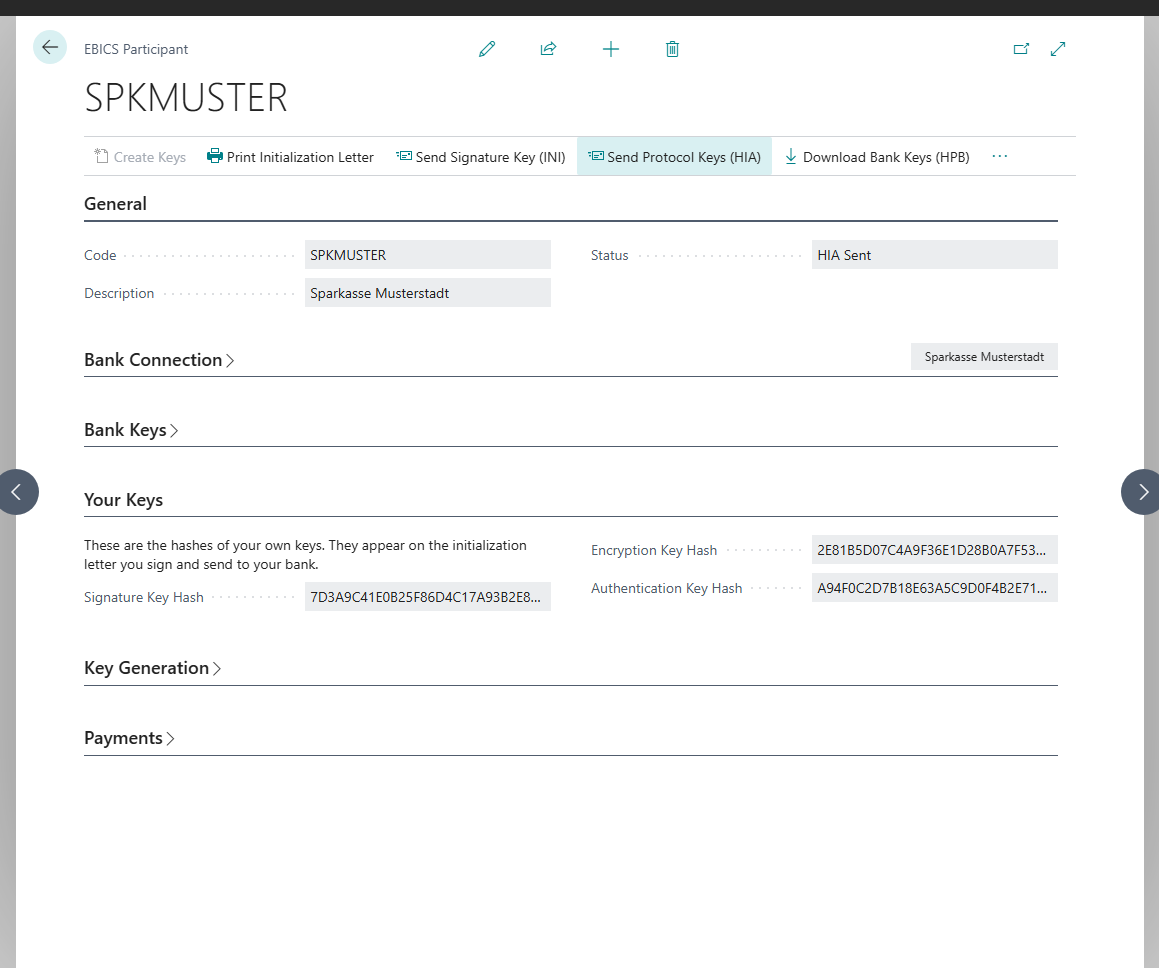
9. Choose **Print Initialization Letter**. **Sign the letter and send it to your bank**, by post or as agreed with your bank. Without this letter, the bank cannot activate the participant.
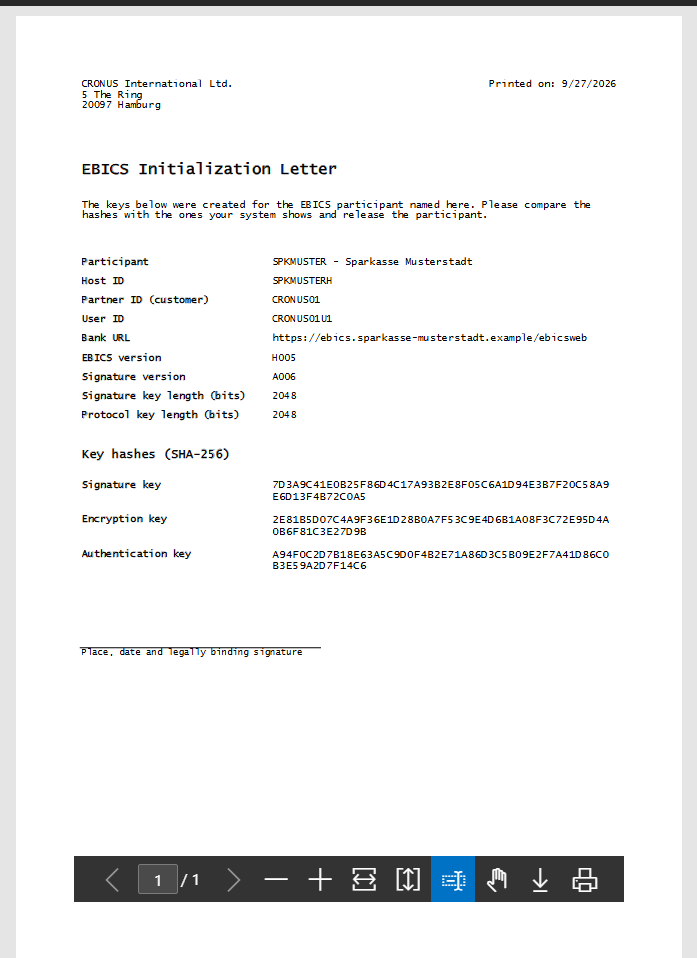
- **Send Protocol Keys with Signature (HSA)** replaces step 8 (HIA). The order is signed with your signature key, which must therefore already have been sent to the bank via INI.
- **Send All Keys (H3K)** sends all three keys as certificates in one order and replaces steps 7 and 8. This procedure is only available with protocol version *H004* and certificates.
The initialization letter is still required in both cases: the certificates are self-issued, and your bank activates them through the signed letter.
## Step 3: Download the bank keys
Wait until your bank has processed your letter. Many banks inform you once the activation is complete.
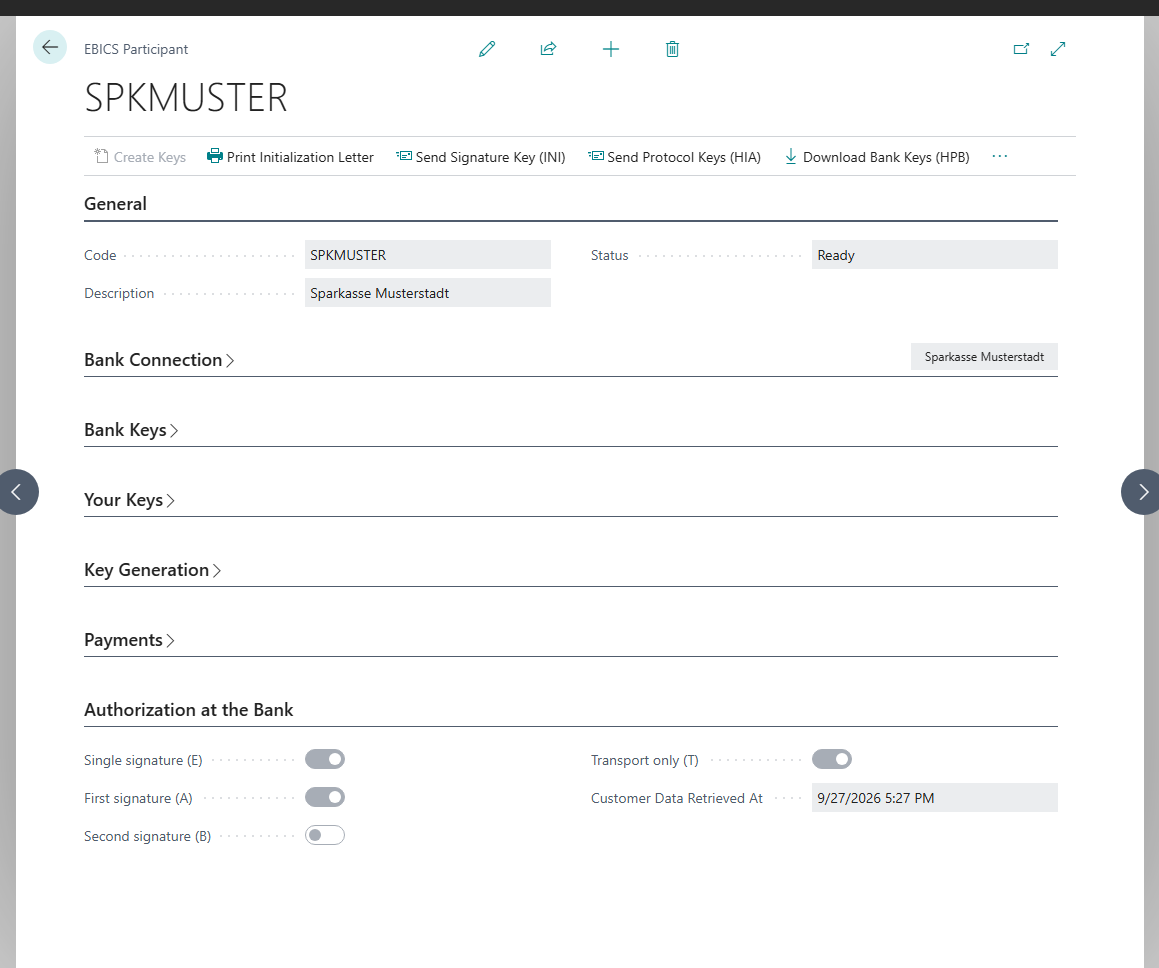
10. Choose **Download Bank Keys (HPB)**. Business Central fetches your bank's keys and compares them with the hash values from step 5.
11. If the values match, the status changes to **Bank Keys Verified** and immediately afterwards to **Ready**.
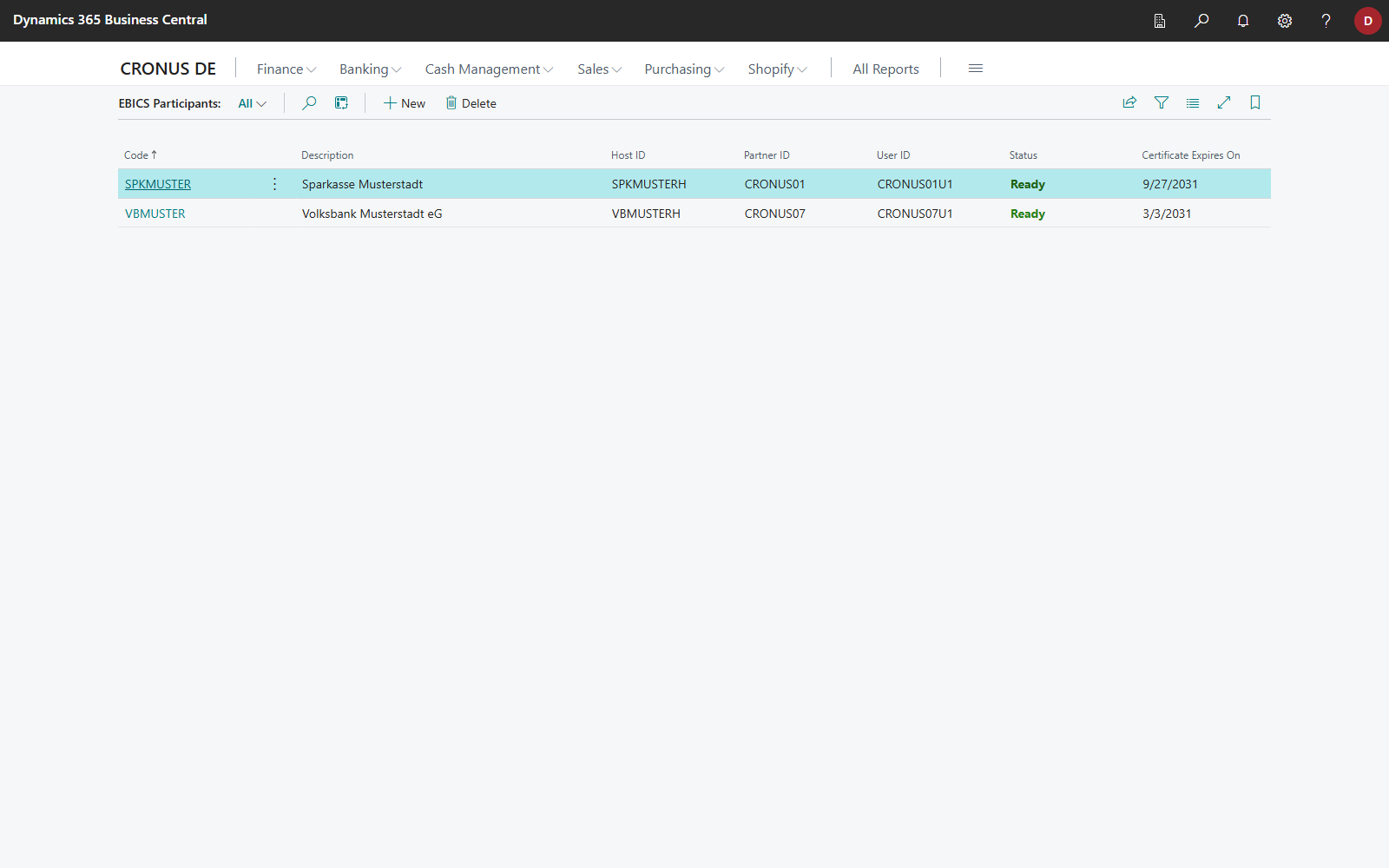
The **EBICS Participants** list shows the state of each participant in an overview:
You can then [connect bank accounts via EBICS](connect.mdx).
## Image
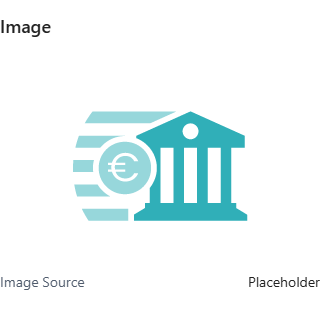
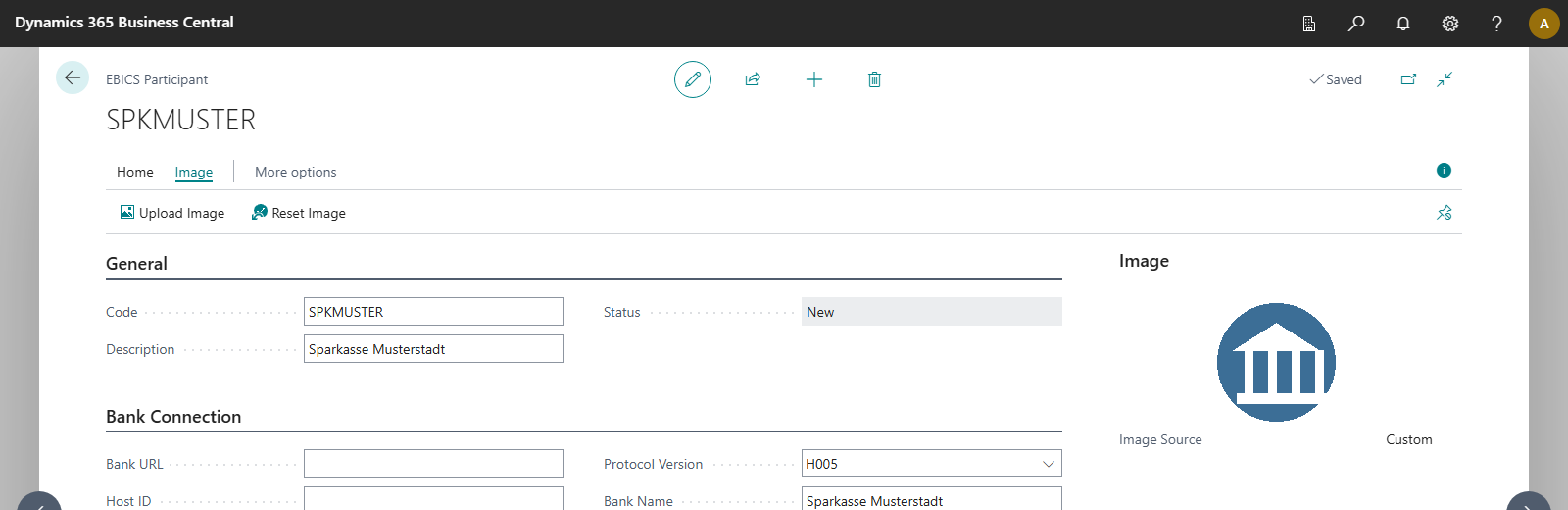
Every EBICS participant shows an image, on its own card and on every bank account connected through it. The **Image** FactBox shows it together with the **Image Source**:
| Image Source | Meaning |
|---|---|
| **Placeholder** | no institution found in the **Banks** list |
| **Bank List (finAPI)** | icon taken from an entry of the **Banks** list |
| **Custom** | uploaded |
1. A new participant shows the placeholder at first.
2. When you enter **BIC** or **Bank Code**, Business Central looks up the institution in the **Banks** list (without a finAPI connection) and takes its icon if one exists. If no entry is found, for example for a Swiss bank that is not reachable via PSD2, the placeholder remains.
3. Choose **Upload Image** in the **Image** action group to assign a custom image to the participant. It replaces the icon on the card and on every connected bank account, and is retained even if you change BIC or Bank Code afterwards.
4. **Reset Image** determines the image again. For a custom image, Business Central asks for confirmation first, because the uploaded image is lost.
Every image change is copied to every bank account connected through this participant, including accounts handed over to another company.
## Status of an EBICS participant
| Status | Meaning | Next step |
|---|---|---|
| **New** | created, no keys yet | **Create Keys** |
| **Keys Created** | key pair exists | **Send Signature Key (INI)** |
| **INI Sent** | signature key at the bank | **Send Protocol Keys (HIA)** |
| **HIA Sent** | all keys sent | send the letter, then **Download Bank Keys (HPB)** |
| **Bank Keys Verified** | hash values match | changes to *Ready* immediately |
| **Ready** | ready for use | connect bank accounts |
| **Locked** | locked via **Suspend Access (SPR)** | set up a new participant; a lock cannot be undone |
| **Failed** | a step failed | read **Last Error**, repeat the step |
Every step can be repeated without losing a step that was already completed successfully.
## Troubleshooting
| Message or symptom | Cause and remedy |
|---|---|
| The hash comparison fails | Business Central aborts, and the participant remains unchanged. Compare the hash values character by character with the letter. If they do not match, contact your bank before trying again. |
| **Send Signature Key (INI)** is rejected with an error code | With *H005*, certificates must be used. Check **Use Certificates** and **Certificate Common Name**. |
| **Send Protocol Keys with Signature (HSA)** is dimmed | The signature key has not been sent with INI yet. |
| **Send All Keys (H3K)** is dimmed | H3K is only available with *H004* and certificates. |
| An order fails | Read **Last Error** on the participant card. [EBICS Jobs](jobs-and-submissions.mdx) lists every order with its outcome. |
| "The keys of participant … have already been created, so its connection data can no longer be changed. …" | After **Create Keys**, the connection data and the key generation details are fixed. For changed details, create a new participant. |
| "Bank account … is connected through participant …, so the participant cannot be deleted." | A bank account is connected through it. Switch or delete those bank accounts first. |
## See also
- [Connect a bank account via EBICS](connect.mdx)
- [Manage keys and certificates](key-management.mdx)
- [Switch from another EBICS program](migration.mdx)
- [Bank access](../../concepts/bank-access.mdx)