import { Callout } from "zudoku/ui/Callout";
# Manage EBICS keys and certificates
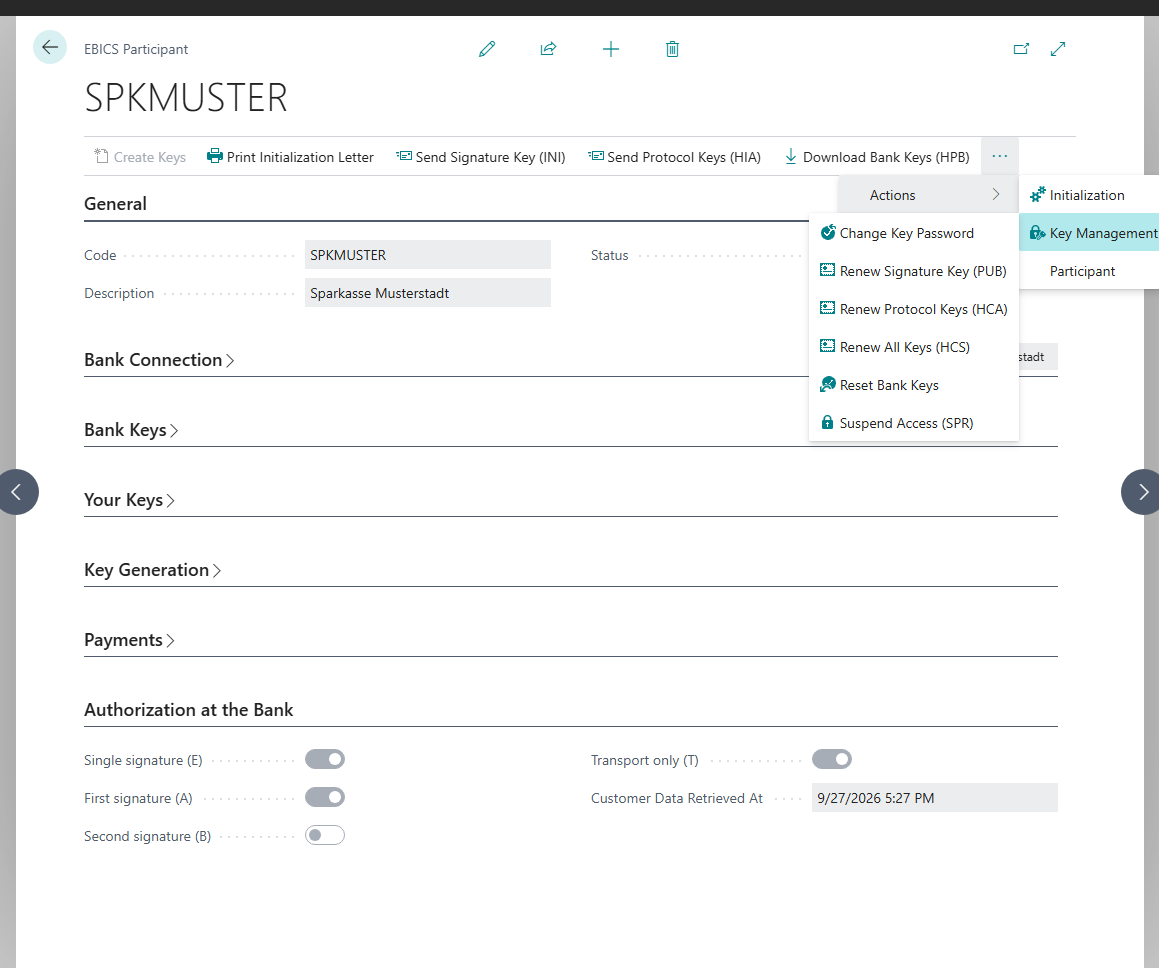
Renew keys, change the password, reset bank keys, suspend access: this page describes key management for EBICS participants in 365 business Banking.
You find all actions on the **EBICS Participant** card in the **Key Management** group.
**Applies to:** EBICS
## Renew keys
| Action | When |
|---|---|
| **Renew Signature Key (PUB)** | Regular change of the signature key. The previous signature key becomes invalid as soon as your bank accepts the new one. |
| **Renew Protocol Keys (HCA)** | Change of authentication and encryption key. |
| **Renew All Keys (HCS)** | Change of all three keys in one order. |
None of these renewals requires a new initialization letter, because the orders are signed with the keys that your bank already knows. Business Central asks for confirmation before each renewal. The key lengths are taken from the **Key Generation** FastTab and cannot be changed after the keys have been created.
Renewing keys creates new keys. Whether new certificates are issued at the same time is not guaranteed. For a participant with certificates, agree a renewal with your bank and your partner beforehand.
## Change key password
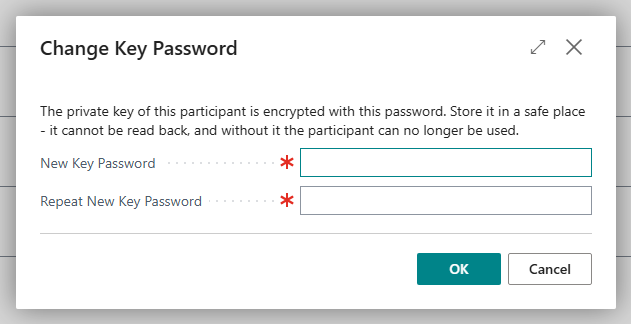
**Change Key Password** changes the local password that protects your private key. Your bank is not involved. You enter the new password in **New Key Password** and **Repeat New Key Password**.
## When your bank changes its keys
You do not need to monitor the timing. The first order after the change fails, and **Last Error** shows that your bank has replaced its own keys. Then proceed as follows:
1. Enter the two hash values from your bank's **new** letter on the **Bank Keys** FastTab.
2. Choose **Reset Bank Keys**.
3. Choose **Download Bank Keys (HPB)** again.
Without the new hash values, the comparison is made against the old hash values and fails.
## Certificates and their expiry
If your participant works with certificates and you entered a **Certificate Validity (Years)** greater than 0, the expiry date appears on the **Your Keys** FastTab as **Certificate Expires On**:
- From 60 days before expiry and after expiry, Business Central shows a notification when you open the EBICS participant card (action **Show participant**); the notification cannot be turned off.
- In the **EBICS Participants** list, the date is then shown in yellow, and in red after expiry.
**Business Central cannot renew the certificates.** Clarify the renewal with your bank as soon as the notification appears. After the expiry date, the bank no longer accepts orders from this participant. In this case, a new participant with a new initialization letter is required.
If **Certificate Expires On** is **empty**, the date is not known in Business Central. This is the case with validity **0**, which is common in Germany: the service determines the validity and does not report it back. If you need the date, contact your bank.
## Suspend access
Use **Suspend Access (SPR)** if a key may have come into the possession of unauthorized persons.
The participant changes to the status **Locked**, and no bank account connected through it can be used any longer. To continue, a new participant is required, which your bank activates.
## Other actions
| Action | Purpose |
|---|---|
| **Refresh Customer Data (HTD)** | Retrieves from your bank which accounts and order types the participant may use. |
| **Bank Orders** | Shows the order types your EBICS contract contains. |
## See also
- [Set up an EBICS participant](participant.mdx)
- [EBICS jobs and submissions](jobs-and-submissions.mdx)