import { Callout } from "zudoku/ui/Callout";
# Bank account card
Every field and action 365 business Banking adds to the bank account card, from account information service to last statement date.
The **Bank Account Card** is a standard page of Microsoft Dynamics 365 Business Central. 365 business Banking adds fields that specify where an account's transactions come from, where its payments are sent and from which date transactions are retrieved. Which fields are shown depends on the account's bank connection: an account at a payment service provider shows fewer fields than an account connected via PSD2/XS2A or EBICS.
## Standard functionality in Business Central
In the standard product, the bank account card contains the master data, posting group, currency and balances of a bank account. See [Set up bank accounts](https://learn.microsoft.com/en-us/dynamics365/business-central/bank-how-setup-bank-accounts) on Microsoft Learn.
## What 365 business Banking adds
- the two services **Account Information Service** and **Payment Initiation Service**, and a **Connection** line that summarizes both,
- the **Bank Balance**, that is, the balance your bank reports,
- **Last Statement Date** and **Import Until Date Formula** for retrieval,
- the **Banking Interfaces** FastTab,
- the **Balance**, **Capabilities** and **Who Can Use This Account** FactBoxes,
- the **Banking Provider** action group.
## FastTabs and fields
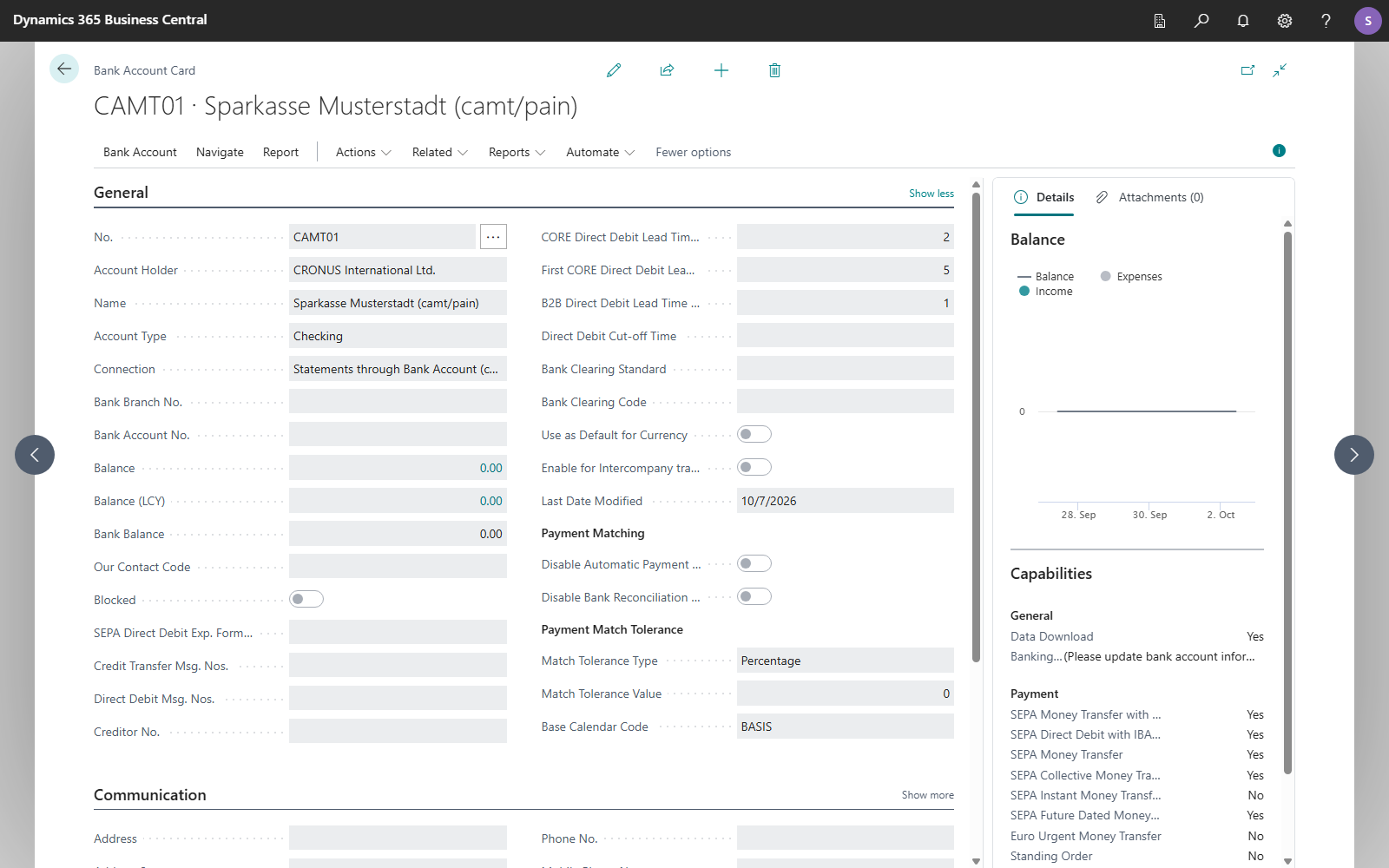
### General
| Field | Meaning |
|---|---|
| **Account Holder** | Name of the account holder. Mandatory; prefilled from the company information for new bank accounts and taken over from the bank when connecting. |
| **Account Type** | The type of account: *Checking*, *Savings*, *Credit Card*, *Security*, *Loan*, *Membership* or *Building Savings*. Only PSD2/XS2A via finAPI reports an account type. With EBICS, with camt/pain files and when finAPI reports no account type, *Checking* applies. Only shown on connected SEPA accounts (PSD2/XS2A, EBICS or camt/pain file with the **Payment Scheme** *SEPA*); not editable. |
| **Connection** | Summarizes where statements come from and where payments are sent, for example *Connected through SEPA Bank Account (EBICS)* or *Statements through SEPA Bank Account, payments through SEPA Bank Account (EBICS)*. An account without a connection shows *Not connected. Transactions have to be imported manually*. |
| **Balance excl. Transit** / **Balance (LCY) excl. Transit** | Only on bank accounts that post through a transit account: the balance without the amounts still on the transit account. See [Transit account](../transit-account.mdx). |
| **Bank Balance** | The balance your bank last reported, with its date in the caption. See [Bank balance and balance chart](balance.mdx). |
| **Base Calendar Code** | The calendar of bank working days used to calculate direct debit collection dates. See [Bank working days and lead times](../direct-debit/lead-times.mdx). |
| **CORE Direct Debit Lead Time (Days)**, **First CORE Direct Debit Lead Time (Days)**, **B2B Direct Debit Lead Time (Days)** | How many bank working days must lie between submitting a recurring CORE direct debit, a first or one-off CORE direct debit, or a B2B direct debit and its collection date. The days are counted in bank working days of the **Base Calendar Code**; without a base calendar, Monday to Friday count as bank working days, except for the TARGET2 closing days. Installation sets each to one bank working day. See [Bank working days and lead times](../direct-debit/lead-times.mdx). |
| **Direct Debit Cut-off Time** | The time of day until which the bank accepts a direct debit for the current bank working day. For a later submission, the lead time starts one bank working day later. Empty if the bank names no cut-off time. See [Bank working days and lead times](../direct-debit/lead-times.mdx). |
### Posting
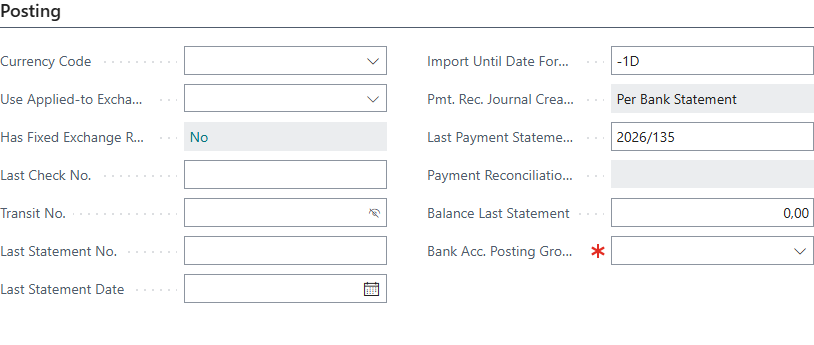
The **Posting** FastTab contains the retrieval fields; **Last Statement Date** directly follows the standard field **Last Statement No.**
| Field | Meaning |
|---|---|
| **Last Statement Date** | The statement the bank account has been reconciled up to. Posting a payment reconciliation journal updates it. The first date you enter also determines from when transactions are retrieved (see below). |
| **Import Until Date Formula** | Up to which day a retrieval takes over transactions, as a date formula. Default `<-1D>`: transactions of the current day are not taken over, because the bank may still change them. The formula works differently per service: finAPI applies it to the value date, EBICS only when all transactions are retrieved (not only new ones), and PayPal calculates it from the current date. camt and Universal file imports and the other payment service providers ignore it. |
| **Pmt. Rec. Journal Creation** | How retrieved transactions are distributed over payment reconciliation journals: *Default* reuses an open journal of the bank account, *Daily*, *Weekly* and *Monthly* create one journal per calendar day, week or month, based on the bank posting date. On bank accounts with EBICS or camt files, *Per Bank Statement* is set: one journal per bank statement, named with your bank's statement number. See [Retrieve bank transactions](../bank-reconciliation/retrieve-transactions.mdx#one-journal-per-bank-statement-with-ebics-and-camt-files). |
| **Payment Reconciliation No. Series** | Standard field. Not editable on bank accounts with EBICS or camt files, because their journals carry your bank's statement number. |
| **Bank Acc. Posting Group** | Standard field; 365 business Banking marks it as mandatory. |
| **Use Applied-to Exchange Rate** | Blank or *Applied-to Entry*: payments of this account adopt the exchange rate of the entry they are applied to. See [Foreign currency settings](../foreign-currency-settings.mdx). |
| **Has Fixed Exchange Rate** | Shows whether fixed exchange rates are maintained for the account (action **Fixed Exchange Rates**). |
The three retrieval fields can only be edited when the bank account is connected through 365 business Banking.
### Transfer
| Field | Meaning |
|---|---|
| **Account Information Service** | Where statements, balances and account details come from, for example *SEPA Bank Account* (PSD2/XS2A via finAPI), *SEPA Bank Account (EBICS)*, *Bank Account (camt File Import)* or a payment service provider. |
| **Payment Initiation Service** | Where credit transfers, direct debits and standing orders are sent, for example *SEPA Bank Account*, *SEPA Bank Account (EBICS)* or *Bank Account (pain File Export)*. |
| **EBICS Participant** | EBICS only: the participant whose keys are used to reach the account. If the participant is suspended, the account is also out of service. |
Neither service can be entered manually. The [Connect Bank Account](../connections/connect-bank-account.mdx) wizard sets them, and you switch them with [Change Banking Services](../connections/mixed-operation.mdx). For the meaning of the two services, see [Account information and payment initiation](../concepts/account-information-payment-initiation.mdx).
For an account at a payment service provider, a separate **Transfer** FastTab replaces the standard one. It only shows the **Account Information Service**, because these accounts do not pay out through a payment initiation service.
### Hidden fields
Some fields are on the card but hidden. You can show them through personalization:
| Field | Why it is hidden |
|---|---|
| **Retrieve Transactions From** | Set once and not moved automatically afterwards (see below). Next to **Last Statement Date**, it would be unclear which of the two dates applies. The field is intended for corrections. |
| **Last Updated** / **Last Update Attempt** | When the account was last updated at the service, or when an update was attempted. |
| **Skip Execution Date for SEPA Payments** | Sends SEPA payments without an execution date. The field is hidden but remains in effect: if it is switched on, it applies even while it is not shown. |
## Last statement date and retrieve transactions from
The two dates have different purposes:
- **Last Statement Date** specifies up to which date the account is reconciled. Posting a payment reconciliation journal updates it.
- **Retrieve Transactions From** specifies from which date transactions are retrieved. It is set exactly once, by the first **Last Statement Date** you enter. After that, it is not moved automatically.
The dates are kept separate for the following reason: if you delete transactions from a payment reconciliation journal and then post a later one, the last statement date moves past the deleted transactions. Because retrieval follows **Retrieve Transactions From**, the deleted transactions can still be retrieved. Duplicates are prevented by the [check for existing transactions](../bank-reconciliation/retrieve-transactions.mdx#duplicate-prevention) by transaction ID and, for camt and Universal accounts, also by transaction fingerprint, not by a date.
When you change **Last Statement Date**, Business Central asks for confirmation. The note depends on the direction in which you change the date:
| You … | Business Central asks | What happens |
|---|---|---|
| enter a date for the first time | "Bank transactions booked before … will not be retrieved. Are you sure you want to change the date?" | **Retrieve Transactions From** is set to this date. |
| move the date forward | "This records the bank account as reconciled up to …. It does not change where bank transactions are retrieved from …" | Only the reconciliation progress changes. |
| move the date back | "Moving the date back asks a payment service provider for transactions that were retrieved before. …" | For payment service providers, transactions from this date are requested again. Transactions that are already in a journal or posted are recognized and skipped; the retrieval takes longer. |
If you have already posted transactions up to 30 June by other means, enter 30 June as **Last Statement Date** before the first retrieval. 365 business Banking then does not retrieve transactions booked before that day.
When new transactions are retrieved, EBICS delivers the transactions that Business Central has not yet acknowledged; **Retrieve Transactions From** plays no part in this. Only when all transactions are retrieved does the retrieval start at **Retrieve Transactions From**. If the field is empty, it covers the last three months. See [Statements via EBICS](../connections/ebics/statements.mdx).
You do not need to adjust existing bank accounts after updating to 18.4. The update sets **Retrieve Transactions From** to the oldest transaction 365 business Banking imported for the account. If nothing has been imported for the account yet, it uses the **Last Statement Date**.
## Banking interfaces
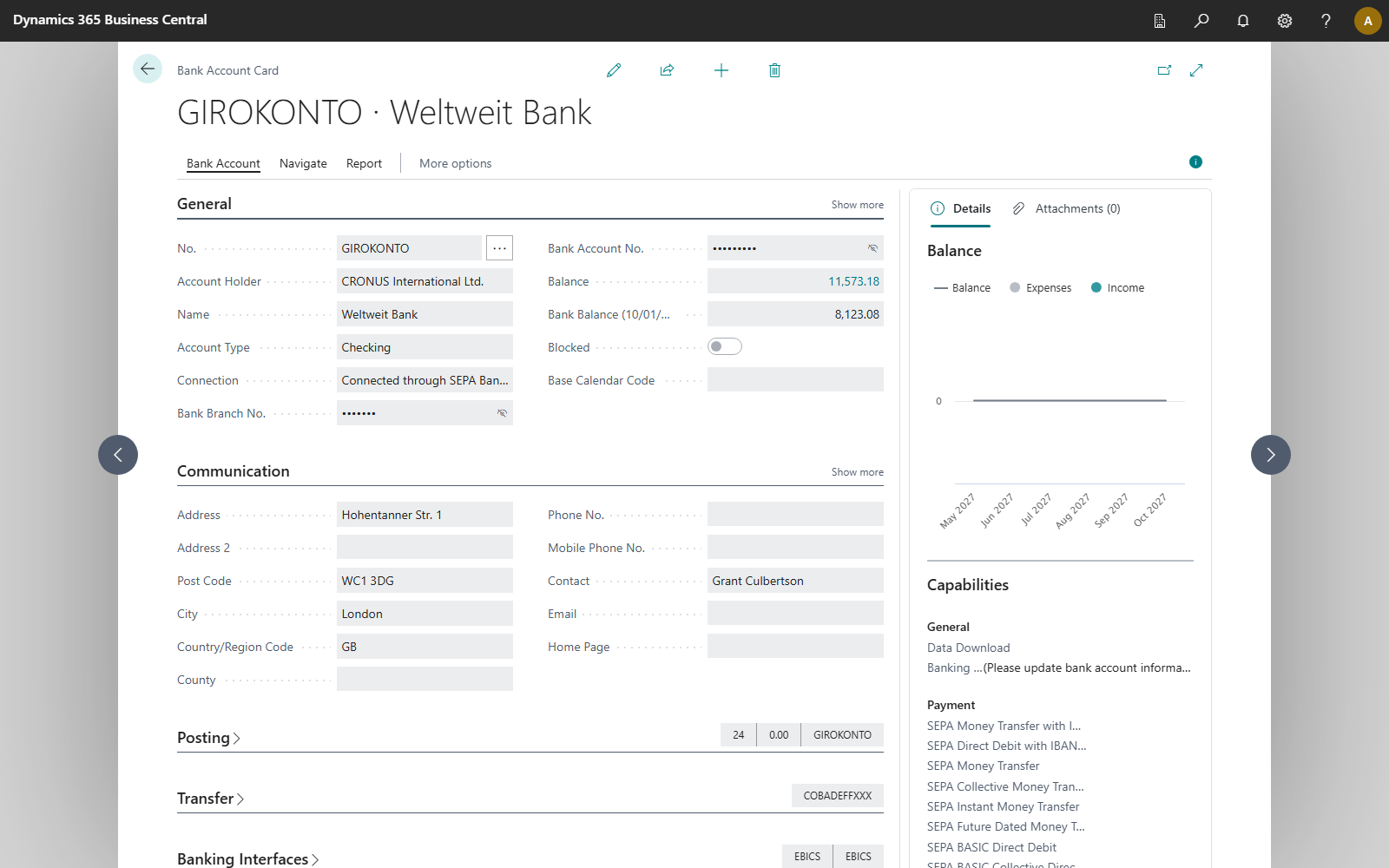
The **Banking Interfaces** FastTab shows the technical channels to your bank through which this account is reached:
- **Statements read over**, for example *XS2A*, *FinTS* or *EBICS*,
- **Payments sent over**, with the same possible values.
Which channel is used for a given request is decided by your provider. *not set up* means that no service is set for this direction. *not over a bank connection* means that the service reaches the bank without one of these channels, for example via a file.
The FastTab only appears on accounts for which such a channel is recorded, that is, PSD2/XS2A via finAPI and EBICS. This also applies when only one of the two services uses such a channel, for example with statements from camt files and payments via EBICS. File accounts and accounts at a payment service provider have no such channel.
If your bank also offers FinTS for an account connected via finAPI and the interface is not connected yet, the link **Click here to establish the connection through FinTS interface.** appears below. Via FinTS, finAPI reaches further accounts at many banks, such as savings or credit card accounts.
## FactBoxes
| FactBox | When shown | Content |
|---|---|---|
| **Balance** | always | balance, income and expenses per period from the posted bank account ledger entries. See [Bank balance and balance chart](balance.mdx) |
| **Capabilities** | on connected SEPA accounts with an IBAN, including file accounts with the payment scheme *SEPA* | which functions your bank permits on the account. See [Bank account capabilities](capabilities.mdx) |
| **Who Can Use This Account** | only when a person uses the account with their own bank login | per person **Status**, **Reads Transactions** and **Can Pay**, action **Read Transactions Through This Access** |
### Who can use this account
The FactBox is only shown when entries exist. For an account that is used only through the company bank access, it is hidden.
- **Status**: *Ready* once the person has signed in at the bank for this account, otherwise *Not connected yet*. Until the person signs in, the account is read and paid through the company access.
- **Can Pay**: the person pays from this account with their own bank login.
- **Reads Transactions**: transactions are retrieved through this person's bank login. Exactly one access reads an account, because two accesses would deliver the same transaction twice.
- **Read Transactions Through This Access**: transfers reading to this person and removes it from the previous access.
How to add people is described in [Use with my own bank login](../connections/psd2/personal-bank-access.mdx).
## Banking Provider: the actions
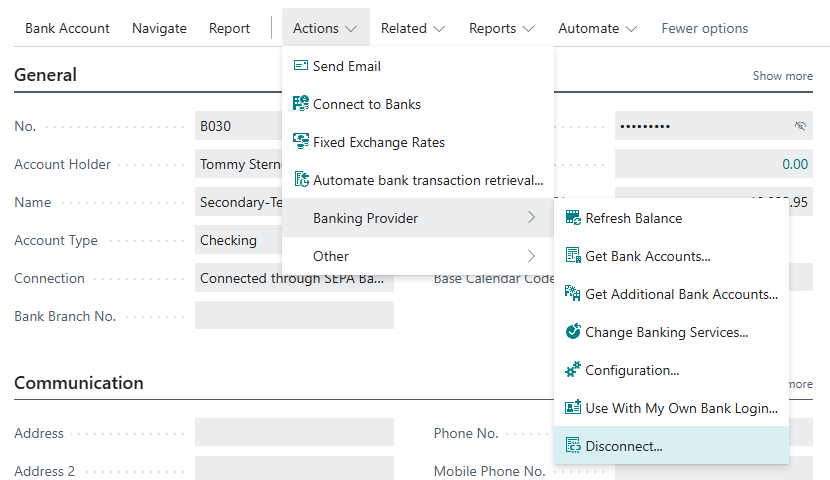
Under **Actions** > **Banking Provider**:
| Action | What it does | Available |
|---|---|---|
| **Refresh Balance** | Requests the current balance from the bank. See [Bank balance and balance chart](balance.mdx). | for services that report balances |
| **Get Bank Accounts** | Updates every bank account of the same bank connection or EBICS participant with the details reported by the bank, without creating any. See [Get bank accounts and get additional bank accounts](#get-bank-accounts-and-get-additional-bank-accounts). | for accounts whose transactions come via PSD2/XS2A or EBICS |
| **Get Additional Bank Accounts** | Offers the accounts of the same bank connection or EBICS participant that do not exist in Business Central yet. | like **Get Bank Accounts** |
| **Change Banking Services** | Switches account information service and payment initiation service. See [Combine banking services](../connections/mixed-operation.mdx). | only where more than one service is available, not for payment service providers |
| **Configuration** | Opens the setup of the service: the **Company Bank Access** (PSD2/XS2A), the **EBICS Participant**, the **ISO 20022 File Setup** or the payment service provider's connection setup. | on connected accounts |
| **Use With My Own Bank Login** | Signs you in with your own online banking login for this account. See [Use with my own bank login](../connections/psd2/personal-bank-access.mdx). | on connected SEPA accounts with an IBAN whose statements or payments run through PSD2/XS2A (finAPI); disabled for EBICS and camt/pain accounts |
| **Disconnect** | Disconnects the account from its banking provider. See [Disconnect a bank account](disconnect.mdx). | on connected accounts, including accounts that only have a payment initiation service |
Also under **Actions**:
- **Fixed Exchange Rates**: fixed rates for this account, see [Foreign currency settings](../foreign-currency-settings.mdx).
- **Automate bank transaction retrieval**: creates a job queue entry for regular retrieval, see [Automate retrieval](../bank-reconciliation-automation.mdx).
You do not retrieve transactions on the bank account card but with **Retrieve Bank Transactions** in the payment reconciliation journal or in the list of payment reconciliation journals. See [Retrieve bank transactions](../bank-reconciliation/retrieve-transactions.mdx).
The standard action **Link to Online Bank Account** is hidden on connected accounts, because the connection is established through 365 business Banking.
## Bank Accounts list
In the **Bank Accounts** list, 365 business Banking adds the **Account Holder** column, the **Balance** and **Capabilities** FactBoxes and these actions:
| Action | What it does |
|---|---|
| **Connect Bank Accounts** | Opens the [Connect Bank Account](../connections/connect-bank-account.mdx) wizard. |
| **Get Bank Accounts** | Updates the bank accounts of the same bank connection or EBICS participant as the selected account. |
| **Get Additional Bank Accounts** | Offers the accounts of the same bank connection or EBICS participant that do not exist in Business Central yet. |
| **Automate bank transaction retrieval** | as on the card |
**Get Bank Accounts** and **Get Additional Bank Accounts** work on the selected bank account. They are only enabled when its transactions come via PSD2/XS2A (account information service *SEPA Bank Account*) or EBICS (*SEPA Bank Account (EBICS)*). On the bank account card you find both under **Actions** > **Banking Provider**.
## Get bank accounts and get additional bank accounts
Both actions start from one bank account and cover exactly its connection: for PSD2/XS2A the bank connection at finAPI, for EBICS the EBICS participant. Accounts at other banks and of other participants remain unchanged. Only the account information service is relevant. The service through which an account sends its payments has no effect.
### Get Bank Accounts
**Get Bank Accounts** updates the bank accounts that already exist in Business Central. It does not create bank accounts.
| Connection | What is updated |
|---|---|
| PSD2/XS2A via finAPI | every bank account of the same bank connection: name, IBAN, bank account number, account holder, currency and account type, the **Capabilities** FactBox and the **Banking Interfaces** FastTab |
| EBICS | every bank account of the same EBICS participant: the **Capabilities** FactBox from the bank's current customer data (HTD), and the **Bank Balance** |
When the action is complete, Business Central reports how many bank accounts were updated. If an EBICS bank reports no balance for an account, which is usual outside business hours, the same message states this. The other accounts are updated regardless.
An account that the bank reports but that does not exist in Business Central is skipped. **Get Additional Bank Accounts** is intended for this case. An account that the bank no longer reports keeps its details.
### Get Additional Bank Accounts
**Get Additional Bank Accounts** offers the accounts of the same connection that do not exist in Business Central yet, for example an account your bank opened later or an account you did not select when connecting.
1. In the **Bank Accounts** list, select an account of the bank or EBICS participant, or open its bank account card.
2. Choose **Get Additional Bank Accounts**.
3. PSD2/XS2A only: if your bank offers interfaces that the bank connection does not use yet (for example FinTS for credit cards and savings accounts), Business Central asks whether to add them. Business Central then updates the bank connection at finAPI and imports new accounts. If your bank requires a confirmation, the web form opens.
4. The **Get Additional Bank Accounts** page shows the missing accounts. Under **Connect**, select the accounts you want to take over. If **Enable Multi-Company Connection** is turned on, choose the **Company** for each account.
5. Choose **OK**.
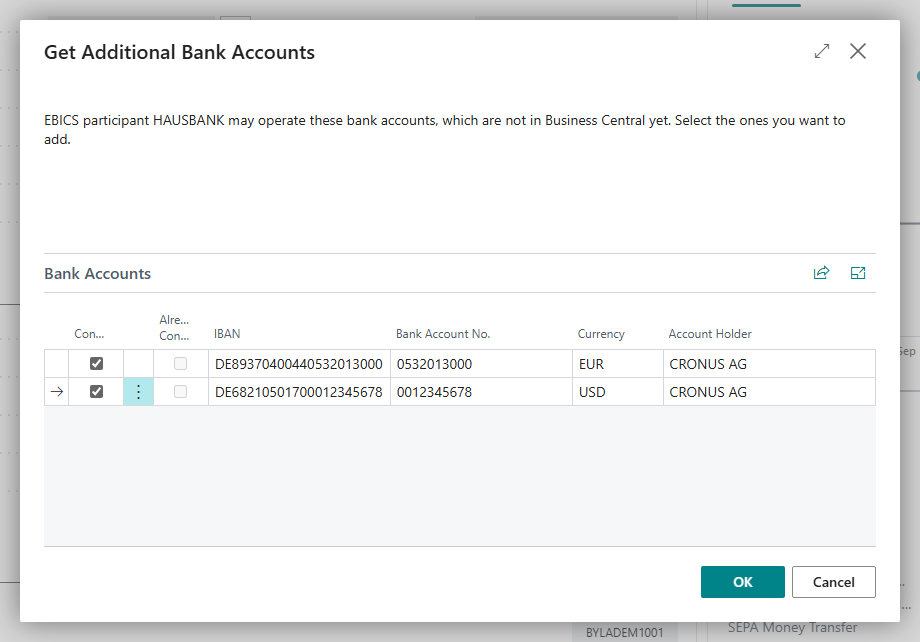
Business Central creates the selected accounts in the same way as the [Connect bank account](../connections/connect-bank-account.mdx) wizard and reports how many accounts were created. What happens to the other accounts depends on the connection:
| Connection | Accounts not selected |
|---|---|
| PSD2/XS2A via finAPI | Accounts that have just been added to the bank connection are removed from it. Accounts that finAPI already knew remain there and are offered again next time. |
| EBICS | remain unchanged, because with EBICS there is nothing to release at the bank. |
If no account is missing, Business Central displays a message instead of an empty page. An account that already exists in another company is not offered.
The two connections treat a bank account that you created manually with the same IBAN differently: with PSD2/XS2A, the page offers the account. If you select it, the existing bank account is connected instead of a second one being created. With EBICS, it is not offered. Switch it to EBICS with **Change Banking Services**, see [Combine banking services](../connections/mixed-operation.mdx).
If a bank account is reached through the EBICS participant of another company, both actions refuse the retrieval and name that company. Get the bank accounts in that company.
## See also
- [Bank accounts](../bank-accounts.mdx)
- [Connect a bank account](../connections/connect-bank-account.mdx)
- [Combine banking services](../connections/mixed-operation.mdx)
- [Retrieve bank transactions](../bank-reconciliation/retrieve-transactions.mdx)
- [Glossary](../concepts/glossary.mdx)