import { Callout } from "zudoku/ui/Callout";
# Approval
Microsoft Dynamics 365 Business Central provides a built-in workflow for setting up approval processes for various business processes, including the release of journals and journal lines.
The approval feature allows companies to improve control over their financial processes by ensuring that all payments and postings are reviewed and approved by authorized persons before they are executed.
In addition to the Microsoft Dynamics 365 Business Central standard, 365 business Banking offers the option to set up a four-eyes principle for approvals.
This means that payments and postings must be reviewed and approved by a second authorized person before they can be executed. This increases the security and control over your financial processes.
## Restrictions from the Approval Process
Once an approval process has been set up for a journal or a journal line, these can no longer be posted directly or payments executed directly. Instead, they must first go through the approval process and be approved by the authorized persons before they can be posted or payments executed.
The posting preview function in payment journals is also available when an approval process is active.
However, the actual posting of journal lines is only possible after approval.
## Setup
Setting up an approval process in Microsoft Dynamics 365 Business Central is done via workflow setup. You can create a workflow that requires approval of journals or journal lines and define the corresponding approvers.
### Step-by-Step Guide
1. Navigate to **Workflows** in the search of Microsoft Dynamics 365 Business Central.
2. Select the **New Workflow from Template** action to create a new workflow.
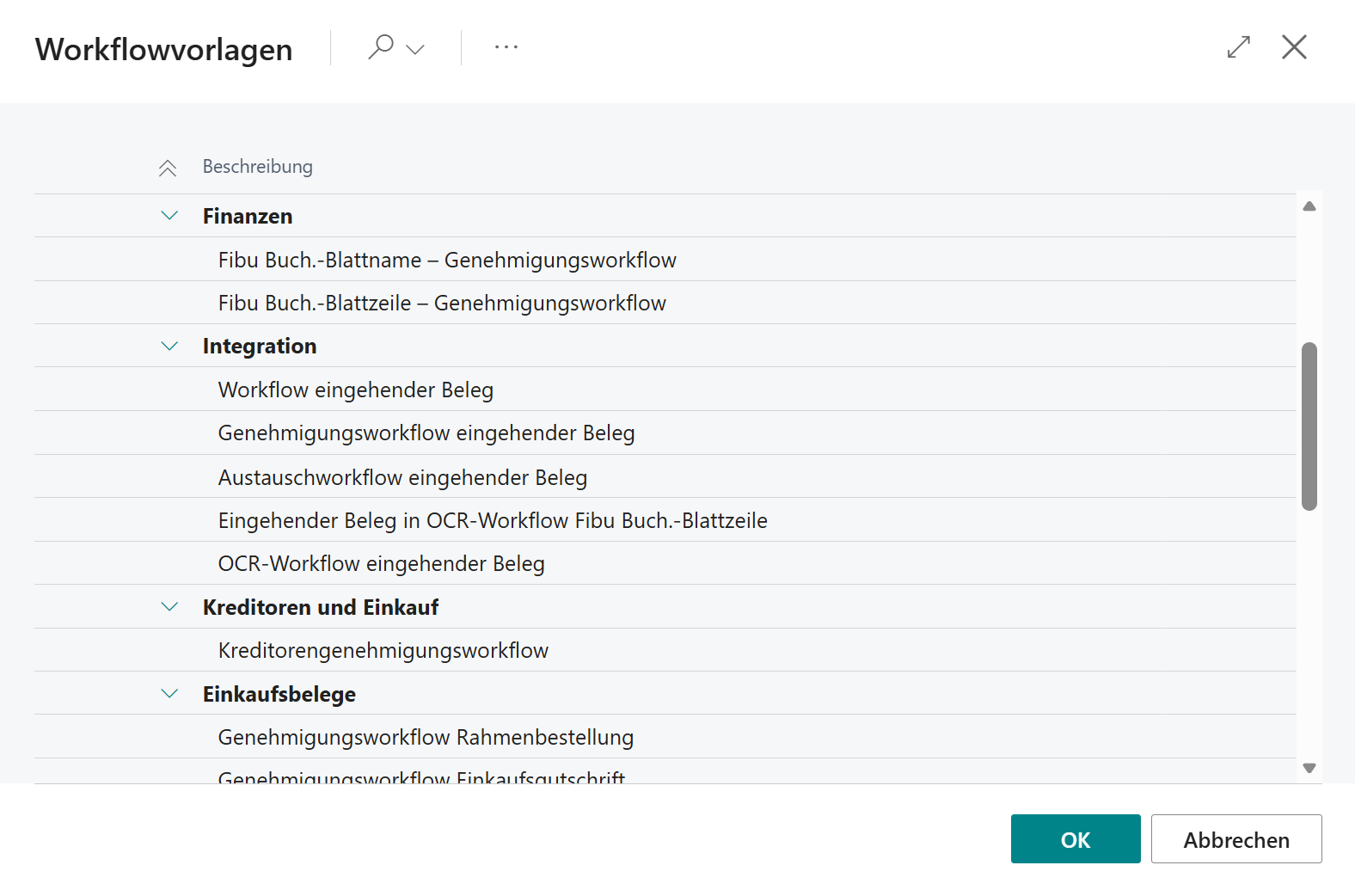
3. Select a template for the approval of general journals (e.g., "General Journal Batch – Approval Workflow").
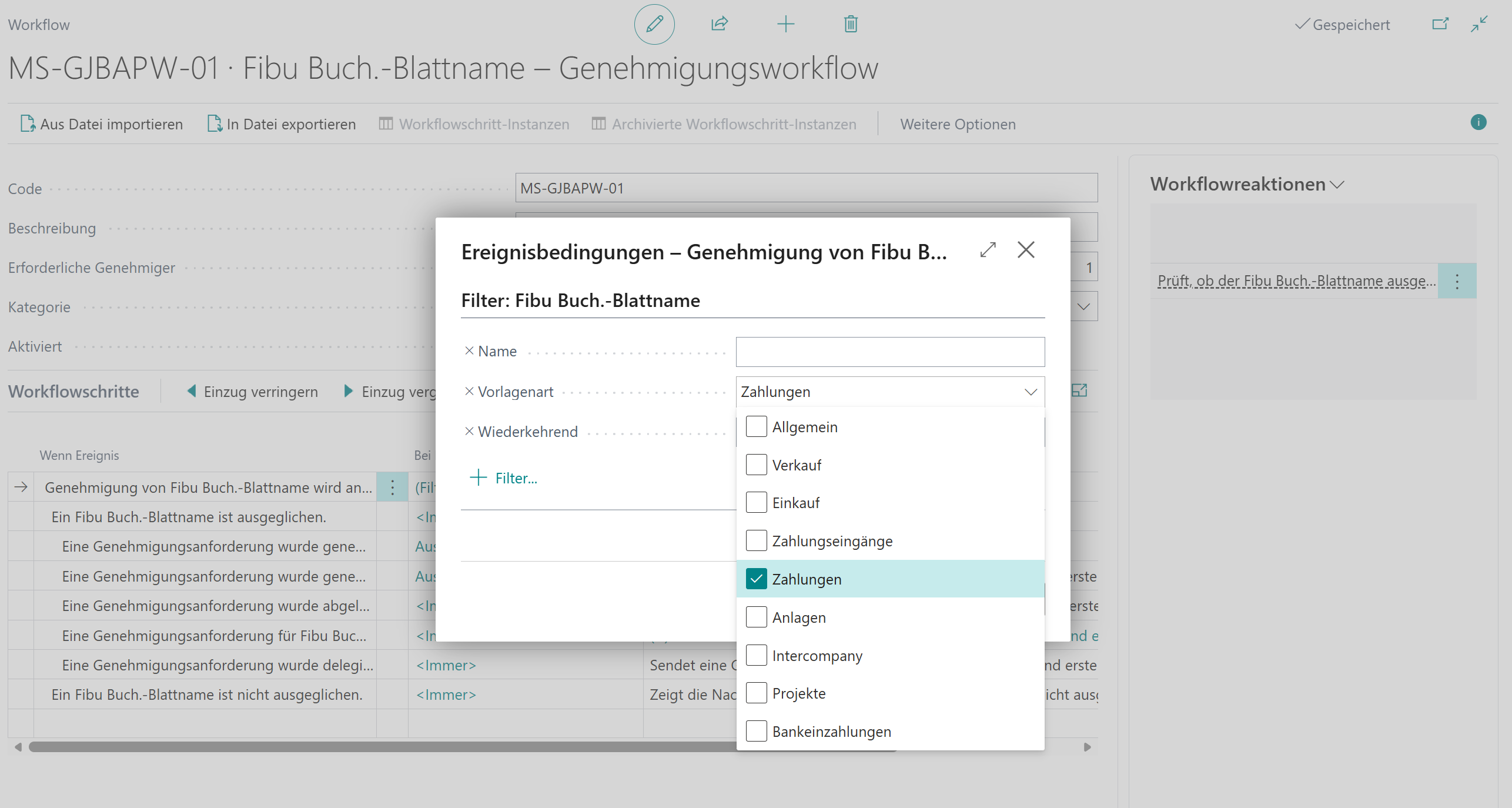
4. Select **Show Filter Details** for the workflow step **Approval of General Journal Batch is Requested**.
5. Define the conditions for the approval and select the **Template Type** Payments to set up a release for outgoing payments.
6. Enable the **Enabled** toggle to activate the workflow.
After setting up the approval process, all journals or journal lines that fall under the defined conditions must be approved by the authorized persons before they can be posted or payments executed. The approvers receive notifications about pending approvals and can manage these via the workflow overview in Microsoft Dynamics 365 Business Central.
#### Filter Details
The filter details for the workflow step **Approval of General Journal Batch is Requested** allow you to specify conditions under which approval is required.
It is **recommended** to set up the approval workflow for each **template type** (e.g., Payments, General) to avoid complex workflows and maintain clarity.
For the approval of outgoing payment journals, use the template type **Payments**.
You also have the option to set additional conditions that meet your specific business requirements. With 365 business Banking, the ability to set up amount-specific approvals has been added to ensure that payments above a certain amount must be approved by authorized persons. This distinguishes between:
- **Total Amount**: The total amount of all payments in a journal.
- **Line Amount**: The amount of a single payment in a journal.
##### Amount-Specific Approval - Total Amount
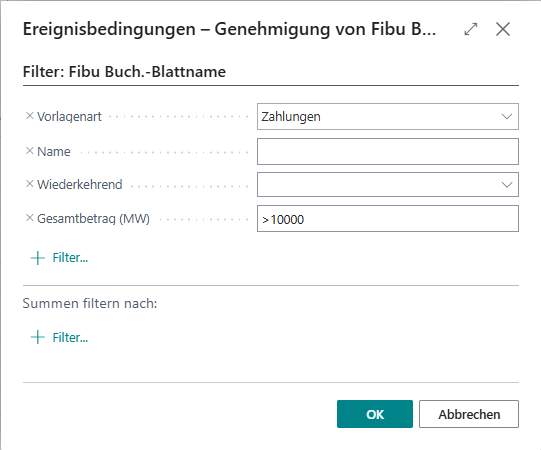
To set up an amount-specific approval based on the total amount of all payments in a journal, you can specify a filter on the `Total Amount (LCY)` field in the filter details to set the desired threshold for approval.
The following setup requires approval for all journals where the total amount of all payments exceeds €10,000.
##### Amount-Specific Approval - Line Amount
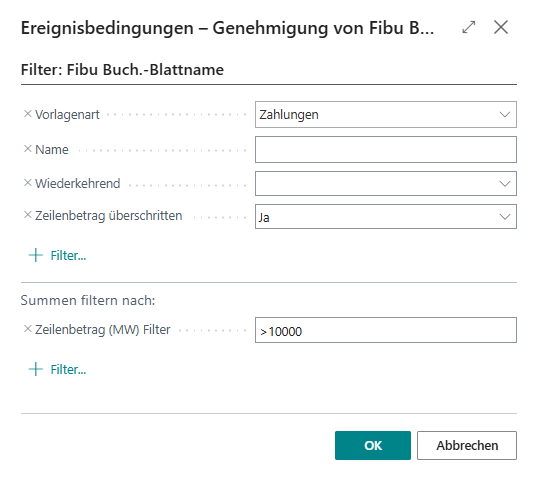
To set up an amount-specific approval based on the line amount of a payment in a journal, two filters are required:
- **Line Amount (LCY) Filter**: Specifies the threshold at which approval is required.
- **Line Amount Exceeded**: Indicates whether the threshold specified in **Line Amount (LCY) Filter** has been exceeded in a journal line.
The following setup requires approval as soon as a payment in a journal exceeds the line amount of €10,000.
### Four-Eyes Principle for Approvals
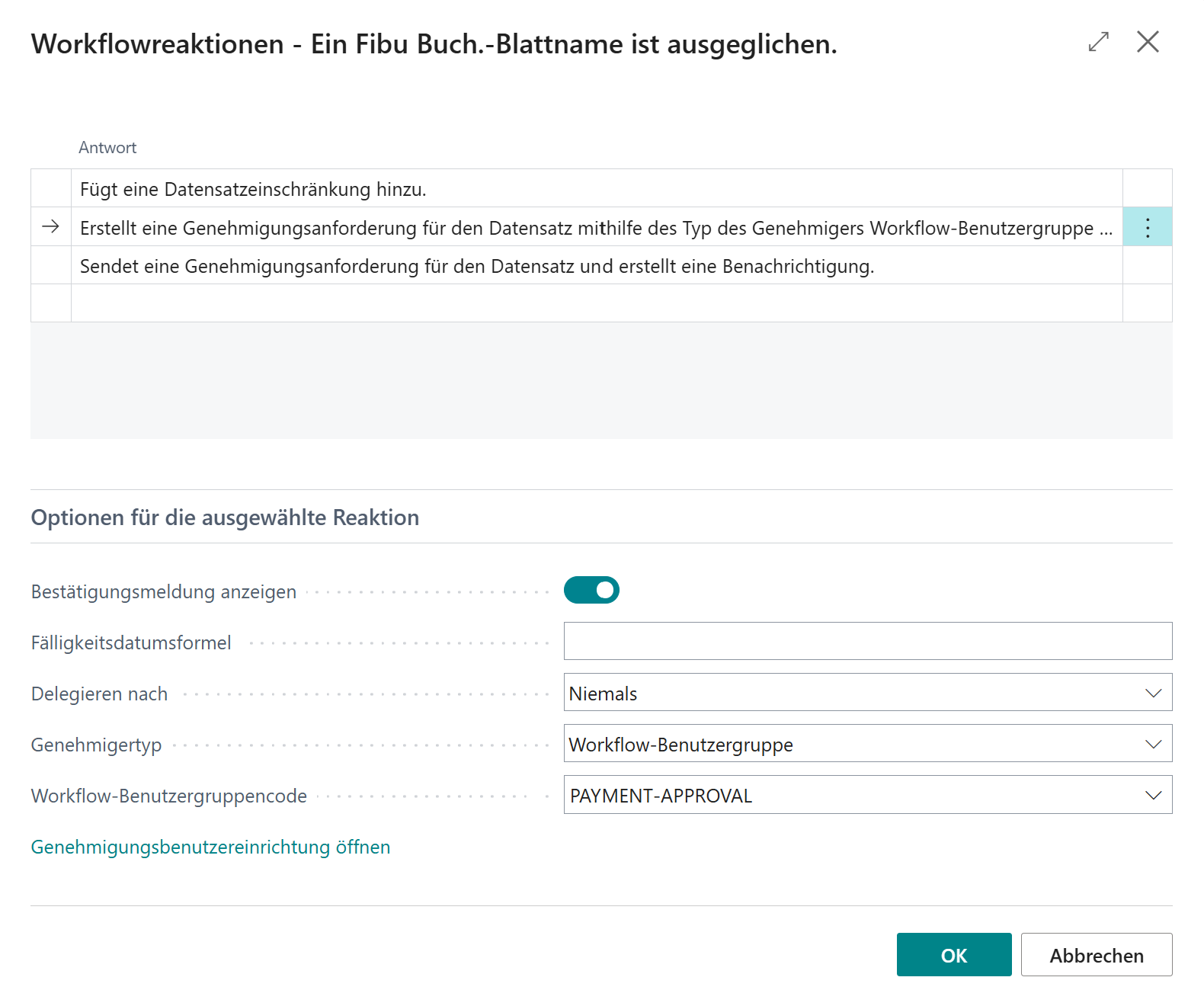
To set up a four-eyes principle for approvals, you can set the number of required approvers to 2 or more in the workflow. This ensures that every payment or posting must be reviewed and approved by at least two authorized persons before it can be executed. This significantly increases the security and control over your financial processes.
Using the four-eyes principle requires that **Workflow User Groups**, rather than individual users, are used for approval.
#### Step-by-Step Guide
Follow these steps to set up a new approval workflow with the four-eyes principle:
1. Navigate to **Workflow User Groups** in the search of Microsoft Dynamics 365 Business Central.
2. Create a new user group (e.g., "Payment Approvers").
3. Open the workflow user group and add the users who should act as approvers.
4. Navigate to **Workflows** in the search of Microsoft Dynamics 365 Business Central.
5. Select the **New Workflow from Template** action to create a new workflow.
6. Select a template for the approval of general journals (e.g., "General Journal Batch – Approval Workflow").

7. Select **Show Filter Details** for the workflow step **Approval of General Journal Batch is Requested**.
8. Define the conditions for the approval and select the **Template Type** Payments to set up a release for outgoing payments.

9. Set the number of required approvers to 2 or more to activate the four-eyes principle.
10. Select **(+) Add a record restriction** in the **Then Response** column in the workflow steps.
11. Select the **Approver Type** Workflow User Group and choose the previously created user group (e.g., "Payment Approvers").

12. Confirm the selection with **OK**.
13. Enable the **Enabled** toggle to activate the workflow.